A WordPress maintenance plan checklist: what to include in a care plan, and how to show each part was done
A WordPress maintenance plan checklist for agencies and freelancers: uptime, health, updates with a way back, off-site backups, vulnerability checks, broken links, mail and speed, accounts, and the monthly report that shows the client all of it.
A WordPress maintenance plan checklist is the list of things a care plan promises to do to a client’s site, and a useful one also says how the client will see that each was done. What to include in a WordPress care plan comes down to eleven items: uptime watched from outside, health read regularly, plugin updates with a way back, WordPress core updates behind a fresh backup, a daily backup off the server, vulnerability checks, file integrity and hardening, broken links, mail and speed, accounts with a record of changes, and a monthly report built from all of it. Each item below is one paragraph, with the post or guide that shows it running in ReDock Web. Use the list to write the plan, then to check the plan against what actually runs.
One screen to start the week
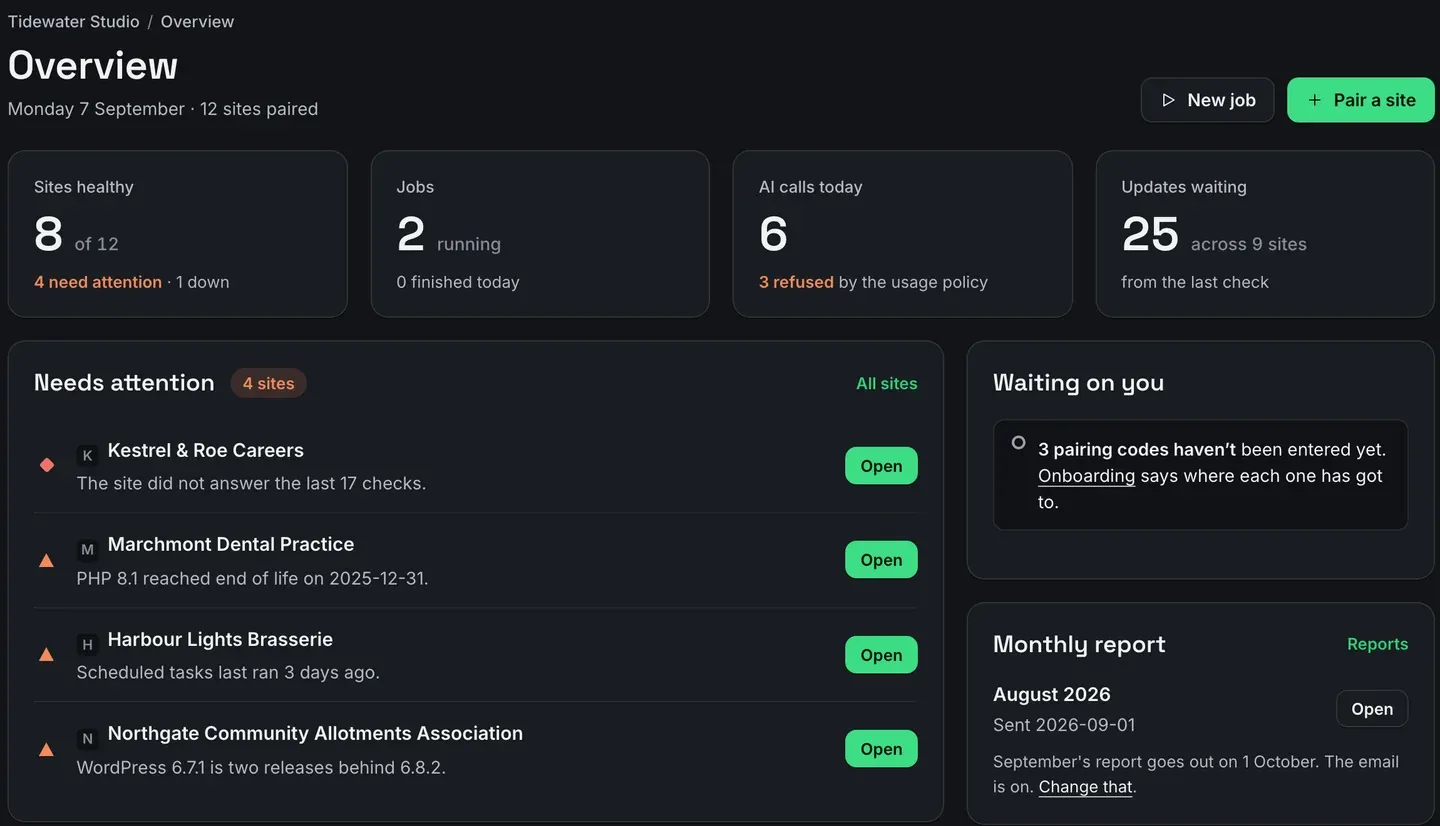
Every item on the list produces something you can read. The trick is reading it in one place on a Monday rather than in eleven. ReDock Web’s Overview is that place: how many sites are healthy, which ones need attention and why, the jobs running and the updates waiting. The picture at the top of this post is a workspace with four sites on that list, each with one sentence.
The WordPress maintenance plan checklist
1. Uptime, checked from outside
A plain visit to each site’s public address on a schedule, with no key and no plugin in the loop, so it catches a site that is broken for visitors while still answering a management plugin. Decide how often it runs, and make sure a merely slow site never wakes anybody. If the contract names a percentage, set it as a target so the month measures itself. See WordPress uptime monitoring and an uptime SLA for client websites.
2. Health, as reasons
PHP past its end of life, WordPress behind, scheduled tasks stalled, a certificate about to expire, mail that stopped sending. A health check that returns one sentence per problem gives you a list of work, which a score out of a hundred never does. See the WordPress site health check, with the details in PHP end of life, cron not running and SSL certificate expiry.
3. Plugin updates with a way back
Updating a plugin on a live site is the moment things break, so every plugin update should take a snapshot of that plugin first, with one press to put it back. A safe update goes further, looking at the site before and after and restoring it when a page that worked comes back broken. See safe plugin updates, bulk updates across sites, plugin rollback and what to do when an update fails.
4. WordPress core updates behind a fresh backup
WordPress itself cannot be swapped back in seconds the way a plugin can. A core update should not run on a site without a full backup from the last day, and it should never put a site back on its own. WordPress’s own updating guide puts backing up before anything else. See updating core across many sites.
5. A daily backup, off the server
A site is its files and its database, and a copy that lives on the same hosting account shares the site’s fate. WordPress’s backup guide suggests keeping several recent copies in different places, and daily backups for busy sites. Keep two weeks of daily copies in an account the agency owns. See WordPress backup to Google Drive for agencies.
6. Vulnerability checks
A comparison of every plugin and theme version with the published vulnerability records, naming the version that fixes each one. It answers whether anything installed has a known hole, which is a different question from whether the site has already been got at. See a WordPress vulnerability scanner for multiple sites.
7. File integrity and hardening
Core files and wordpress.org plugins compared every day with the checksums WordPress.org published, the protections that close the doors brute-force traffic knocks on, and two-factor sign-in enforced for administrators. See the core file integrity check and two-factor across multiple sites.
8. Broken links
A walk of each site about once a week, the way a visitor would make it, listing each broken link with the page it sits on and keeping the links that could not be checked separate. See a broken link checker for multiple WordPress sites.
9. Mail and speed
The SPF, DKIM and DMARC records that decide whether a site’s mail is believed, and a weekly phone speed score with the Core Web Vitals behind it. Both are read from outside, so they work even while a site is down. See SPF, DKIM and DMARC for WordPress, page speed monitoring, and, when mail is not arriving at all, WordPress email not sending.
10. Accounts, and a record of every change
Who can sign in to each site, with the previous agency’s login removed, and a record of every change made through the agency’s tools by a person, a job or an AI app, refusals included. See managing WordPress users across sites and the WordPress activity log. If AI apps work on client sites, the plan should say which rules they work under, and connecting Claude to WordPress covers those.
11. The monthly report
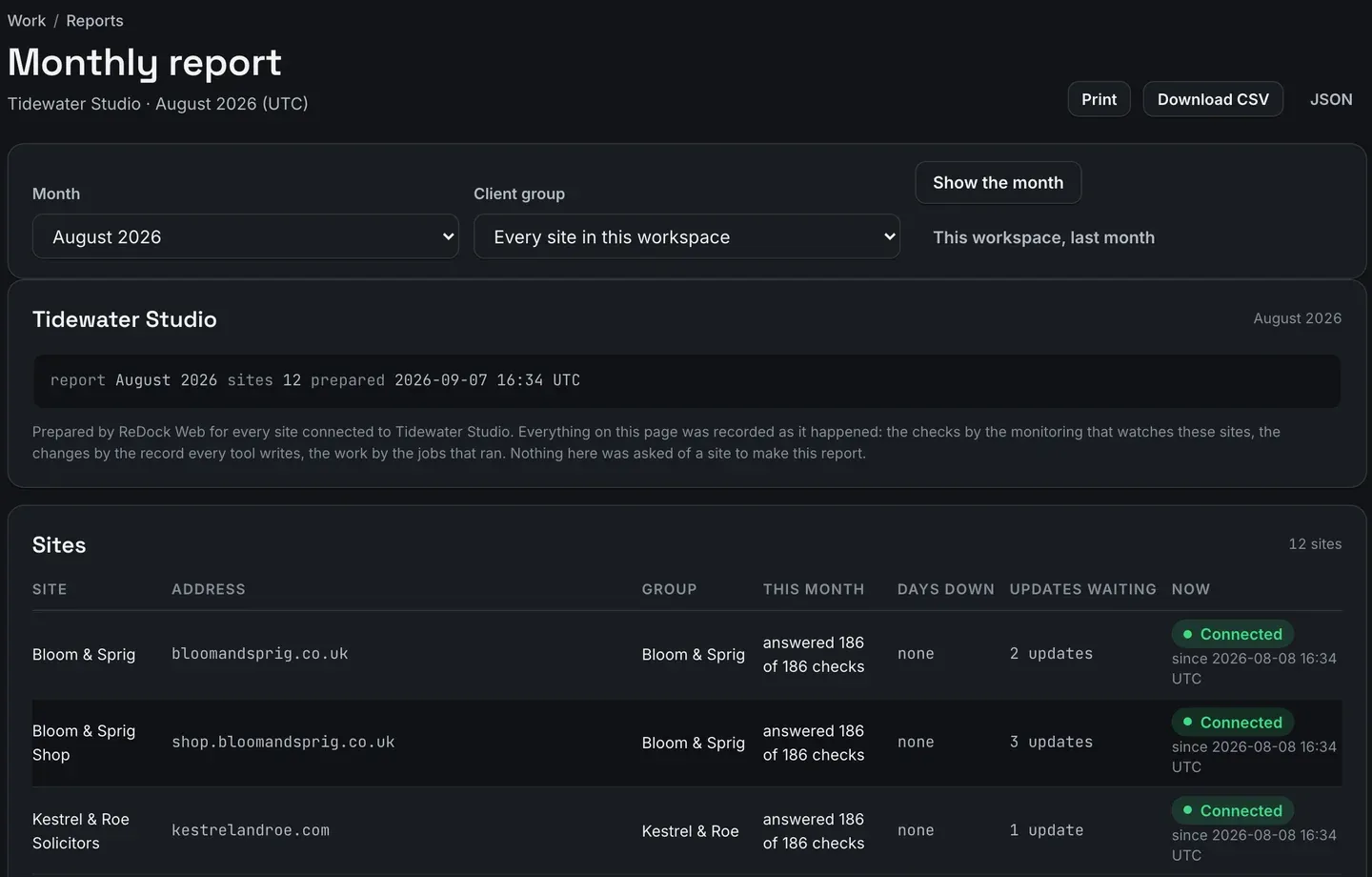
The one part of the plan the client actually sees. It should be built from records made as the work happened rather than from a question asked of each site at the end of the month, and it should say that what needs attention today is today’s state. See the WordPress maintenance report.
The task: set up one new care-plan client in a sitting
The checklist doubles as the order of work for a client who has just signed.
- Connect the sites. Paste the client’s list, hand out a code per site, and file the batch under the client’s group as it connects. Onboarding sites in bulk shows how.
- Set the uptime target on that client group, if the contract names one.
- Connect a Google Drive for the workspace, if one is not connected already, so each new site’s first daily copy lands on its own.
- Read each site’s Health and Security tabs after the first checks, and note what the client is starting from.
- Remove the accounts nobody can explain, starting with the previous agency’s.
- Queue the first updates as a safe update against the client group once the first backups have landed.
- Read Broken links and Mail and speed within the week, as the first walks and looks arrive.
- Switch on the client’s monthly report, so the first one covers a month you were watching.
Whatever step four finds is the baseline. The next eleven months of reports are read against it, so it is worth writing down while it is fresh.
FAQ
What should a WordPress care plan include?
At minimum: uptime watched from outside, updates with a way back, a daily backup kept off the server, vulnerability checks, and a monthly report built from records. The checklist above adds health reasons, file integrity and hardening, broken links, mail and speed, and accounts with a record of every change.
How often should a WordPress site be backed up?
WordPress’s own backup guide suggests weekly for smaller sites with fewer posts and daily for busy ones. A daily copy covers both.
Should a care plan promise an uptime percentage?
Only a number you can measure and defend. Set it as a target on the client’s group, and let the report show the counts behind the percentage each month.
Can the client sign in to see all of this?
Not today. The client receives the monthly report as a document from you, in your name, with no account needed.
Run the checklist on one site
A free account connects one live WordPress site, with every item on this list running on it. Connect a site, work down the checklist, and see which items your current plan has been quietly skipping.
Create a free account and put the checklist to work.