Claude Code and WordPress: work on a client's live site from the terminal, approved for that one site
Add ReDock Web's MCP address to Claude Code with one command, approve it for a single client site at the level you choose, and every change it makes is recorded under its own name.
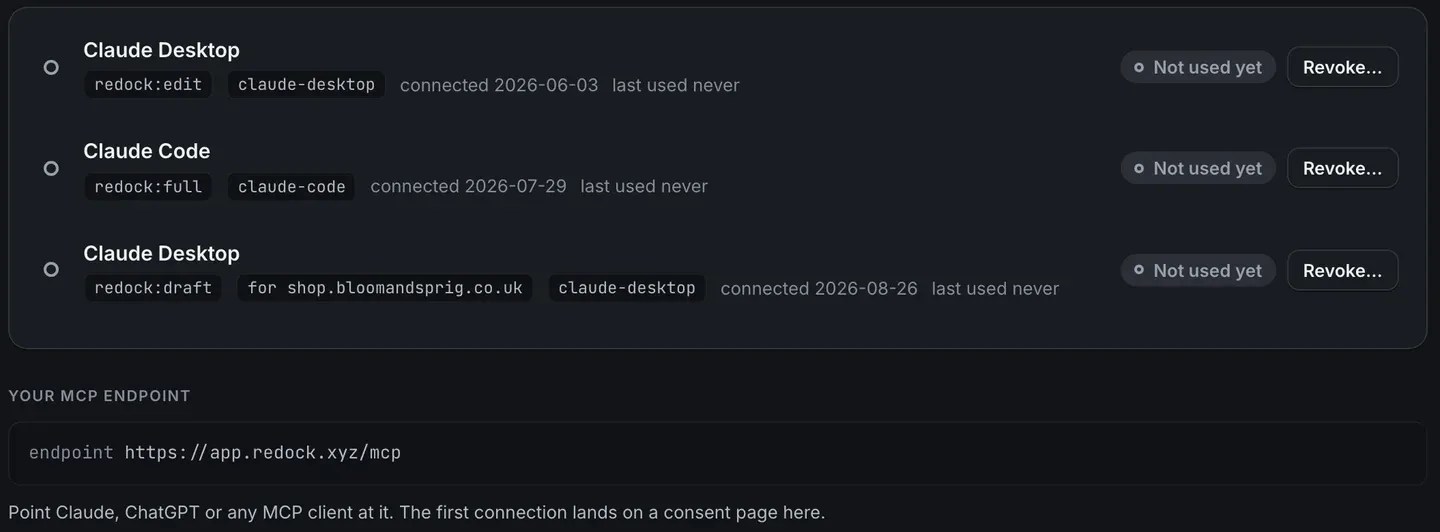
Claude Code and WordPress meet through MCP. Add a WordPress site’s MCP address to Claude Code, and the agent in your terminal can read that site and work on it while you stay in the project. With ReDock Web, that address is a door in front of your clients’ live sites rather than a password in a config file. One command adds it. The first connection opens a consent page in your browser, where you approve Claude Code for the whole workspace or for a single client site, at a level you choose. From then on, every change Claude Code makes is recorded with its name, and anything your usage policy forbids is refused before it reaches the site. This post connects Claude Code to one client’s site, asks it for a small task, and reads the record.
Why a terminal agent wants a door rather than a password
Claude Code is often where the custom plugin, the theme or the deploy script for a client gets written. The live WordPress site that code serves is a browser tab away, and the agent cannot see it. The quick fix is an application password in an environment variable. That hands the agent everything the WordPress user can do on the live site, with nothing in between and nothing written down.
A door changes the shape of that. It decides which sites Claude Code can reach and at what level, checks each call against rules you set, and records what happened. The same door serves Claude Desktop, Cursor and any MCP client, so none of this is tied to one app.
The task: Claude Code, one client site, one change
1. Pick the address
ReDock Web’s door for the whole workspace is https://app.redock.xyz/mcp. Each site also has an address of its own, on that site’s AI tab, shaped like https://app.redock.xyz/mcp/s/<fingerprint>. A connection made through a site’s own address reaches that site and nothing else in the workspace.
For a repository that belongs to one client, use that client site’s address.
2. Add it to Claude Code
Claude Code’s MCP documentation recommends HTTP for remote servers and gives the command:
claude mcp add --transport http client-shop https://app.redock.xyz/mcp/s/<fingerprint>On its own that writes the server to local scope. With --scope project added, the entry goes into .mcp.json at the project root, which you can commit so the rest of the team gets the same address. There is no secret in it: the address leads to a consent page, and nothing reaches a site before somebody approves.
3. Sign in, and approve it for that one site
In Claude Code, run /mcp and follow the steps in your browser, as Claude Code’s documentation describes. The browser lands on ReDock Web’s consent page. For a site’s own address, the page names the one site it reaches.
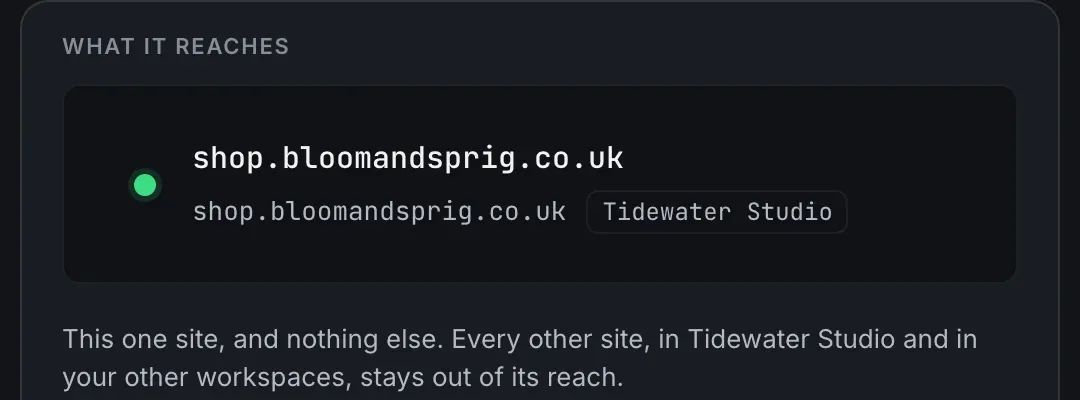
Above that, the page names the app the way it registered itself, and warns that ReDock has not verified who is behind the name. Approve only a connection you started yourself, a moment ago.
Then pick the level. View is read-only. Draft adds creating draft posts and pages, with publishing refused. Edit covers content, plugins, users and options. Full equals Edit today. For a first session on a live client site, Draft lets Claude Code prepare work without anything going live.
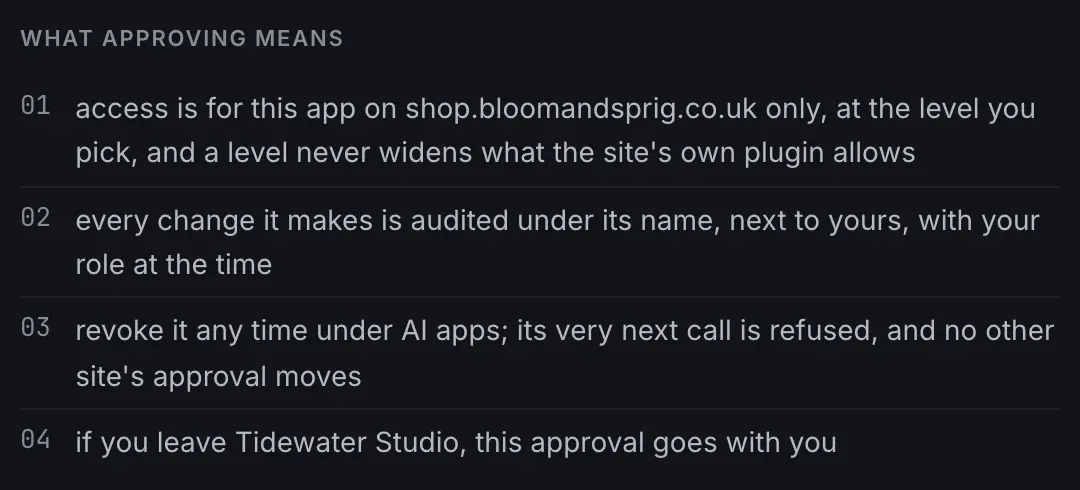
Under the levels, What approving means spells out the terms.
Approve. Claude Code appears under Connected apps with its level, its client id, when it connected and a Revoke button, as in the picture at the top of this post.
4. Ask for something small
Back in the terminal, give Claude Code a task that reads before it writes. For example: list the plugins on the client’s site that have updates waiting, then draft a short post for their news page saying what will change.
At Draft, it can read the site and create the draft. If it tries to publish, the call is refused and it is told to ask a person. Anything the workspace’s usage policy has switched off is refused too, whatever level you approved, and the app is told which switches are off when it connects rather than when a call fails.
5. Read the record
Open Activity. Changes made through the door sit in the same table as the changes made by people and by jobs.

Each row names the time, the site, the tool, who made the call, the level it ran at and how it ended. Reads are not recorded, changes are, and an app that is later revoked keeps its name on the rows it made.
The calls that were refused sit at the top of the same page, under Refused in the last 14 days, each with a code and a count. POLICY_DENIED is one of the walls, such as a usage policy switch, saying no. TIER_GATED means the approved level or the person’s role does not carry what was asked. A refused call never reached the site, so it changed nothing, and a refusal shows you exactly where Claude Code tried to go.
6. Revoke when the work is done
Revoke on Connected apps refuses the app’s very next call. On Claude Code’s side, Clear authentication in the /mcp menu removes its stored sign-in.
A script rather than a session
For CI jobs and scripts with no browser, a scoped API token goes through the same door under the same rules. API tokens for agency scripts covers making one for a single site. The door, the levels and the switches are all in the AI access guide.
FAQ
Does Claude Code need a WordPress application password?
No. It signs in through ReDock Web’s consent page in your browser, and each site keeps its own key with ReDock. Nothing WordPress-specific goes into Claude Code’s configuration.
Can the whole team use the same connection?
With --scope project, the server entry goes into .mcp.json in the repository, so everybody gets the same address. Each person still signs in and approves it on their own, because an approval belongs to the person who made it.
What does the full level allow?
Everything Edit allows. On the web there is nothing further to unlock, so Full equals Edit today; it exists so an approval keeps its meaning if what ReDock Web serves grows.
What happens to Claude Code’s records if I revoke it?
The rows it made stay on Activity under its name, and its next call is refused.
Connect Claude Code to one site
A free account connects one live WordPress site, with the MCP door and the consent page on it. Add the site’s own address to Claude Code, approve it at Draft, and ask what the site has waiting.
Create a free account and give your terminal a door instead of a password.