Connect ChatGPT to WordPress through an MCP door that keeps the rules on your side
ChatGPT's developer mode can add a remote MCP server by its address, and ReDock Web's door puts a consent page, seven policy switches and an activity log between ChatGPT and your clients' WordPress sites.
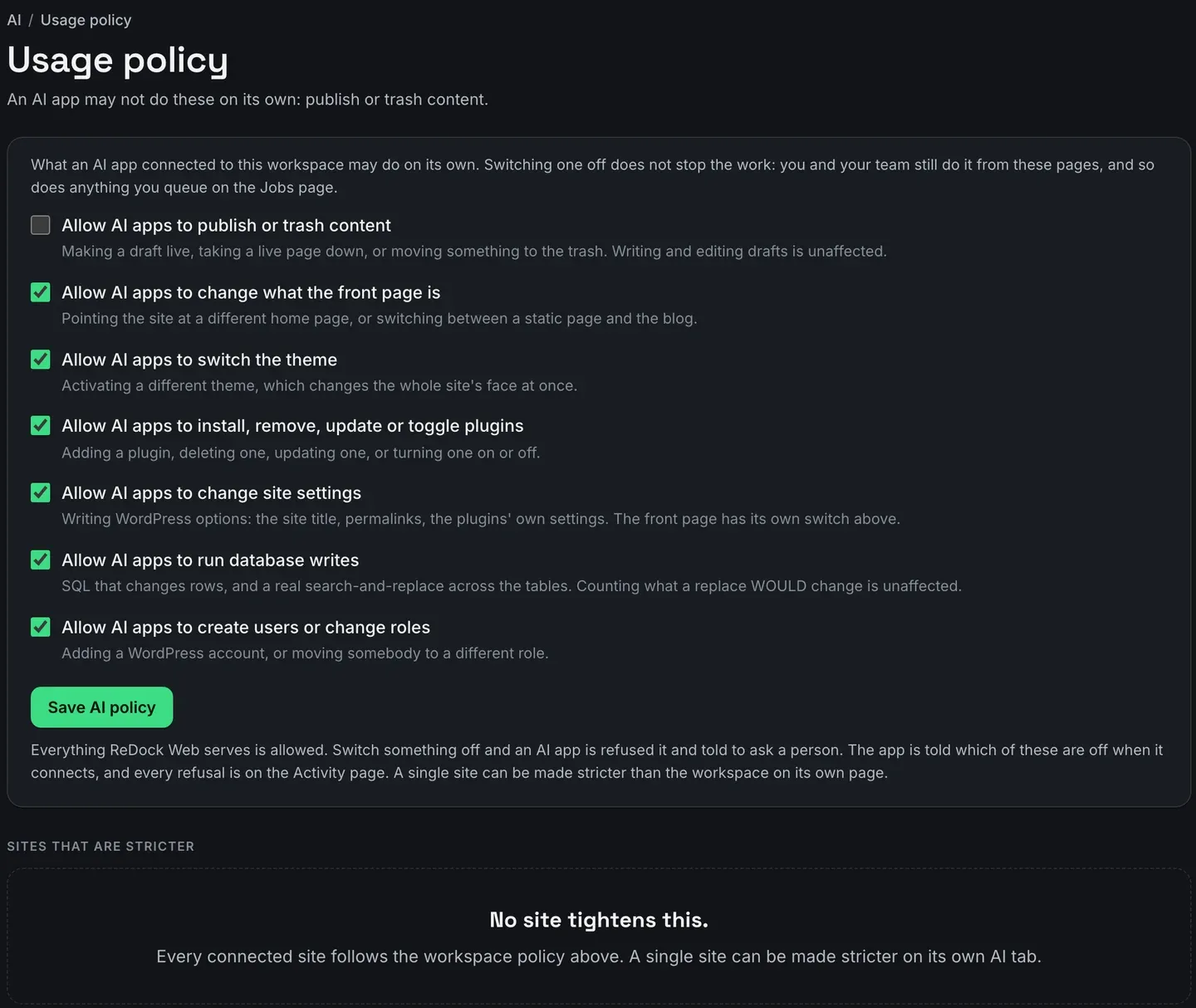
To connect ChatGPT to WordPress sites you run, add ReDock Web’s MCP address to ChatGPT as a remote server, approve it on a consent page, and decide before the first chat what it may never do on its own. OpenAI’s developer documentation, read on 2026-09-11, describes the ChatGPT side: switch on developer mode, then add an MCP server by its URL. ReDock Web’s side is one door, https://app.redock.xyz/mcp, and its Connected apps page tells you to point Claude, ChatGPT or any MCP client at it. Behind the door sit a consent page naming what the app reaches, seven usage policy switches checked on every call, and an activity log that records every change and every refusal. This post walks through both sides and reads the log afterwards.
One honest note before the steps. None of the pictures here show ChatGPT connected. The captures of the consent page and the apps list were taken with Claude apps. ChatGPT goes through the same pages, and its rows carry the name it registers with.
What changes when ChatGPT reaches WordPress through a door
The usual shortcut for letting an AI assistant change a WordPress site is an application password. It acts as that WordPress user, on that site, with nothing between the conversation and the database.
A door moves the rules out of the conversation. It decides which sites ChatGPT can see and at what level, and it checks each call against switches the model cannot talk its way past. OpenAI adds a safeguard of its own: according to OpenAI’s guide to MCP servers, ChatGPT currently requires manual confirmation in a conversation before it takes a write action. So a change has to get past you in ChatGPT, and past the policy in ReDock Web.
The task: ChatGPT, a client workspace, and the rules
1. Set the rules first
Before any app connects, open Usage policy. Seven switches decide what any AI app may do on its own, whatever level it is approved at: publish or trash content, change what the front page is, switch the theme, install, remove, update or toggle plugins, change site settings, run database writes, and create users or change roles. The picture at the top of this post has publishing switched off.
Switching one off does not stop your team. People still do all seven from ReDock Web’s own pages, and so does anything queued on the Jobs page. It only refuses AI apps, and tells them to ask a person.
2. Switch on developer mode in ChatGPT
OpenAI’s steps for connecting an MCP server start in ChatGPT’s settings: open Settings, select Security and login, and turn on Developer mode. OpenAI notes that developer mode availability can depend on the account and on workspace policy, so if the switch is not there, ask whoever runs your ChatGPT workspace.
3. Add ReDock Web as an MCP server
Following the same steps, go to ChatGPT Plugins, select the plus button, and give the connection a name and a description. For a public endpoint, OpenAI says to enter the MCP server URL including the /mcp path.
For the whole workspace, that is the address printed on ReDock Web’s Connected apps page:

For a single client site, use that site’s own address from its AI tab instead. The rest of the workspace does not exist for a connection made through it.
4. Approve it on the consent page
The first connection sends you to ReDock Web’s consent page. It names the app the way the app registered itself, and says so when ReDock has not verified who is behind that name.
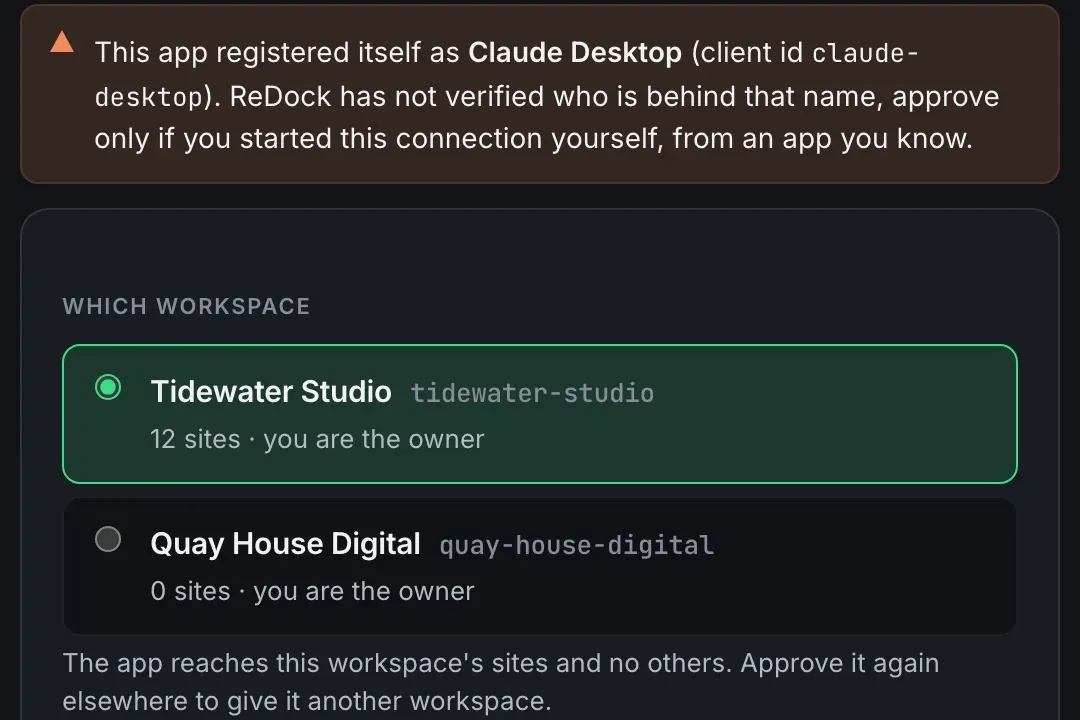
This capture shows a Claude app, and a ChatGPT connection is named by whatever it registered. Approve only a connection you started yourself, a moment ago. Then pick the workspace, and the app reaches that workspace’s sites and no others.
5. Pick the level
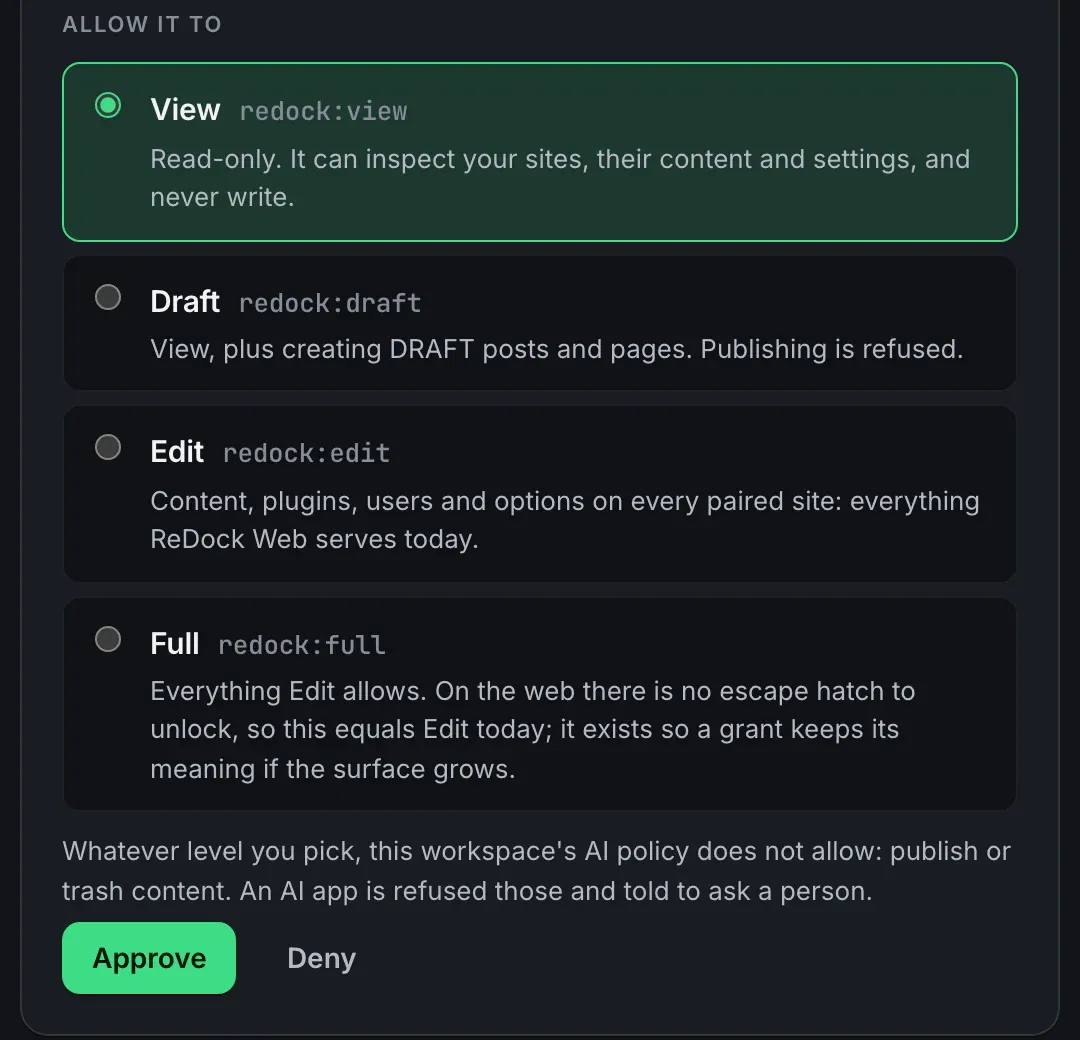
The line under the levels is the policy from the first step, repeated at the moment it matters. Start at View or Draft for a first session, and widen the level later if a task needs it. Revoking takes effect on the app’s very next call, so narrowing again costs nothing.
6. Ask, and confirm
In a ChatGPT conversation that can use the connection, ask for something that reads first, such as which of the client’s plugins have updates waiting. When ChatGPT wants to write, it asks you to confirm. When the write is one of the switches you turned off, ReDock Web refuses it at the door and ChatGPT is told to ask a person.
7. Read the log
Open Activity.
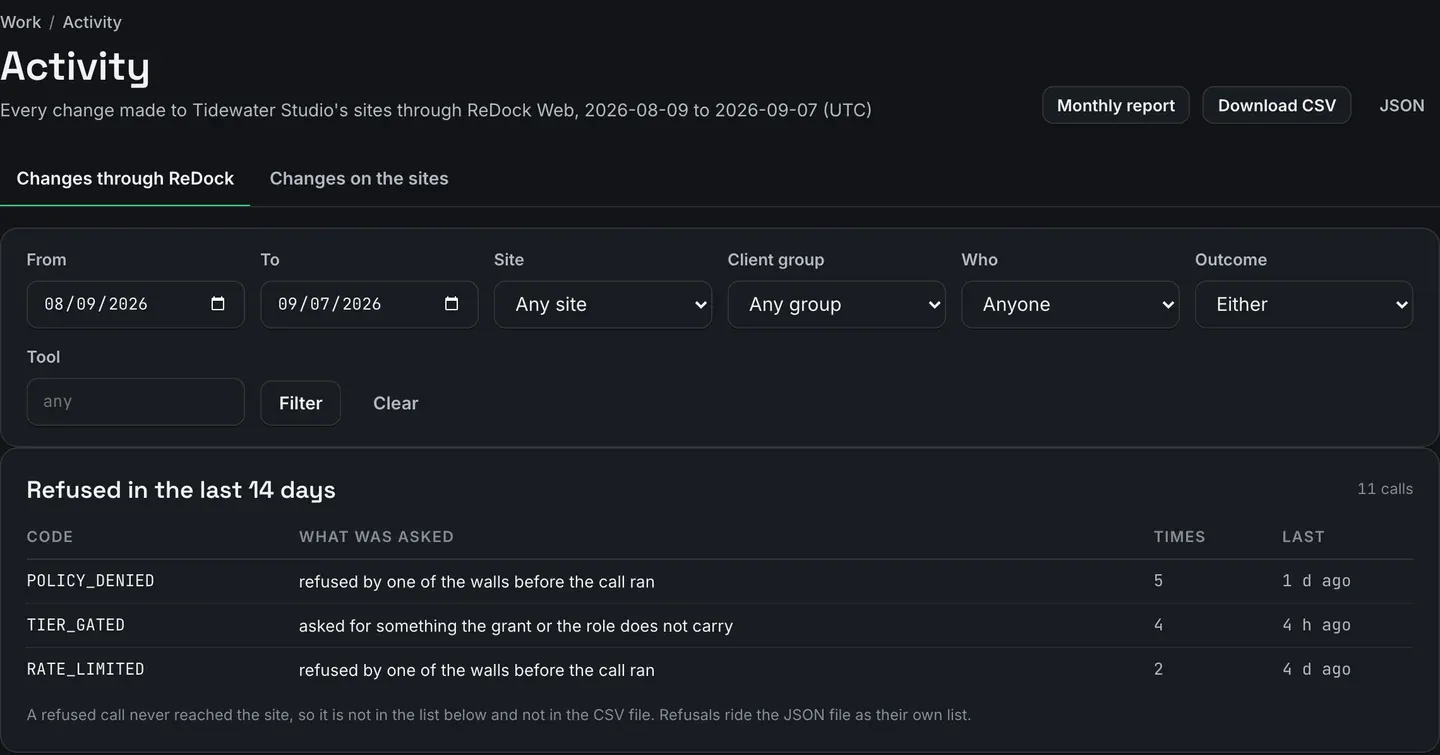
Refusals sit at the top, with their code and how many times each happened. Below them, every change an app made is a row naming the app, the site, the tool, the level and the outcome, in the same table as your colleagues’ changes. Filter by site, person, outcome or tool to narrow it. A refused call never reached the site, so it changed nothing, and it is still worth seeing.
The door, the levels and the switches are described in the AI access guide, and connecting Claude to WordPress reads the same refusals from Claude’s side.
FAQ
Does ChatGPT get a WordPress password?
No. It signs in through ReDock Web’s consent page, and each site keeps its own key with ReDock.
Can I give ChatGPT one client’s site and nothing else?
Yes. Add the site’s own address from its AI tab instead of the workspace address, and approve it there. Every other site stays out of its reach.
What happens when ChatGPT asks for something a switch forbids?
The call is refused at the door before it reaches the site, ChatGPT is told to ask a person, and the refusal is recorded on Activity with its code.
How do I disconnect ChatGPT?
Press Revoke beside it on Connected apps. Its very next call is refused, and the rows it made stay on Activity under its name.
Connect ChatGPT to one site
A free account connects one live WordPress site, with the MCP door, the consent page and the usage policy on it. Switch publishing off, add the site’s address in ChatGPT’s developer mode, and ask it what needs updating.
Create a free account and keep the rules on your side of the door.