Bulk update WordPress plugins on multiple sites and read the failures properly
Bulk update WordPress plugins across multiple sites as one job, with a snapshot before each update, a per-site reason on every failure, and a retry that only runs the failures.
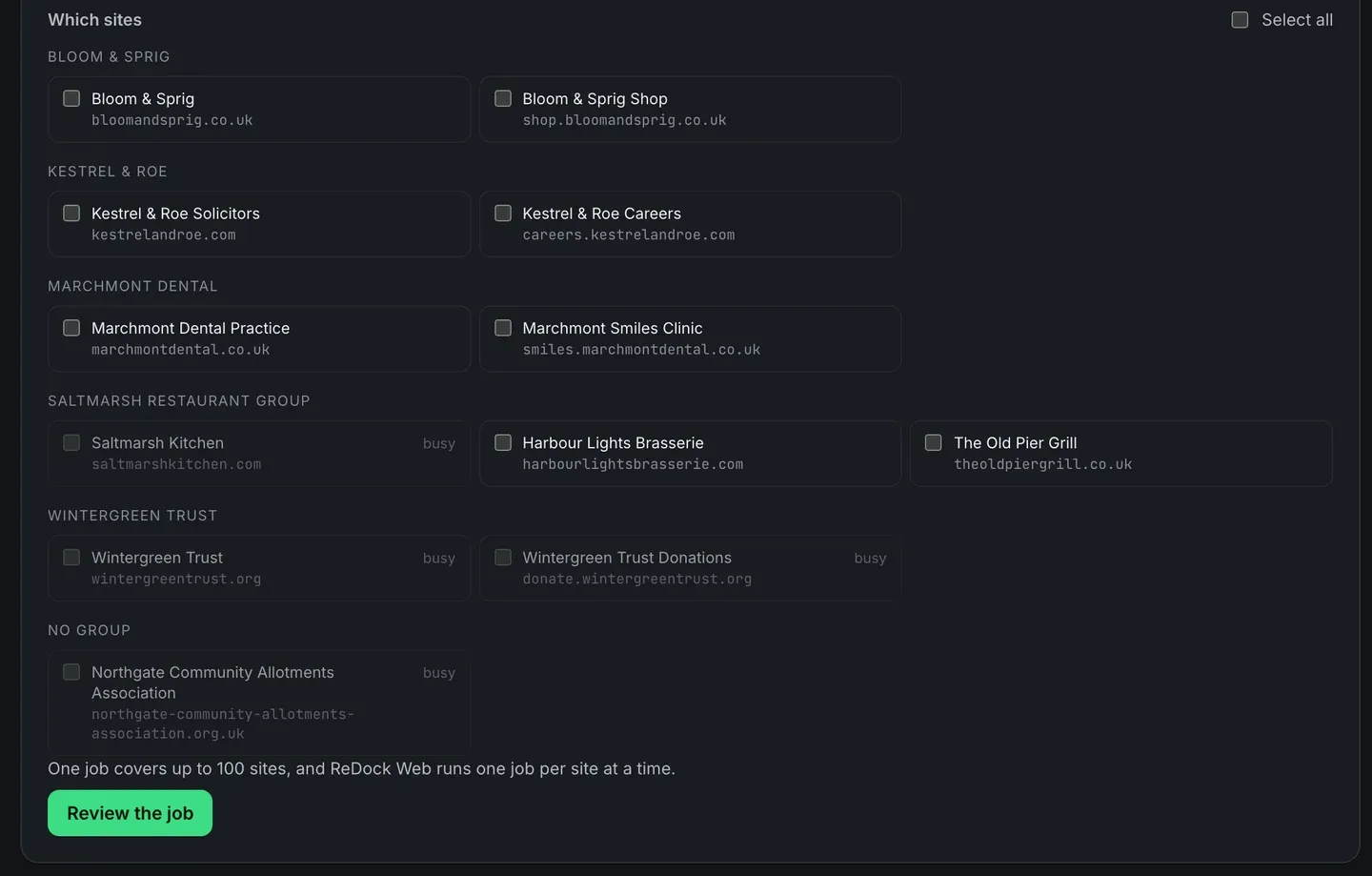
To bulk update WordPress plugins on multiple sites you queue one job, name the sites or the client, and then read what came back site by site. The queueing is the easy half. The half that decides whether the tool is worth having is what happens when three of the forty sites do not finish: whether you get a red badge and a shrug, or the site’s own sentence explaining why, and a retry that runs only those three. This post runs one job across a client group, gets one failure, and retries the failures alone.
A bulk update of WordPress plugins across multiple sites is not a loop
The naive version of this feature is a loop that calls each site in turn. It works right up until reality shows up, and then it goes wrong in four specific ways.
The list is stale. You queued the job at nine, it reaches site thirty-one at nine forty, and in between the site updated a plugin itself. A job that acts on the list it was queued with installs a version nobody chose. ReDock Web asks each site what has an update waiting at the moment its step runs, not when you pressed the button.
There is no way back. A plugin update that breaks a live site is the single most likely bad outcome of the whole operation, and WordPress keeps no copy of the version it replaced. So every plugin update here is two steps per site: take a snapshot of that plugin on the site, then update it. No snapshot, no update. If the snapshot fails, that site is skipped and its row says so.
A broken site gets pushed anyway. A site that has been failing its health checks since Tuesday is the last one that needs an update pushed at it. Sites in that state are not called; the reason sits on the row.
Nothing tells you why. This is the one that costs the most time, and it is the rest of this post.
The task: one client, one plugin, one failure
1. Pick the sites by client
Open Jobs. The New job card is at the top of the page, and the site picker is grouped by client group, so a whole customer is one press rather than seven ticks.
The line under the picker is the honest limit: one job covers up to 100 sites, and one job runs per site at a time. Sites already busy with another job are marked busy and cannot be double-booked.
2. Choose the work
Sixteen kinds of job live in the What to do dropdown: update every plugin, update one plugin, install a plugin, switch a plugin on, switch a plugin off, switch the theme, run a scheduled job, refresh the caches, put a snapshot back, a safe update, publish posts, unpublish posts, trash posts, count what a database cleanup would delete, run that cleanup, and update WordPress itself.
For a security release you want Update one plugin with the slug, which touches that plugin and nothing else. For the monthly pass you want Update every plugin.
There is one checkbox worth understanding before you tick it: update without a snapshot where the site cannot make one. Leave it off, and a site whose ReDock Connect is too old to snapshot is skipped rather than updated. Turn it on, and those sites get updated with no way back except the site’s own Plugins screen or a backup you took. Off is the default for a reason.
3. Review, then run
The confirm page says in one sentence what changes for every visitor of every site named. Then it runs, and the page refreshes itself every few seconds, pauses while the tab is hidden, and gives up after thirty minutes rather than polling an empty room.
Cancel stops what has not started. The sites already done stay done, because half-running a job across a client estate would be worse than either finishing or stopping.
4. Read what came back
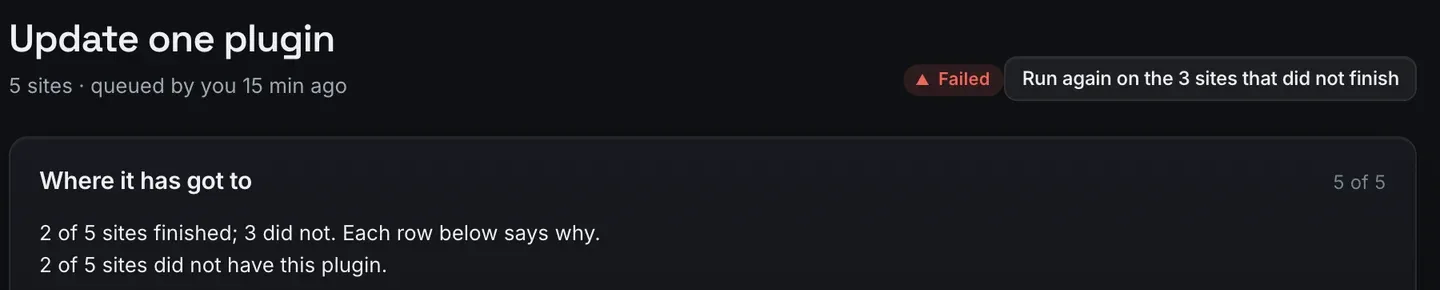
Two of five finished, three did not, and the summary already tells you that two of the three simply did not have the plugin. That is not a failure you need to investigate, and knowing it before you open a single row saves the investigation.
The per-site table is where the actual answers are.
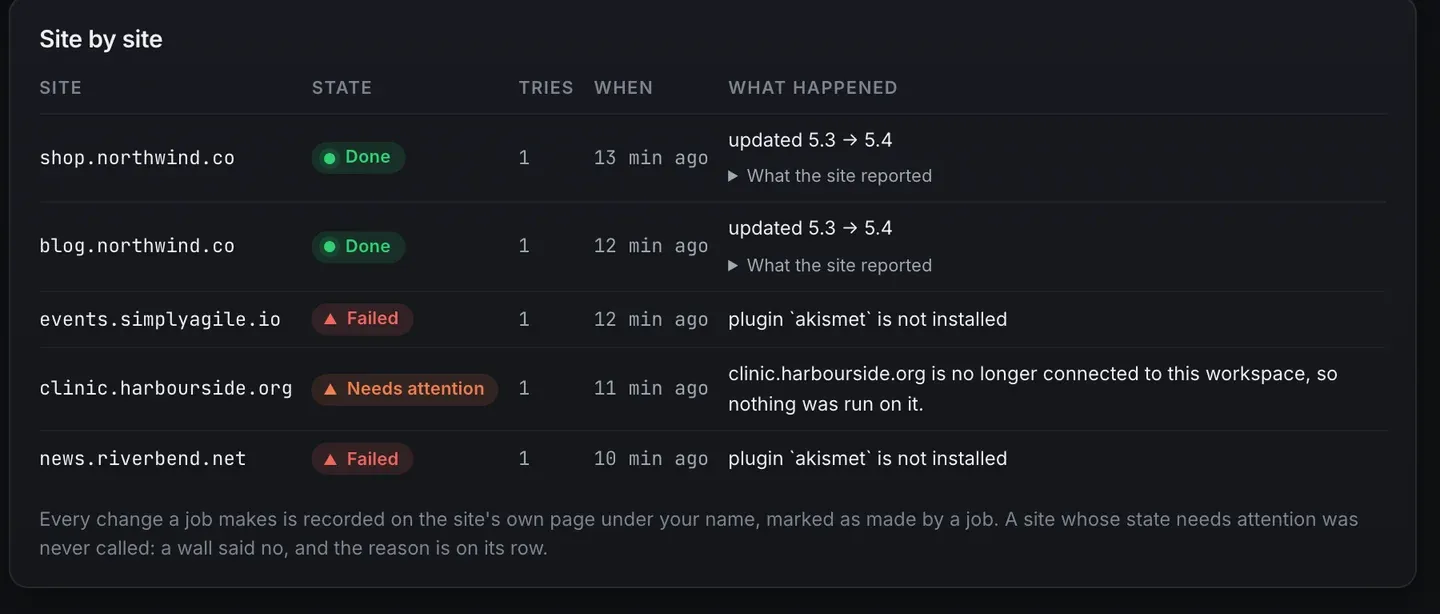
Every row carries the site, the state, how many tries, when, and what happened in the site’s own words.
updated 5.3 to 5.4on the two that worked.plugin `akismet` is not installedon the two that never had it, which is a fact rather than a fault.clinic.harbourside.org is no longer connected to this workspace, so nothing was run on iton the one that needs attention. That is a different problem entirely, and it is the one to go and deal with.
Three red rows, three different causes, and none of them needed a log file.
5. Retry the failures only
The button at the top says what it will do: run again on the three sites that did not finish. It queues a new job for those sites alone. Forty sites with three failures does not mean running forty again, and the two rows that were never going to work because the plugin is not installed will fail again, quickly and harmlessly, or you deselect them.
Every job you have run stays in the queue list underneath, with its state, how many sites, who queued it and its own reference.
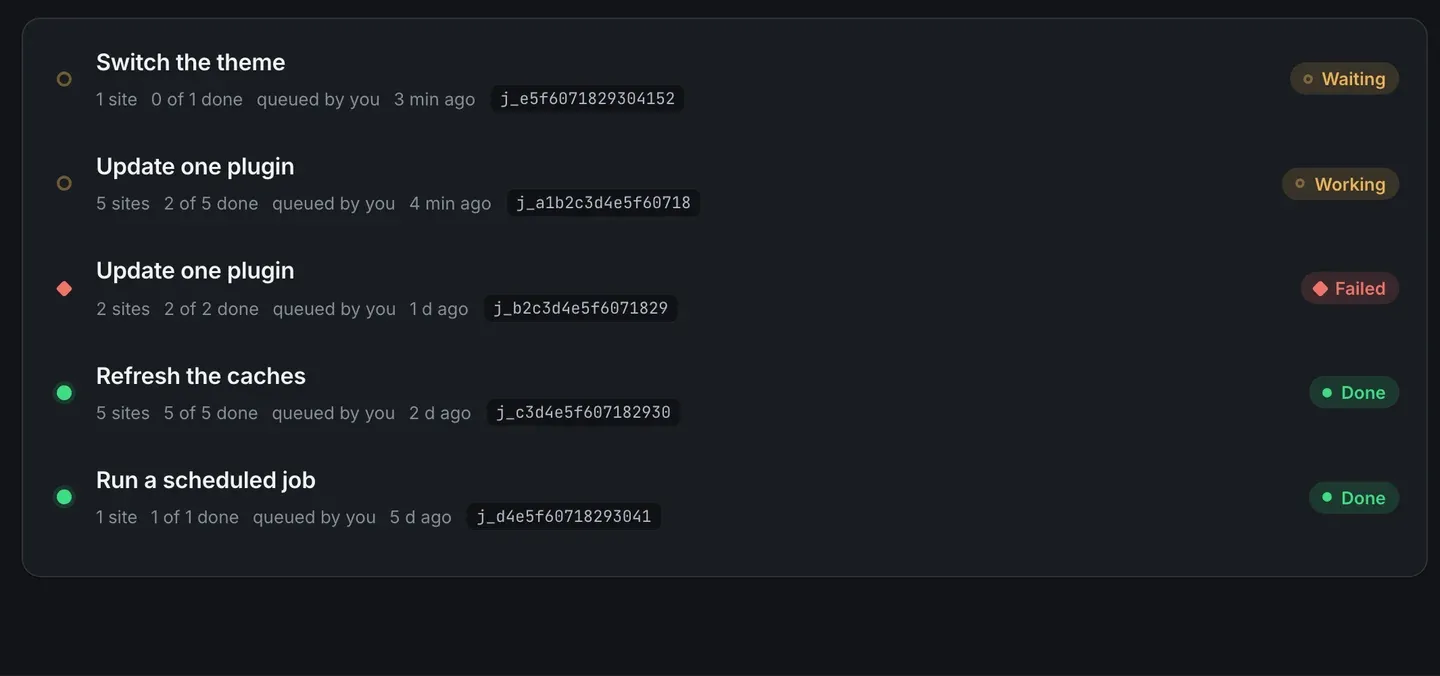
Every change a job makes also lands on the site’s own page under your name, marked as made by a job, so a month later the record says a job did it and which one.
The queue has its own page under jobs and bulk actions, and the snapshot behind every update is on plugin rollback.
FAQ
How many sites can one job cover?
Up to 100, and ReDock Web runs one job per site at a time so a site cannot be double-booked by two jobs at once. Point a job at a client group and the whole customer is one press.
What happens if a site is mid-way when I cancel?
Cancel stops what has not started. Anything already done stays done, and its row says so. Nothing is left half-applied.
Can I roll back a bulk update?
Per plugin, per site, yes. The snapshot taken before each update sits on that plugin’s row with the version it holds, and one press queues the restore through the same queue. It holds the plugin, not your database, so keep a real backup as well.
Will a job update a site that is down?
No. A site whose state needs attention is never called, and the reason is on its row. Pushing an update at a site that stopped answering yesterday is how one problem becomes two.
Run one across your own sites
A free account connects one live WordPress site, and jobs are on it. That is enough to see the shape of the result: the per-site sentence, the snapshot step before the update, the retry. When it makes sense across a client, the site count is the only thing that changes.
Create a free account and queue your first job.