Connect Claude to your live WordPress sites, with rules it cannot talk its way past
Connect Claude to WordPress through one MCP door: a consent screen that names what it reaches, seven policy switches enforced at the door, and every refusal in the log.
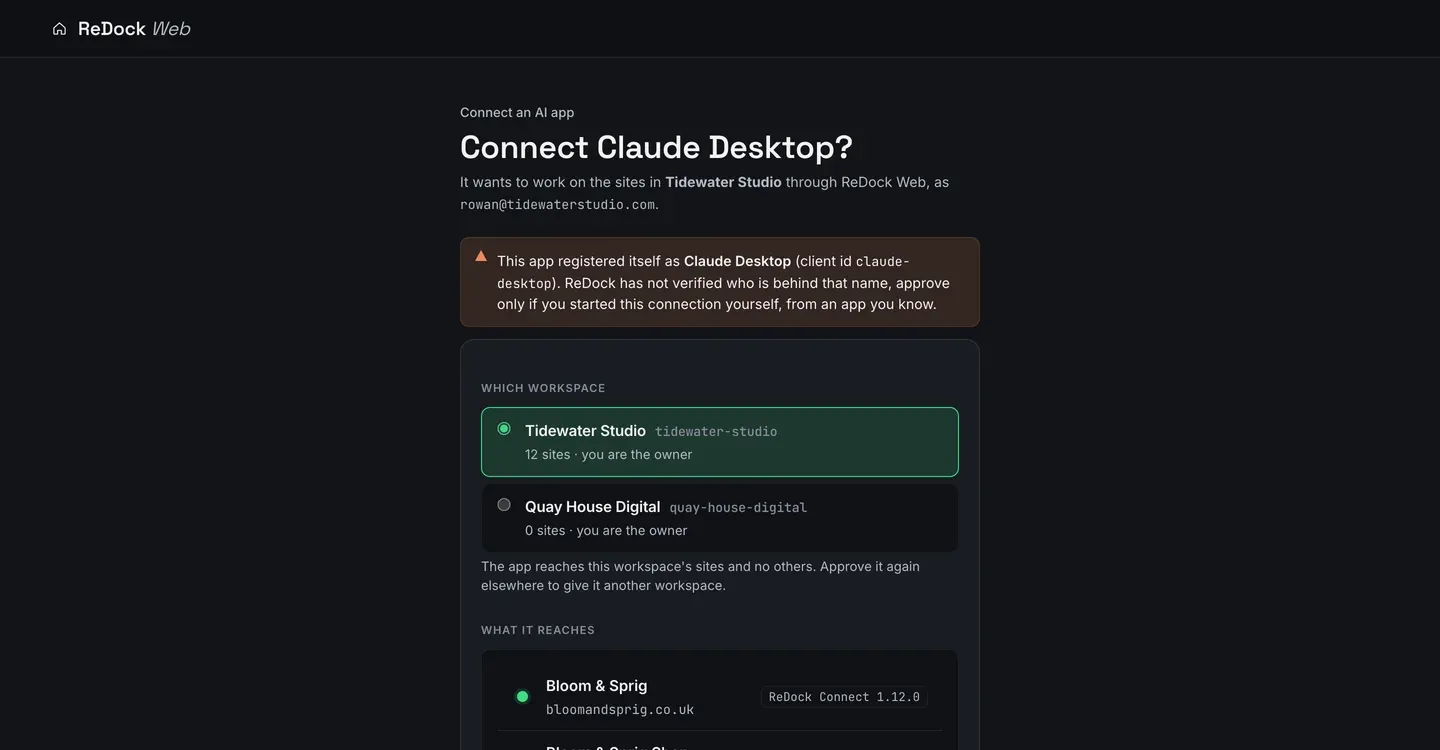
To connect Claude to WordPress sites you run, you point it at one MCP address, approve it on a consent screen that names the workspace and lists every site it would reach, and pick the level it may work at. The rules live on your side of that door, not in the prompt: seven policy switches per workspace decide what an AI app may do on its own, and a switch that is off means the call is refused before it reaches the site. This post connects Claude Desktop, narrows it to one client, switches two things off, and reads the refusal in the log.
Why the rules cannot live in the prompt
The usual way people give an AI access to a WordPress site is an application password and a request in the system prompt to be careful. That is not a boundary. It is a suggestion, and it is enforced by the same thing you are trying to constrain.
A boundary has to be somewhere the model cannot reach. In ReDock Web it is at the door: the Model Context Protocol server that AI apps connect through, which checks each call against your policy before anything is forwarded to a site. If publishing is switched off, a call to publish is refused there, and the app is told to ask a person. Nothing arrives at the site to be undone.
The same door serves Claude, Claude Code, Cursor or any MCP client, so this is not a Claude-specific arrangement. Claude Desktop is just the one most people try first.
Connect Claude to WordPress in five steps
1. Point the app at the door
The address is https://app.redock.xyz/mcp, and it is printed on the Connected apps page so you can copy it rather than type it. Add it as a remote MCP server in Claude Desktop’s settings.
2. Read the consent screen properly
The first connection lands on a consent page inside ReDock Web. It is worth actually reading, because it is the one moment the whole arrangement is visible.
It names the app, the workspace and the account it would work as. It carries a warning that the app registered itself under that name and that we have not verified who is behind it, which is the truth about how MCP clients identify themselves. It picks a workspace, when you belong to more than one. And it lists every site the app would reach, by address, with each site’s ReDock Connect version.
3. Pick the level
Four levels, and the difference between them is worth a minute.
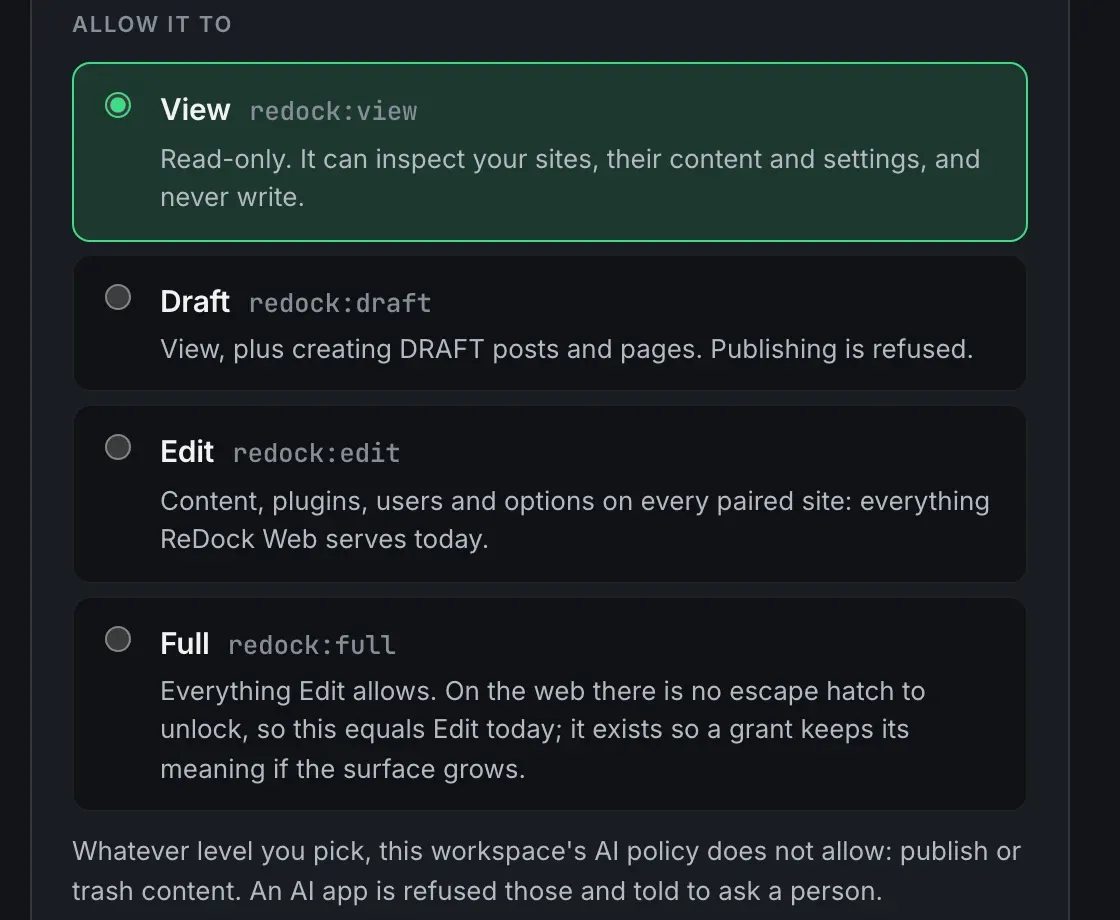
View is read-only and never writes. Draft adds creating draft posts and pages, with publishing refused. Edit is content, plugins, users and options on every paired site. Full exists so a grant keeps its meaning if the surface grows later, and today it equals Edit.
Under the four, in plain words, is the line that matters: whatever level you pick, the workspace’s own policy still applies on top. A level cannot widen what the policy allows, and a level never widens what a site’s own plugin key allows either.
4. Narrow it to one client
If an app only needs to touch one customer’s site, do not give it the workspace. Each site’s AI tab carries its own address, https://app.redock.xyz/mcp/s/<fingerprint>, which reaches that one site and nothing else. The rest of the workspace does not exist for a connection made through it.
Afterwards, everything you approved sits on one page with what it can reach and a Revoke next to each.
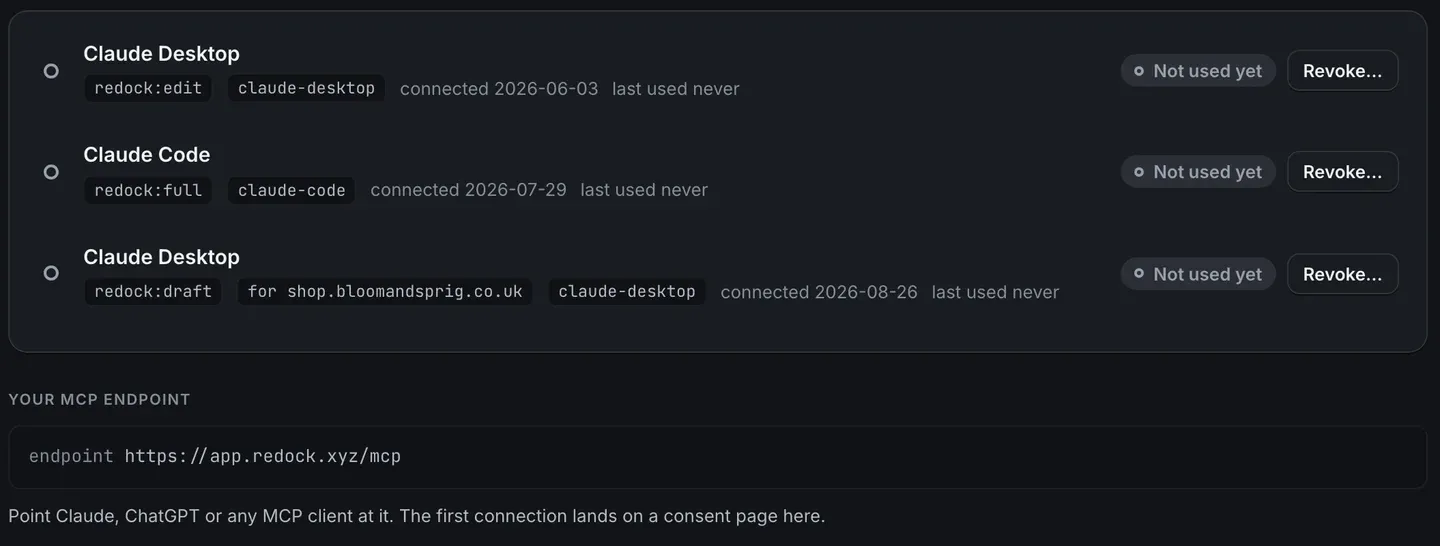
Revoking bites on the app’s next call rather than at the top of the next hour.
5. Switch two things off
Usage policy holds seven switches for the workspace:
- publish or trash content
- change what the front page is
- switch the theme
- install, remove, update or toggle plugins
- change site settings
- run database writes
- create users or change roles
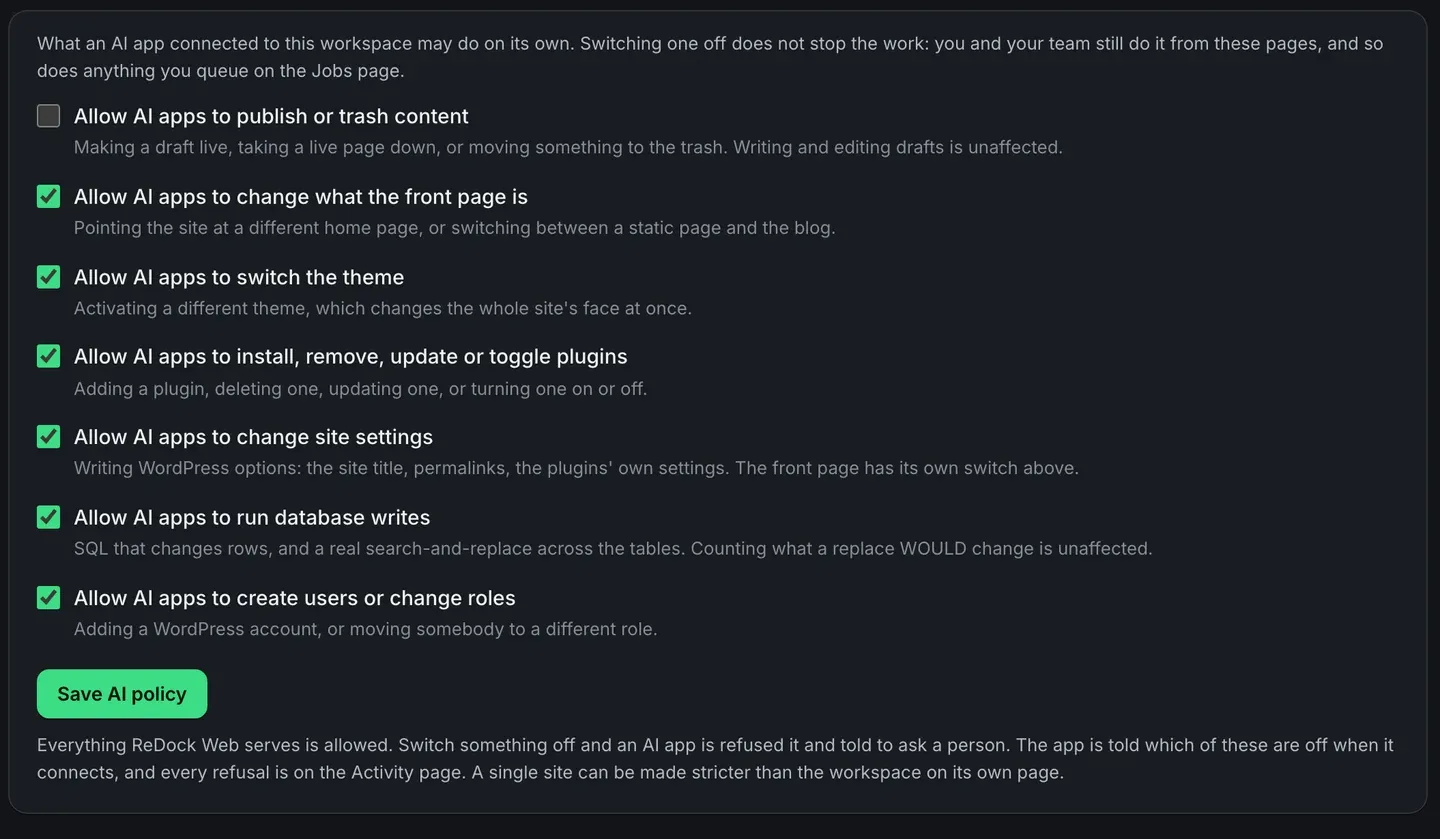
Switching one off does not slow you down. Your team still does it from these pages, and so does anything you queue as a job. It applies to AI apps only. A single site can be made stricter than the workspace on its own AI tab, and the page tells you which sites are stricter, so you never have to go looking.
The app is told which switches are off when it connects, rather than discovering it when a call fails. That matters more than it sounds: an assistant that knows publishing is off will offer you a draft instead of arguing with a wall.
Reading the refusal
Ask the assistant to publish something, with publishing switched off, and it will come back and tell you it needs a person. Now go and look at Activity.
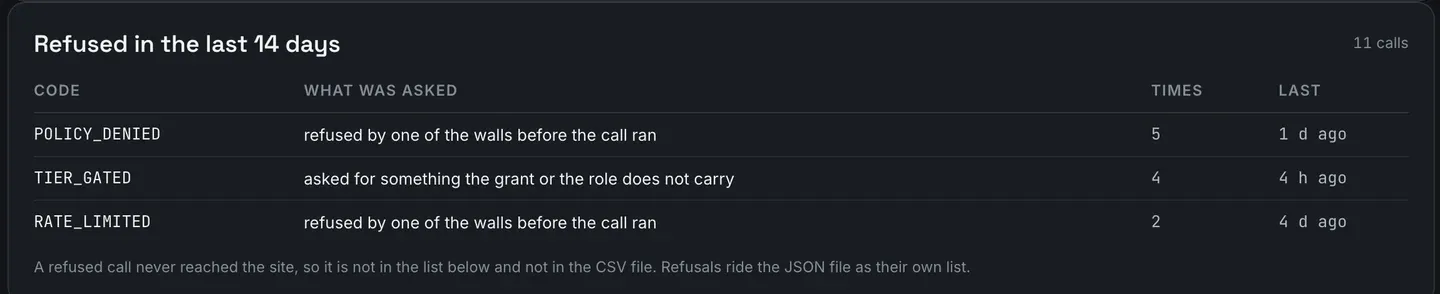
Refusals sit at the top of the page with their code and how many times each happened. POLICY_DENIED is a switch you turned off. TIER_GATED is the grant or the role not carrying what was asked. RATE_LIMITED is a wall of a different kind.
A refused call never reached the site, so it changed nothing, and the log says as much. It is still recorded, because a token asking for something it does not carry four times in an afternoon is exactly the thing you want to see before your client does.
Below that, every change the app did make sits in the same table as the changes your colleagues made and the changes your jobs made, with the app’s name, the site, the level it ran at and the outcome. When a client asks who changed the front page, the honest answer has to be able to be any of the three.
More on the door, the levels and the policy is on the AI access page, and the record itself is on activity and audit.
FAQ
Does this work with anything other than Claude?
Yes. It is a standard MCP server, so Claude Desktop, Claude Code, Cursor and any other MCP client connect the same way. For a script with no browser, mint a scoped API token instead; it goes through the same door, the same policy and the same records.
What does Claude actually get to see?
Only the sites listed on the consent screen, at the level you picked, minus anything the policy switches forbid. A per-site connection sees one site. Everything it does is recorded under its own name.
If I remove somebody from the workspace, what happens to their apps?
Their access ends and their AI apps are disconnected in the same moment. An approval belongs to the person who made it, so it leaves with them.
Can a site be stricter than the workspace?
Yes, on that site’s own AI tab, and only in the stricter direction. A site can refuse things the workspace allows; it cannot allow things the workspace refuses.
Connect one site and try to break it
A free account connects one live WordPress site and includes the MCP door. Connect an assistant at View, ask it to change something, and watch the refusal land in the log. That is the fastest way to see whether the boundary is where you want it.
Create a free account and open the door on your own terms.