A local development stack for WordPress and Node: two sites, two runtimes, nothing installed into your system
Run a WordPress site on PHP and a Node service side by side with the free ReDock desktop app, each pinned to its own runtime version, with PHP, Node, MySQL and Redis living in ReDock's own folder and nothing in your system.
A local development stack does not have to be one PHP, one MySQL and one web server that every project shares. In ReDock each site declares what it runs on, and the app keeps those runtimes installed side by side in its own folder. A WordPress site on PHP 8.3 and a Node service on Node 22 run at the same time, each on its own https://name.test address, and neither touches your system’s PHP, Node or PATH.
This guide sets up exactly that pair, on the real screens, and shows where the versions are pinned and where the services live.
What “nothing into the system” means
ReDock’s own docs put it in one sentence: it “never installs runtimes onto your system itself: every PHP, Node, Bun or MySQL version lives in ReDock’s own toolchain directory, per version, per site.” There is no Homebrew formula, no nvm script, no PATH edit and no service registered with the operating system. Remove ReDock and the runtimes go with it.
That is most of what people were using Docker for on a solo project: isolation, without the machinery. It is not production parity, and this guide will not pretend it is; the Docker post draws that line honestly.
The pictures are from the macOS build. The Windows app, for 64-bit Windows 10 or later, has the same screens.
Step 1: The WordPress site
Press New site, pick WordPress, name it. About a minute later the site is Running. Its Overview screen has a Software card that names what the site runs on.

WordPress, PHP 8.3, MySQL. The database was created with the site and lives with ReDock’s MySQL service. The local WordPress guide covers the wp-admin sign-in and the trusted address.
Step 2: The Node site
Press New site again and point ReDock at a folder of code you already have. It detects the stack and the build pipeline: a plain Node service, an Astro or Next.js front end, a Bun API. Give it a name and it appears on the Sites screen next to the WordPress site, on its own address.

Two sites, two stacks, two addresses, one window. Each is supervised, streams its logs into its own tab, and reports an honest status.
Step 3: Pin the version per site
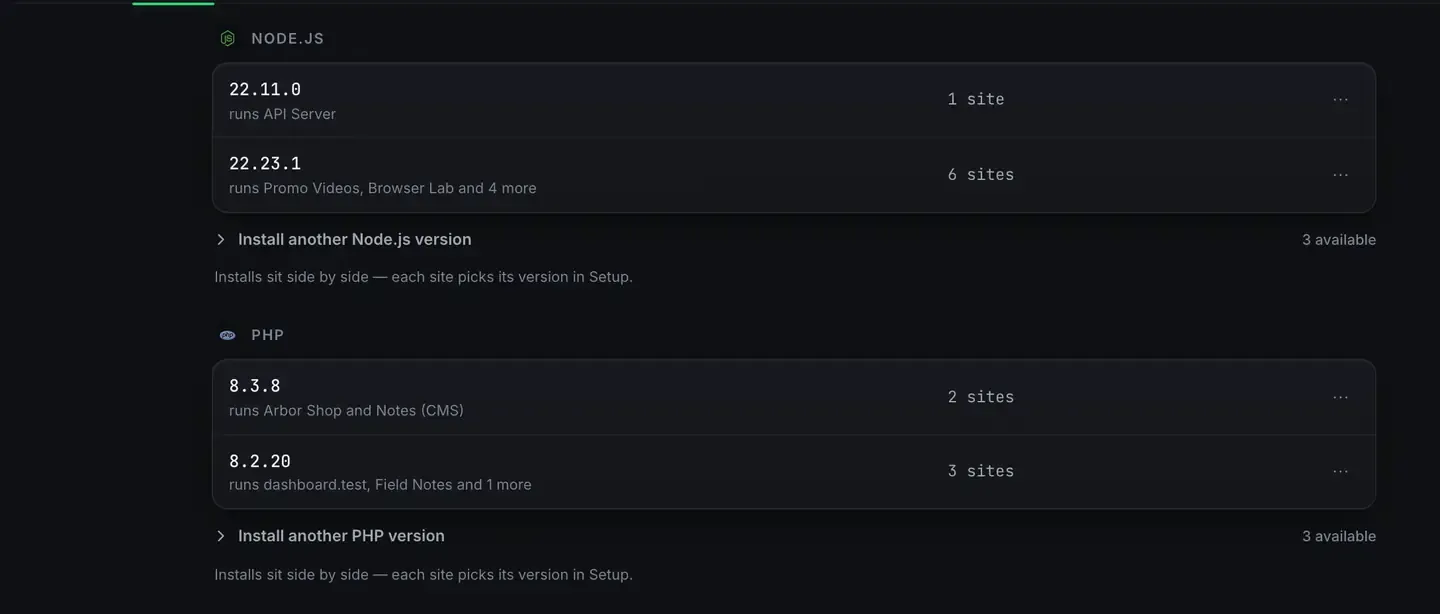
Open a site and go to Setup. PHP and Node are dropdowns there. The System screen’s Runtimes tab is where you see the whole picture: every installed version, and which sites run on it.
Read the picture and the point makes itself. Two Node 22 builds are installed at once, one running the API server and one running six other sites. Two PHP versions are installed, one running Arbor Shop and Notes, the other running three more. Three further versions of each are a click away under Install another. The line under each list says the rule: installs sit side by side, and each site picks its version in Setup.
Switching is one click in the dropdown. The site is re-served on the new version, and nothing else on your machine notices. The Node and PHP pages list what is offered: Node 22, 20 and 18, and PHP 8.x, each as a self-contained build with a pinned checksum.
Step 4: See what is actually running
The System screen’s Services tab lists every process ReDock supervises, with its state, port, memory and uptime.
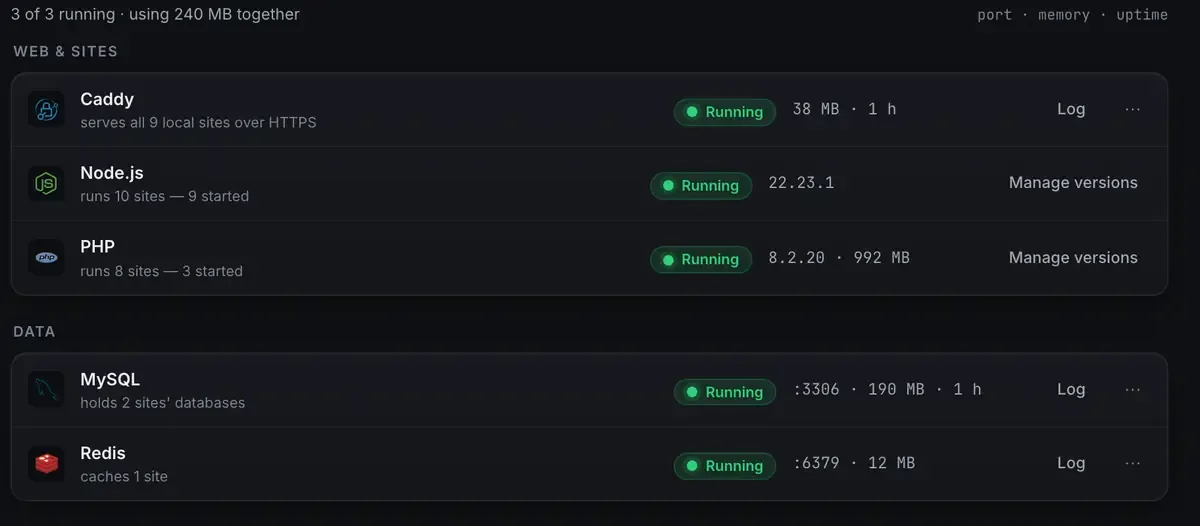
Caddy serves every site over HTTPS. Node and PHP each run their sites. MySQL holds the WordPress databases and Redis caches one site, each on its own port with its memory shown. Below that list, the screen names what is available if you ever need it: Nginx, Apache, MariaDB, PostgreSQL, MongoDB, Memcached and live data streams, switched on when a site wants them, not before.
None of this is registered with the operating system. Quit ReDock and it all stops.
What you have now
A WordPress site and a Node service on trusted addresses, each on the runtime version it asked for, with MySQL and Redis behind them, all inside one folder. Upgrading a project to a new Node is a dropdown; testing a plugin on a newer PHP is a dropdown and a click back. The database browser opens either site’s data without a terminal client, and the built-in agent can operate both sites with a receipt on every change.
The Node project’s release schedule and PHP’s supported versions say which versions are still maintained; ReDock offers current ones and lets you keep an older one around for a site that needs it.
Where this differs from the others
Docker Desktop and Lando reproduce a server exactly and need a daemon and a config file to do it. Herd and Valet are PHP tools first, fast and native, with a .test address and Composer. MAMP and XAMPP are one stack in one folder, with per-site PHP a paid feature in MAMP PRO. The rows are on the local development stacks comparison, each column read from the tool’s own site on a stated day.
FAQ
Can two WordPress sites run different PHP versions at once?
Yes. That is what the Runtimes picture shows: PHP 8.3.8 serving two sites and 8.2.20 serving three, at the same time. Each site’s version is set in its own Setup tab.
What happens to the Node I installed with nvm or Homebrew?
Nothing. ReDock never reads or changes it. Its Node builds live in its own folder and are used only by ReDock sites, so your terminal keeps whatever version it had.
Is Bun a runtime too?
Yes. Bun is offered per site the same way, lives in the same folder, and is the runtime Remotion renders run on. One site on Bun next to one on Node 20 is ordinary.
Want both sites running on your own runtimes tonight, with nothing added to your system? Download ReDock, free, for macOS or Windows.