Local WordPress development on Windows: a site in about a minute, no XAMPP and no Docker
A WordPress site on Windows 10 or 11 in about a minute with the free ReDock desktop app: a trusted https://name.test address, PHP and MySQL you never install, and wp-admin signed in with one click.
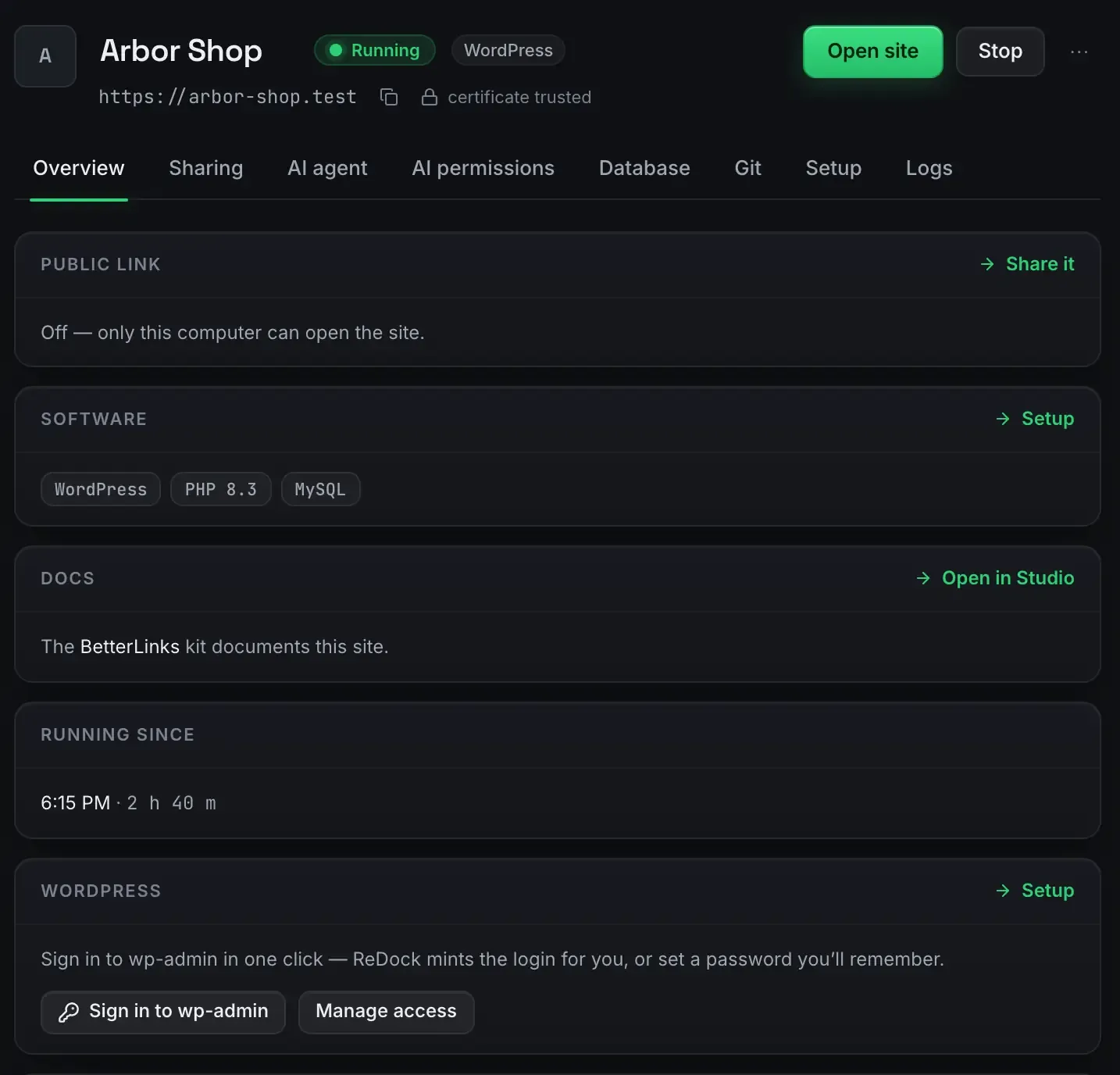
Install the free ReDock desktop app, press New site, choose WordPress, give it a name, and wait for the green Running pill. About a minute later there is a WordPress site at an address like https://arbor-shop.test, the browser shows a padlock, and one click signs you in to wp-admin. Nothing gets installed into Windows itself: PHP, MySQL and WordPress all live in ReDock’s own folder.
That is the whole answer. The rest of this guide walks through it once, with the screens, and says what happens where there is no picture.
What you need
A 64-bit Windows 10 or later machine and the installer from the download page. The installer is not signed yet, so Windows SmartScreen will warn you the first time. Choose More info, then Run anyway. After that it installs like anything else.
First launch asks one thing: permission to trust ReDock’s local certificate authority. That is what makes https:// addresses on your own computer show a real padlock instead of a warning. The change is scoped to .test addresses, and it is removed if you uninstall. You answer that prompt once.
The pictures in this guide are from the macOS build. The Windows app has the same screens; sites, the agent, sharing and the MCP server are the same on both.
Step 1: New site, WordPress, a name
Press New site in the top right, or press the search shortcut and type “new”. Pick WordPress and give the site a name. There is no capture of that dialog here, so in words: ReDock creates the database, installs WordPress core, writes the config file and the salts, picks a PHP version and issues a certificate for https://<name>.test. You type the name. It does the rest.
The name becomes the address. A site called Arbor Shop lives at https://arbor-shop.test.
Step 2: Wait for the green pill
The Sites screen lists every site with an honest status. Starting breathes, Running blooms. Ready means a real /wp-admin/ answered, not a timer that hopes it did.
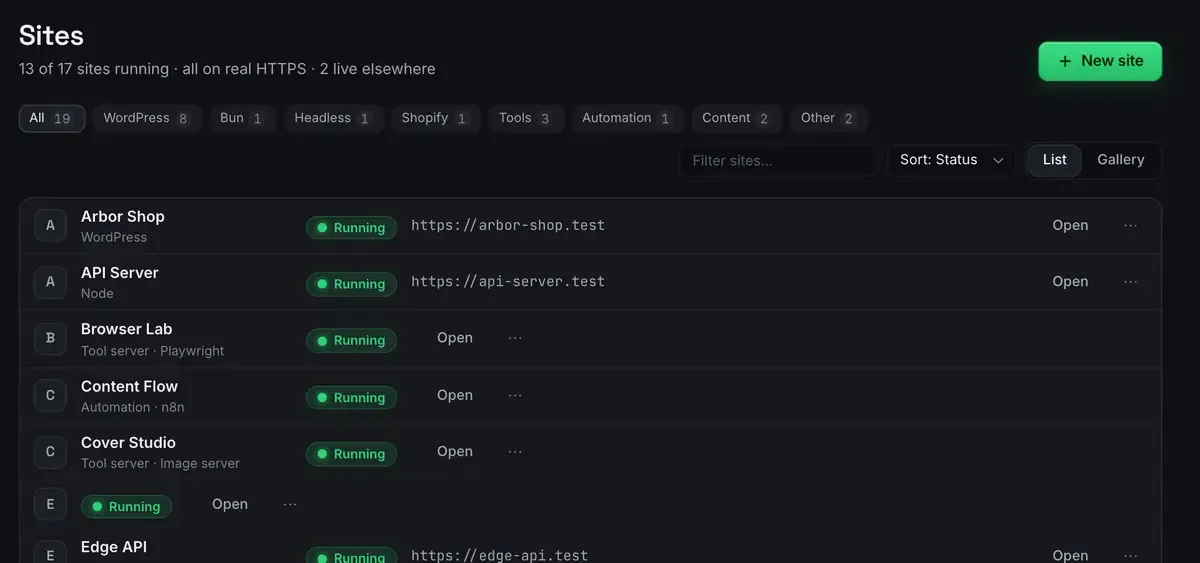
The WordPress sites in that list sit next to a Node service, an n8n automation and a Bun API. Each one is its own thing with its own address, which is the difference from a shared htdocs folder.
Step 3: Open the site on its trusted address
The site’s Overview screen shows the address, a padlock and the words “certificate trusted”. Press Open site and the browser opens https://arbor-shop.test with a lock in the address bar.
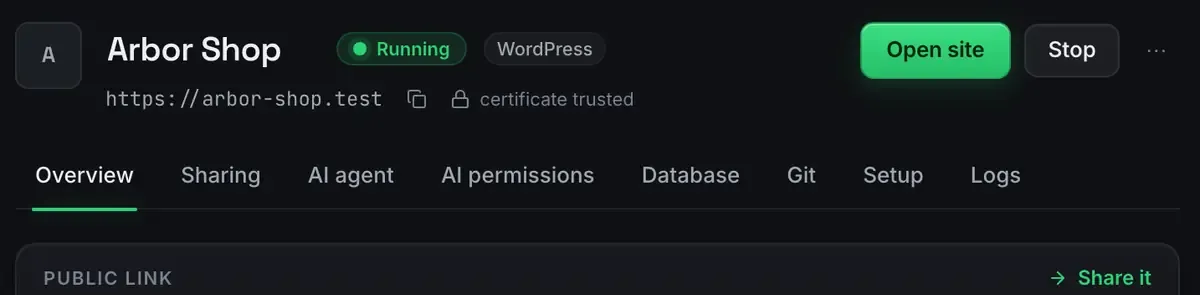
Two things make that work. The .test name is reserved by the internet’s standards body for exactly this kind of use, so it never collides with a real website, and ReDock resolves it only on your computer. And the certificate was signed by the authority you trusted at first launch, so the browser has no reason to complain. There is a longer explanation in how the trusted local certificate works.
Step 4: Sign in to wp-admin with one click
Lower on the Overview screen is the WordPress card. Its button, Sign in to wp-admin, mints a single-use login and opens the dashboard signed in. No username to remember, no password to paste, for a site that only exists on your own machine.

If you would rather have a real password, the same card says so: set one you will remember, and Manage access is where that lives.
What you have now
A WordPress site on real HTTPS with its own address. PHP and MySQL you never installed and never have to maintain; the Software card shows which PHP version the site runs on, and Setup is where you change it. A database you can open in the app’s database browser without a terminal client. Logs that stream into the window, with known errors explained.
If you want the boring parts done for you, the built-in agent will install WooCommerce, create a Shop page or set the permalink structure, and every change comes with a receipt and an undo.
Where this differs from XAMPP and Local
XAMPP gives you one Apache and one PHP in one folder, with virtual hosts and certificates yours to configure. Local is WordPress only, its certificates are self-signed with a Trust button, and it runs on Linux too, which ReDock does not. Both comparisons are on their own pages, built from each tool’s live site: ReDock against XAMPP and ReDock against Local.
WordPress’s own requirements page asks for PHP and MySQL or MariaDB; ReDock’s install meets it out of the box, and the .test reservation is written down in RFC 6761.
FAQ
Does it need WSL, Docker or Hyper-V?
No. ReDock runs PHP, MySQL and the web server as ordinary supervised processes on Windows, inside its own folder. There is no container, no virtual machine and no Linux layer to set up.
Does the site work offline?
Yes. The .test address and its certificate never need the internet; the Sharing screen says exactly that. The only time your computer talks to the outside is when you share the site on purpose.
Can I use a normal password instead of the one-click login?
Yes. The WordPress card offers both: a single-use login minted for you, or a password you set and remember. Manage access on the same card is where you handle it.
Want a WordPress site on your Windows machine before your coffee cools? Download ReDock, free, for Windows or macOS.