How to manage multiple WordPress sites from one dashboard
Manage multiple WordPress sites from one dashboard: connect them with a single plugin, read them live, and run an update across all of them as one job.
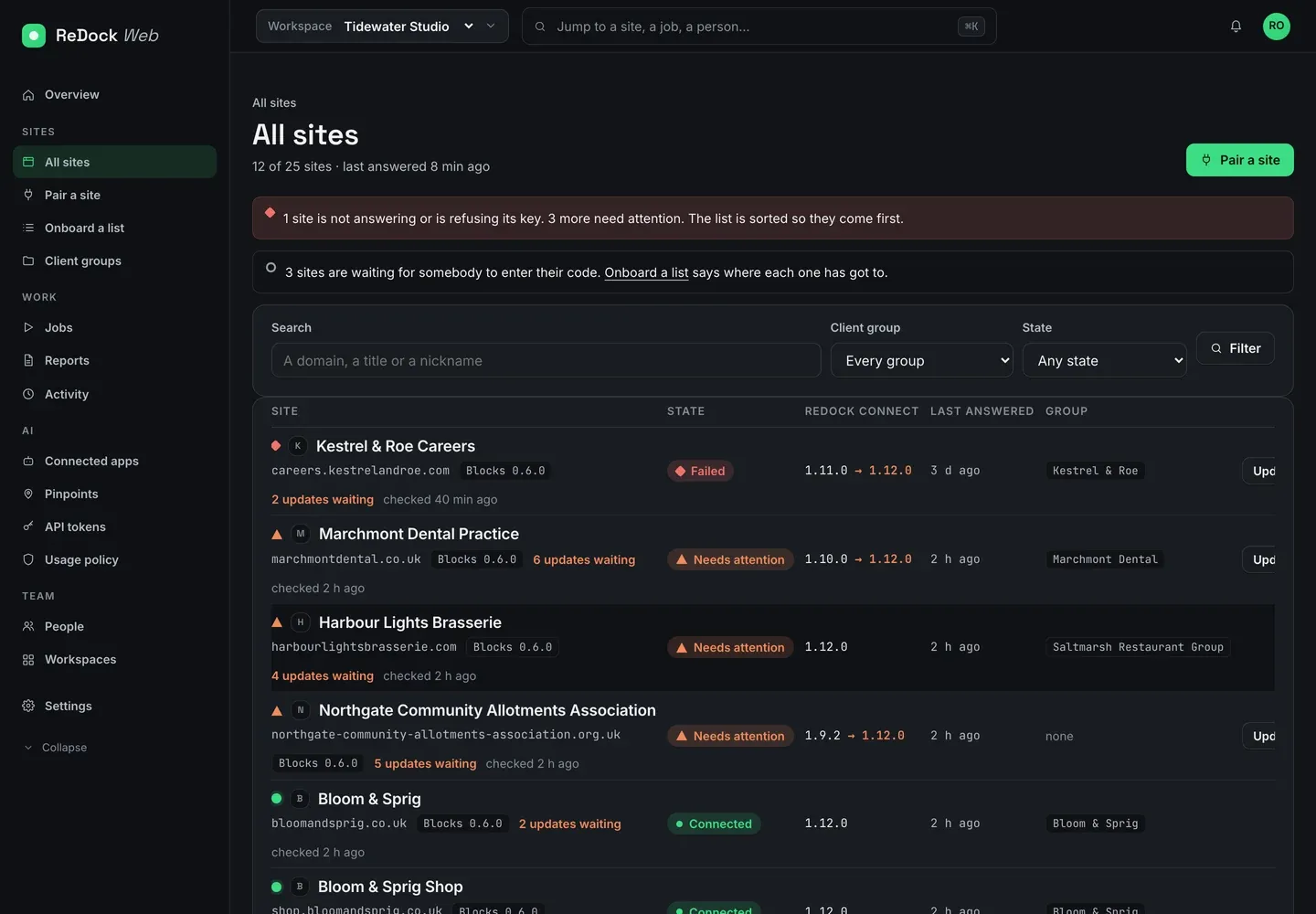
To manage multiple WordPress sites from one place you need three things: a way to connect each site that does not involve storing anyone’s password, one screen that reads all of them live rather than from a cache, and a queue that can run the same piece of work across a whole client’s estate and tell you site by site how it went. ReDock Web does those three things at app.redock.xyz. This post connects three sites and updates a plugin across them, on the real screens, so you can see the shape of it before you sign up for anything.
What it takes to manage multiple WordPress sites from one screen
Most people arrive at this problem the same way. You had four sites, then eleven, and now Tuesday morning is spent signing in to each one, squinting at the updates count, and hoping nothing broke on the one you did first.
A dashboard only fixes that if it is honest about what it knows. Two things go wrong with the ones that are not. The first is stale data: a screen that shows you last night’s plugin list and lets you queue work against it. The second is a number that means nothing, the health score out of a hundred, which tells you a site is at 78 without telling you what to do.
ReDock Web reads a site when you open its page. If the site does not answer, the page says so and shows you what it last held, with the timestamp on it, rather than quietly serving you a memory. And the state of a site is a list of reasons in plain sentences, never a score. PHP reached end of life. WordPress is behind. Four scheduled tasks have not moved in two hours. Each reason says what it is and what to do about it.
Connecting the sites
Every connected site runs one small plugin, ReDock Connect, on a site you already host. The site and your workspace share a signed key, the site keeps it, and the site can take it back from its own wp-admin at any time. Nobody sends you a password and you never store one.
There are two ways in. For a single site you press Pair a site and paste the key the site printed. For a client who has just handed you nine sites, you paste the list.
Onboard a list takes one address per line and mints a short code for each. The code is eight characters from an alphabet with nothing in it that can be misread, and only a hash of it is kept, so it is shown once and cannot be looked up later. It lasts 24 hours, works once, and dies on the fifth wrong try. You get a printable sheet you can hand out, whoever looks after each site types their code under Settings then ReDock Connect, and the row turns green while you watch.
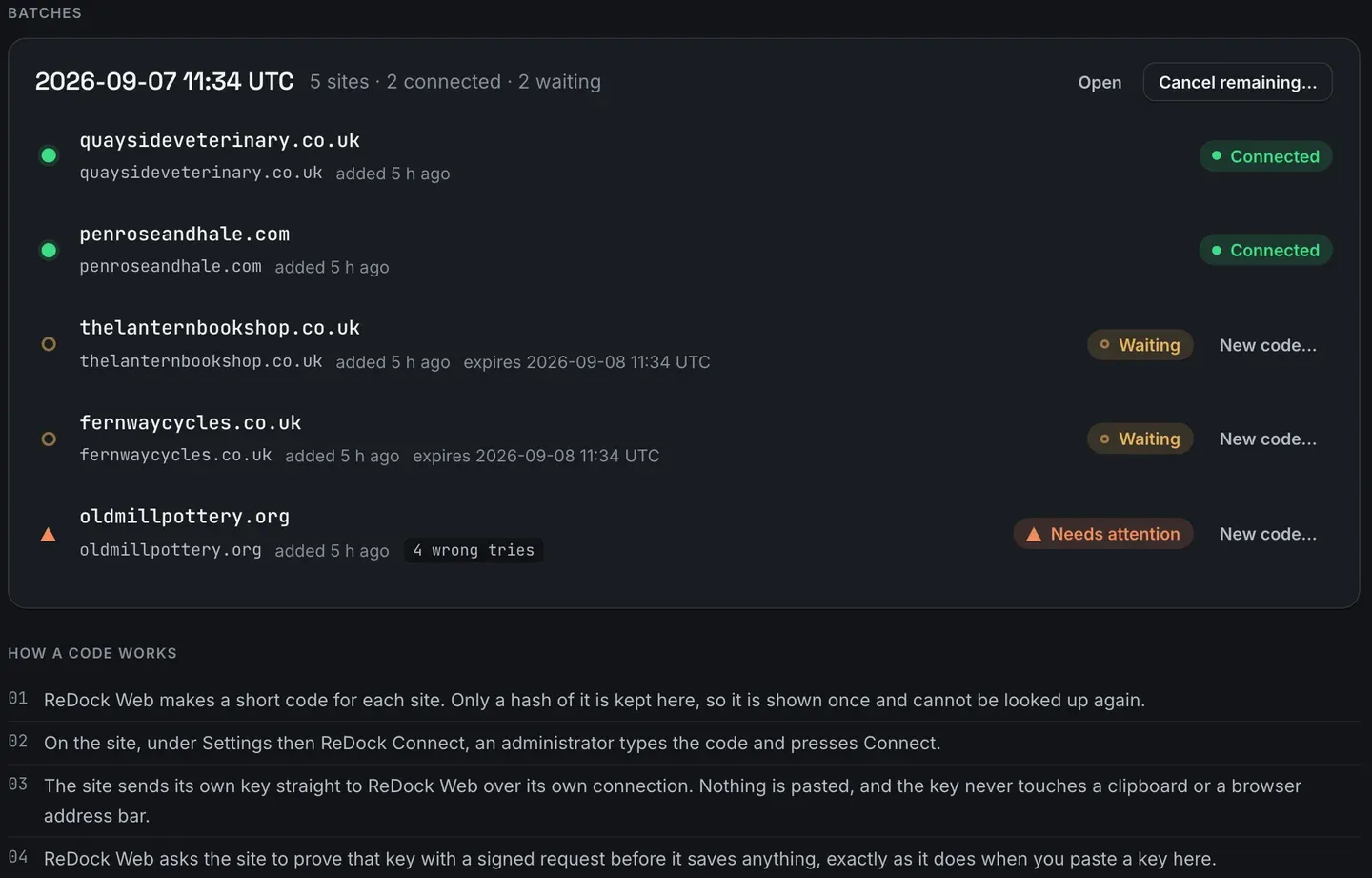
The batch can join a client group as it lands, which is worth doing on the way in. A client group is the customer: it filters the site list, it is what you point a job at, and it is the unit a monthly report gets written for. Filing nine sites once beats filing them one at a time in a fortnight.
The task: three sites, one plugin update
Here is the whole thing, start to finish.
- Connect the three sites. One by one with Pair a site, or together with Onboard a list and a code each. Put them in a client group as they connect.
- Open Jobs. The New job card is the first thing on the page.
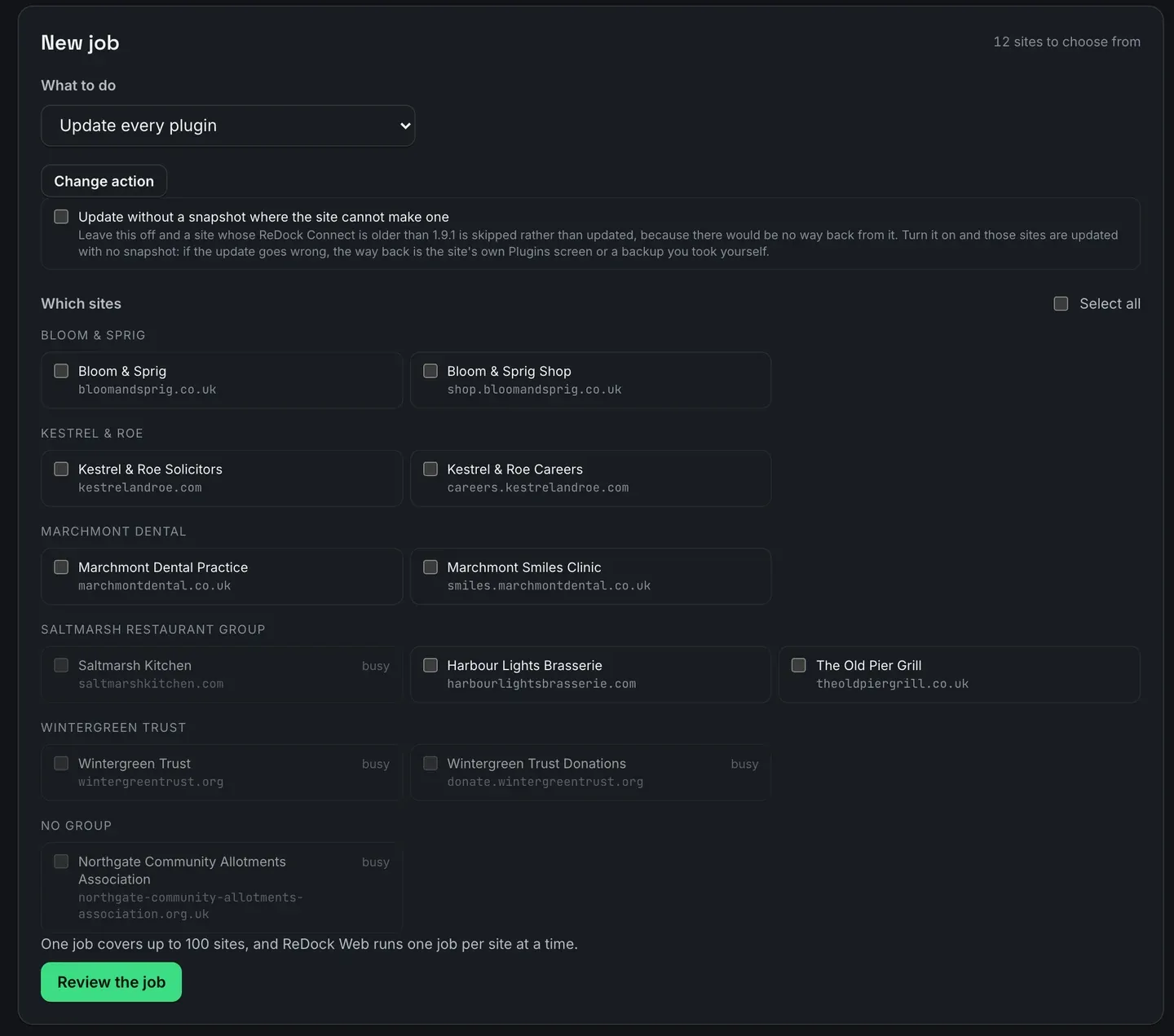
- Under What to do, pick Update one plugin and give it the slug. Or pick Update every plugin if you mean everything with an update waiting.
- Under Which sites, tick the three. They are grouped by client, so a whole customer is one press on the group.
- Press Review the job. The confirm page says in one sentence what changes for every visitor of every site named.
- Watch it run.
Two things happen inside step six that are worth knowing about.
The list of plugins to update is asked of each site at the moment the step runs, not at the moment you queued it. An hour is long enough for that list to change, and a job that acts on a stale list is how a site ends up with a version nobody chose.
And every plugin update takes a snapshot of that plugin first, as its own step, on the site. No snapshot, no update. If the snapshot cannot be made, that site is skipped and its row says so rather than being updated hopefully. One press on the plugin’s row puts the old version back.
That is rollback for a plugin, and it is worth being precise about what it is not: it holds the plugin it replaced, not your database. Whole-site copies are separate: every day ReDock Web makes a full archive of each site and copies it to your own Google Drive, keeping the last fourteen.
Reading the result
The job page gives every site its own row: Done, Failed or Waiting, a try count, a time, and what the site actually said. Not a spinner and a shrug, the site’s own sentence. “updated 5.3 to 5.4” on the ones that worked. “plugin akismet is not installed” on the one that never had it.
The page refreshes itself every few seconds while the job is going, stops while the tab is hidden, and gives up after thirty minutes rather than polling an empty room. Cancel stops what has not started; the sites already done stay done. When it finishes, Retry queues a new job for the failures alone, so three bad rows out of forty do not mean running forty again.
A site whose health already needs attention is never called at all. The reason sits on its row. That is deliberate: pushing an update at a site that stopped answering yesterday is how you turn one problem into two.
Where the count comes in
One connected site is free forever, on a plan that costs nothing and needs no card. Light connects 3 sites, Pro 10, Studio 25, and past a plan’s count extra sites are $1 each a month on any paid plan. The count is checked when you connect a site rather than after, so sites you already connected stay connected.
Everything in this post is on every plan including Free. What the plans change is how many sites you can point one job at.
There is more on the site list, the site page and what each tab reads on the connected sites page, and the job queue has its own page under jobs and bulk actions.
FAQ
Do I need to install anything on the sites?
One plugin, ReDock Connect, on each site you want to manage. It is a normal WordPress plugin. The site holds its own key, the key cannot touch wp-config.php or the site root, and deactivating the plugin ends every connection to that site at once.
Can more than one person or tool be connected to the same site?
Yes. A site can hold several client keys at once: your desktop app, your workspace, a colleague’s. The plugin’s own settings page lists every one of them with a Revoke button next to each, so the site owner is never locked out of the decision.
What happens to a job if one site is down?
It is skipped, not retried into the ground, and the reason appears on its row. The other sites carry on. When the site is back you retry the failures as a new job, which is one press.
Does this replace my backups?
No. ReDock Web snapshots a plugin before it updates that plugin, which is what makes an update reversible. That is not a copy of your database or your uploads. Keep a real backup as well.
Start with one site
A free account connects one live WordPress site, with the whole of ReDock Web behind it: the site page, jobs, snapshots, health, the monthly report, the AI door. Connect a site you are not frightened of, run one update through it, and see whether the per-site answers are the thing you have been missing.
Create a free account and connect your first site.