Cursor WordPress MCP: work on a client's live site from your editor, approved for that one site
Connect Cursor to WordPress through ReDock Web's MCP door: one address in mcp.json, a consent screen that can grant a single client's site, and every change Cursor makes recorded under its name.
A Cursor WordPress MCP setup puts a client’s live WordPress site within reach of the editor you already work in, so the agent can read the site, draft a post or check what needs updating while you stay in your code. With ReDock Web, Cursor connects to one remote MCP address. The first connection opens a consent page where you approve a level and, if you used a site’s own address, exactly one client site and nothing else. Whatever Cursor then changes is recorded with its name, the site, the level and the outcome, and anything your usage policy forbids is refused at the door. This post connects Cursor to one client’s site, runs a small task, and reads the log.
Why connect Cursor to WordPress through a door
For plenty of developers, Cursor is where the theme, the custom plugin or the headless front end gets written. The WordPress site that code talks to is usually a browser tab away, and switching between the two is where mistakes creep in. Letting the agent read the live site’s plugins, settings and content from inside the editor removes the tab.
The risk is the obvious one. An agent holding an application password can do whatever that WordPress user can do, with nothing between the prompt and the database. A door in the middle changes that. It decides which sites the app can see, at what level and under which rules, and it writes down what happened.
The task: Cursor, one client’s site, one change
1. Choose the address
ReDock Web serves one door for the whole workspace, https://app.redock.xyz/mcp, and a second kind of address for a single site. A site’s own address is on that site’s AI tab and looks like https://app.redock.xyz/mcp/s/<fingerprint>.
For a Cursor project that belongs to one client, use that client site’s own address. The rest of the workspace does not exist for a connection made through it.
2. Add it to Cursor
Cursor reads MCP servers from .cursor/mcp.json inside a project, or from ~/.cursor/mcp.json in your home folder for every project. A remote server needs only its URL, as Cursor’s MCP documentation shows:
{
  "mcpServers": {
    "client-shop": {
      "url": "https://app.redock.xyz/mcp/s/<fingerprint>"
    }
  }
}
Put the file in the client’s project folder, so the connection belongs to that client’s code rather than to every project you open. Cursor lists OAuth as the sign-in for remote servers, and OAuth is what ReDock Web’s door uses, so there is no key to paste into the file.
3. Approve it for that one site
The first time Cursor reaches the address, the consent page opens in your browser.
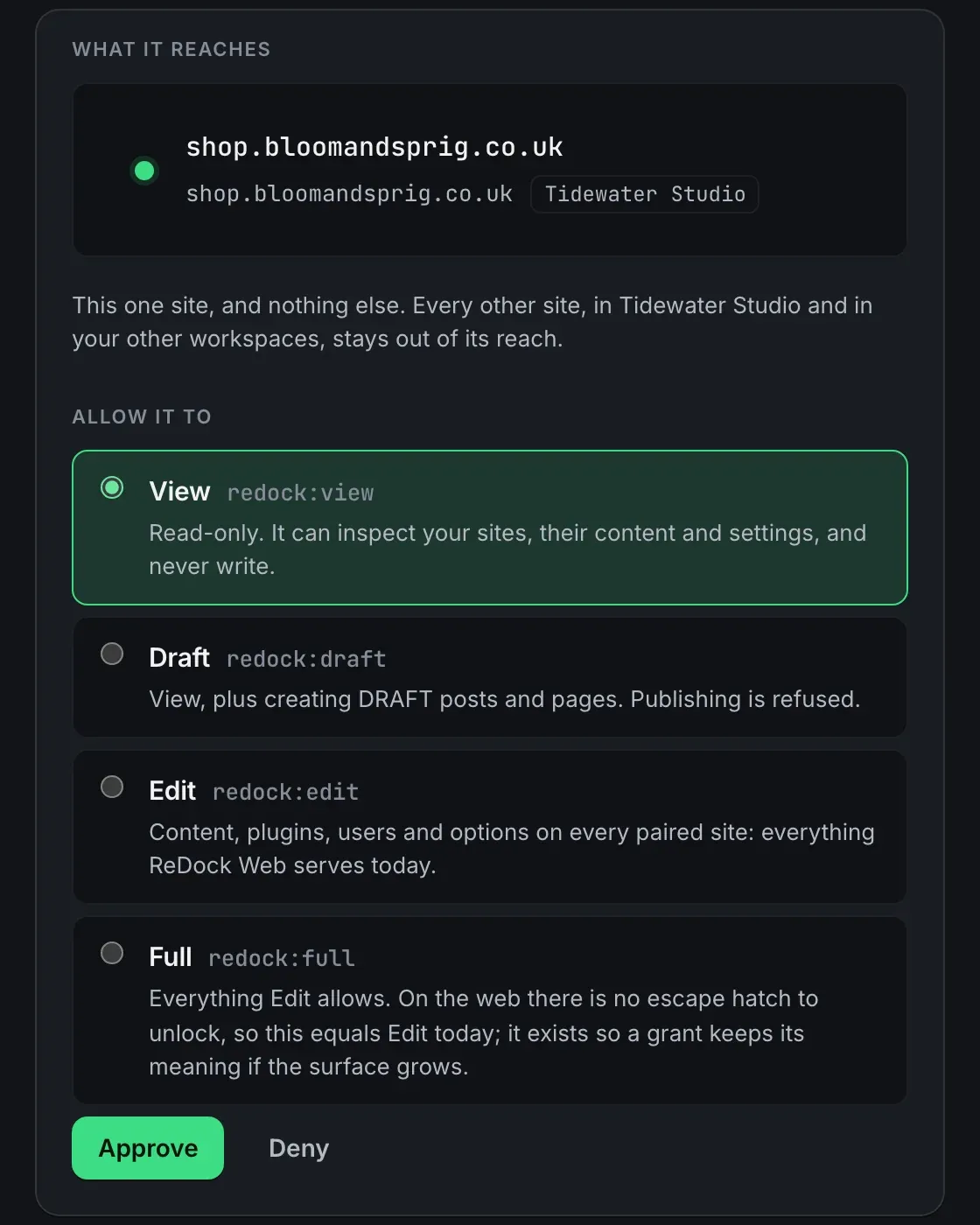
Above this part, the page names the app the way it registered itself, with a warning that ReDock has not verified who is behind that name. Approve it only if you started the connection yourself, from Cursor, a moment ago.
Then pick the level. View is read-only. Draft adds creating draft posts and pages, and publishing is refused. Edit covers content, plugins, users and options. Full equals Edit today. For a first session with a client’s live site, Draft is a sensible place to start, because the agent can prepare work without anything going live.
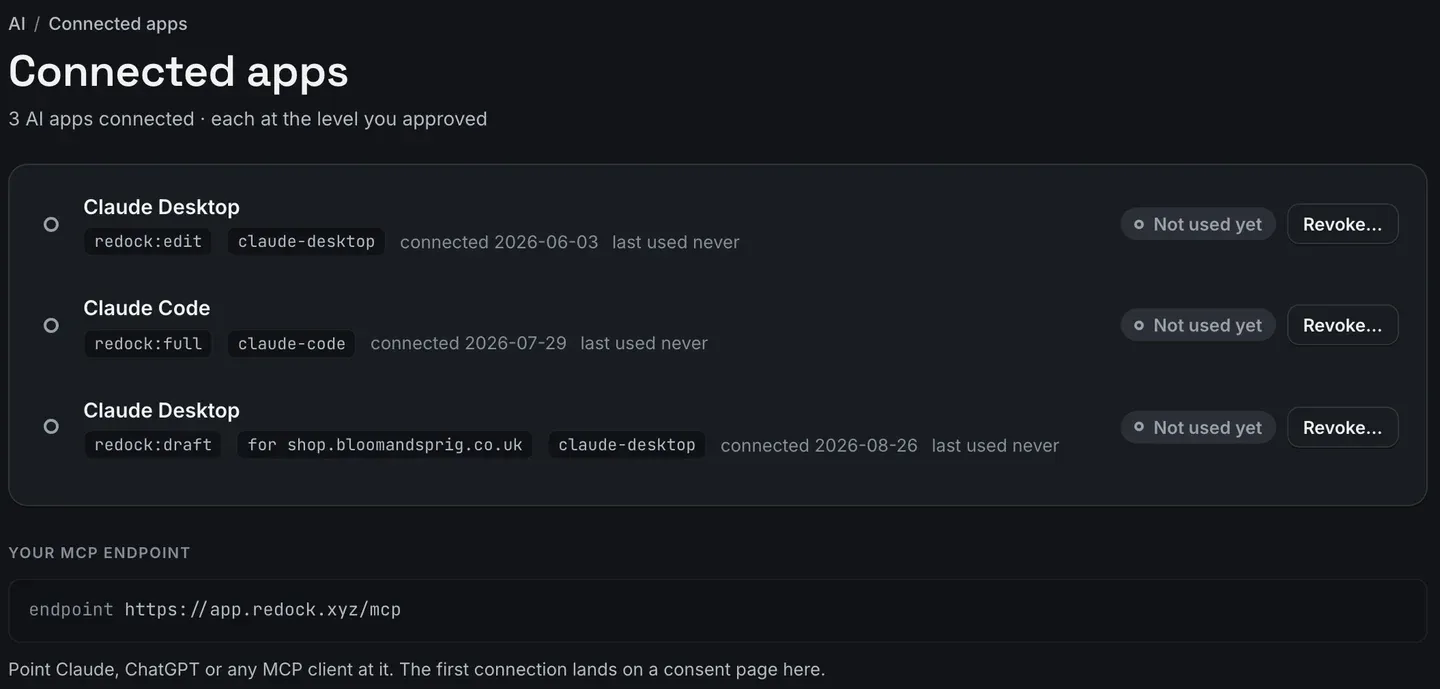
Approve it. The app now appears under Connected apps, the picture at the top of this post, with its level, the site it is bound to, when it connected, and a Revoke beside it.
4. Ask for something small
In Cursor’s agent chat, ask for a task that reads before it writes. For example: check which plugins on the shop have updates waiting, and draft a short post for the client’s news page listing what will change.
At Draft, the agent can read the plugin list and create the draft. If it tries to publish, the call is refused. Anything the workspace usage policy has switched off is refused too, whatever level you approved, and a refused call never reaches the site.
5. Read the log
Open Activity. Changes made through the door sit in one table with the changes your team and your jobs made.

Each row names the time, the site, the tool, who made the call, the level it ran at and how it ended. These rows come from two other AI apps and a person. Cursor’s rows carry the name Cursor registered with in exactly the same way, and an app that is later revoked keeps its name on the rows it made. Reads are not recorded, changes are, and the calls a wall refused are on the same page with their codes.
Keep the connection as small as the work
A few habits make this safer at no cost.
- One client project, one site address. Do not give a project the workspace door when it only needs one site.
- Start at Draft and widen the level only when a task needs it. Revoking takes effect on the app’s very next call, so narrowing again is cheap.
- Set the usage policy once for the workspace. A single site can be made stricter on its own AI tab, never looser.
- When the agent needs the same block on several sites, give it a pinpoint rather than a description.
The door, the levels and the switches are documented in the AI access guide. The same door serves Claude, and connecting Claude to WordPress goes through the policy switches in more depth.
FAQ
Does Cursor need a WordPress password or application password?
No. Cursor signs in through the consent page in your browser, and each site keeps its own key with ReDock. Nothing WordPress-specific goes into mcp.json.
Can one Cursor project reach several client sites?
Yes, if you give it the workspace address, https://app.redock.xyz/mcp, and approve it for the workspace. For a project that belongs to one client, the site’s own address is the better choice.
What happens when I revoke Cursor?
Its next call is refused. The rows it already made stay on Activity under its name.
Can I use a token instead of signing in?
For a script with no browser, yes: an API token goes through the same door under the same rules. Cursor can sign in, so the consent route is the natural one for it. Tokens are covered in API tokens for agency scripts.
Connect Cursor to one site
A free account connects one live WordPress site, with the MCP door and the consent screen on it. Add that site’s address to a project’s mcp.json, approve Cursor at Draft, and ask it what the site has waiting.
Create a free account and connect Cursor.