ReDock pinpoints: name a place on a client's site once, and the AI finds it on every site
A ReDock pinpoint is a name, your note and the exact places it means across client sites, so an AI app asked for the-pro-price edits that block on every site and never the lookalike beside it.
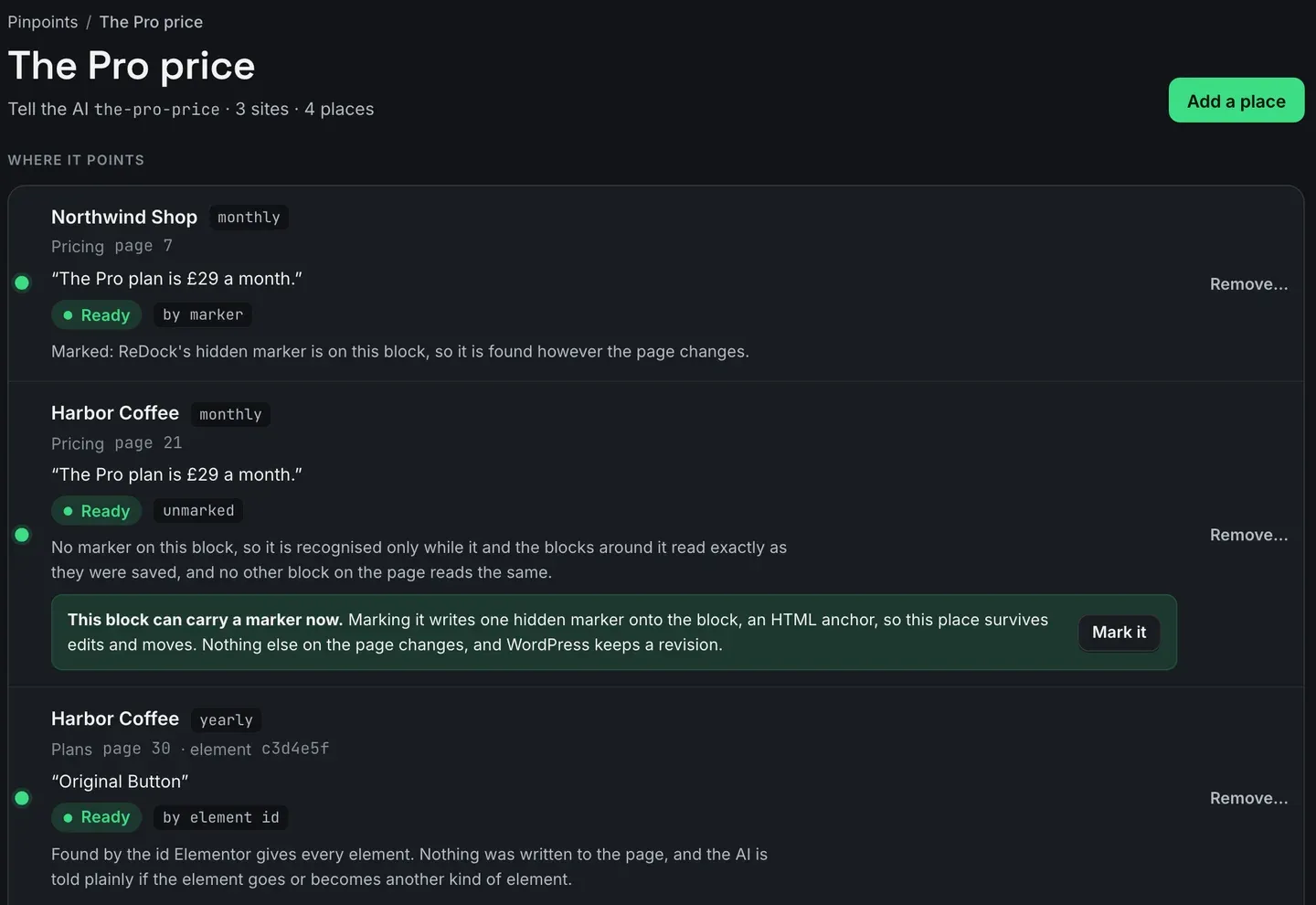
A ReDock pinpoint is a named place on a client’s site that an AI app can find again by name. It holds a name the AI is told, such as the-pro-price, a label you read, a note you wrote, and the exact blocks it means, on as many sites as carry one. Ask an assistant to change the-pro-price and it gets back the addresses and your note, then edits those blocks and nothing near them. Pinpoints work on Gutenberg blocks and Elementor elements. This post makes one for a price that appears on several client sites, points at it on the page, and shows why it keeps working after the page is edited.
Why describing a place to an AI goes wrong
“Change the price on the pricing page” sounds precise until you look at a pricing page. There are three plans in three cards built from the same block pattern. There is a monthly price and a yearly one behind a toggle. There is a struck-through price from last spring’s sale that nobody removed.
An assistant working from a description has to guess which of those you meant, on every site, every time. A grid of cards is designed to look alike, so a guess that is right on one site is wrong on the next. Across an agency’s estate, that is the edit you find a week later on the wrong card.
A pinpoint takes the guessing out. You point at the block once per site, and from then on the name means that block, or it refuses and says why.
What a pinpoint holds
Four things.
- The name the AI is told. Lower case, digits and hyphens, and the word somebody would actually say:
the-pro-price, notpinpoint-7. - A label you read. The Pro price.
- Your notes. What the AI reads, word for word, before it changes anything there: what must not change, who owns it, when it is safe to touch. At most 2,048 bytes, stored exactly as you wrote them.
- The places. One or more blocks, each on a named site and page.
What it does not hold is steps. A pinpoint says where and why, and the AI works out how to make the change each time. That is why a pinpoint made for one edit still works for the next.
The task: the Pro price, on every client site that shows it
Say you look after seven client sites that each show a Pro plan price, and the price is changing. Here is a pinpoint for it, built one site at a time. The pictures show it on three.
1. Make the pinpoint
Open Pinpoints and press Make a pinpoint.
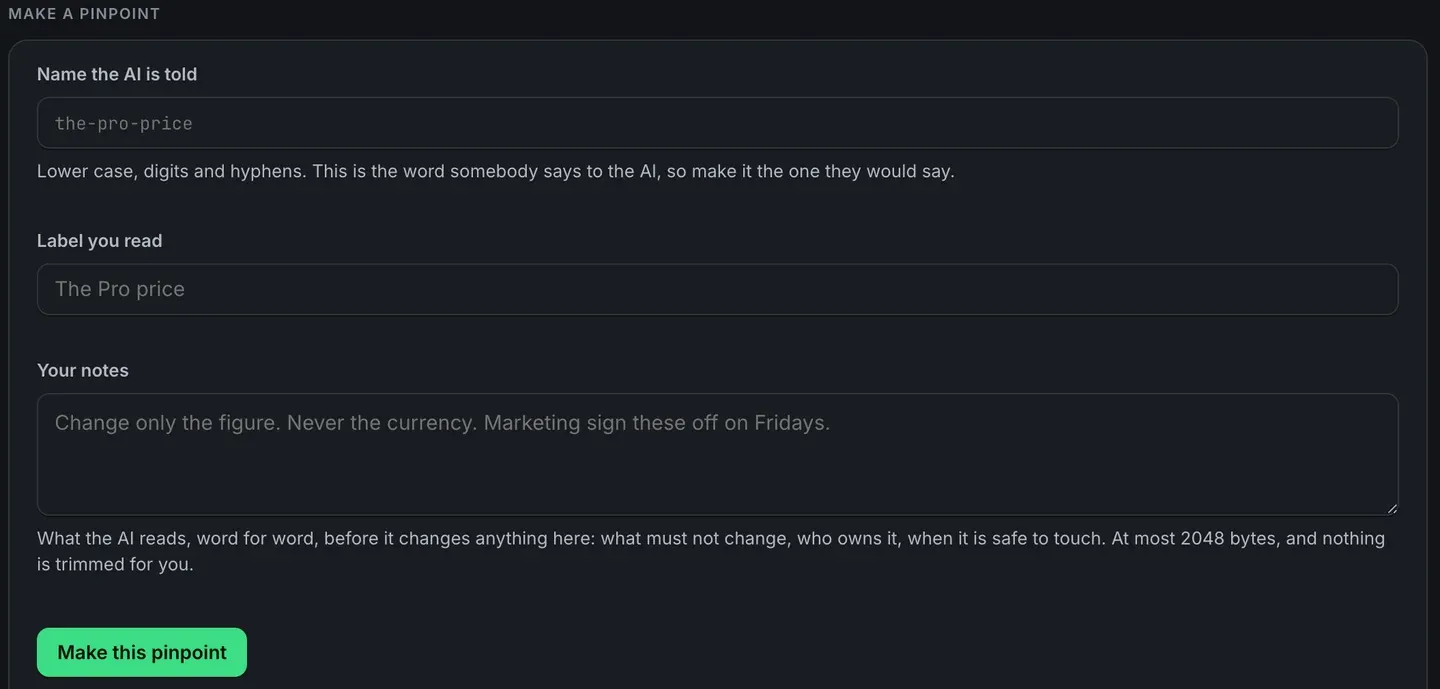
Write the note as if briefing a careful freelancer who has never seen the site. “Change only the figure. Never the currency.” A note that says what must not change is more use than one that lists steps.
2. Add a place: site, page, block
Pick the site, then the page. Then say which block.
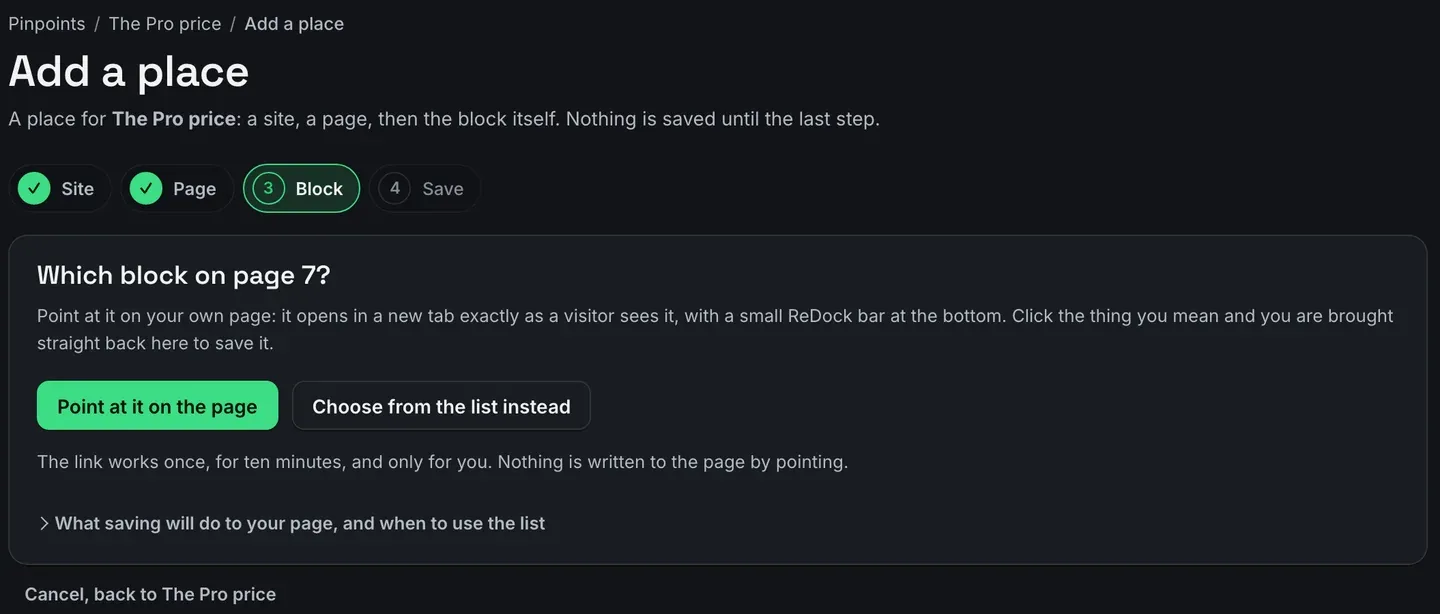
Point at it on the page opens the client’s page in a new tab, exactly as a visitor sees it, with a small ReDock bar at the bottom. Click the block you mean, or the Elementor element, and you are brought straight back to save it. The link works once, lasts ten minutes, and is yours alone. Nothing on the page is edited by the click.
If you would rather not click around a live page, Choose from the list instead shows every block on the page in order.
3. Save the place
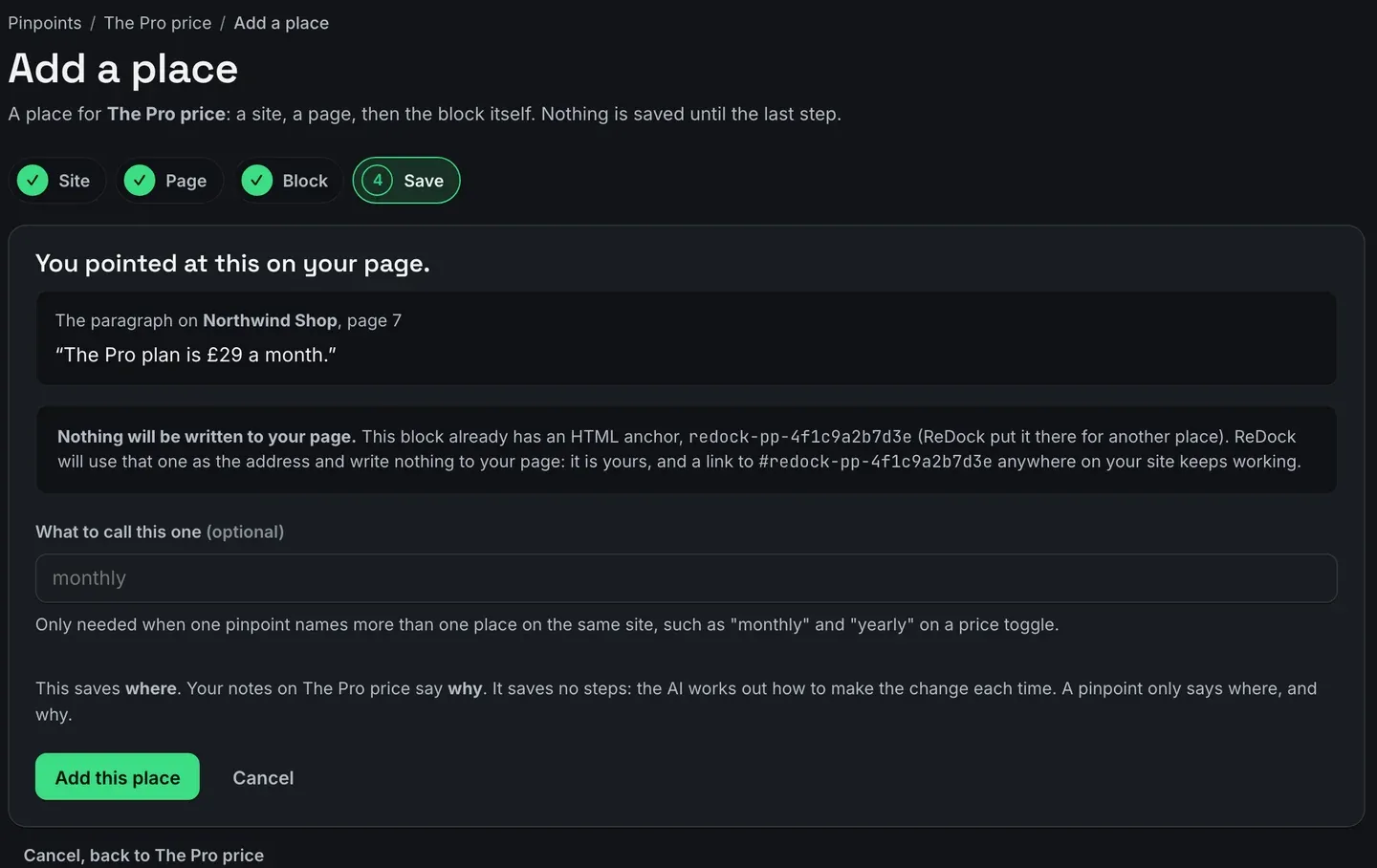
The save step shows the block’s own text, so you can see you picked the right one, and it says exactly what saving will do to the page. Here the answer is nothing, because the block already has an HTML anchor and ReDock uses that as the address.
The optional name is for a pinpoint that means more than one place on the same site, such as monthly and yearly on a price toggle.
4. Repeat on the other sites
Each site is one more place: site, page, point, save. Seven sites is seven short visits, once. The pinpoint’s own page then lists every place it holds.
5. Ask the AI by name
With an AI app connected to your workspace, the request can now be short: change the-pro-price to £35 on every site. The assistant asks for the pinpoint by name, gets back each address with your note, and edits each block. The note travels with the address, so “never the currency” is in front of it on every site.
Whatever it changes is recorded on Activity under the app’s name, like any other change, and the usage policy still decides what an AI app may do on its own.
Why it keeps working after the page changes
The picture at the top of this post is the pinpoint’s own page, and each place says how it is found.
By marker. On a Gutenberg page, ReDock writes a name onto the block itself using WordPress’s own HTML anchor, the field under Advanced in the block settings that WordPress uses for page jumps. Reword the paragraph, restyle the section or add three blocks above it, and the anchor moves with the block.
Unmarked. A block without a marker is recognised only while it and the blocks around it read exactly as they did when it was saved. The page says so and offers Mark it, which writes one hidden anchor onto that block. Nothing else on the page changes, and WordPress keeps a revision.
By element id. Elementor already gives every element a lasting id, so nothing is written to the page at all.
There is no fallback that guesses. A place either resolves or refuses, and the refusal names the site and the pinpoint. A pinpoint that quietly found the wrong block would be worse than one that stops.
When a place goes
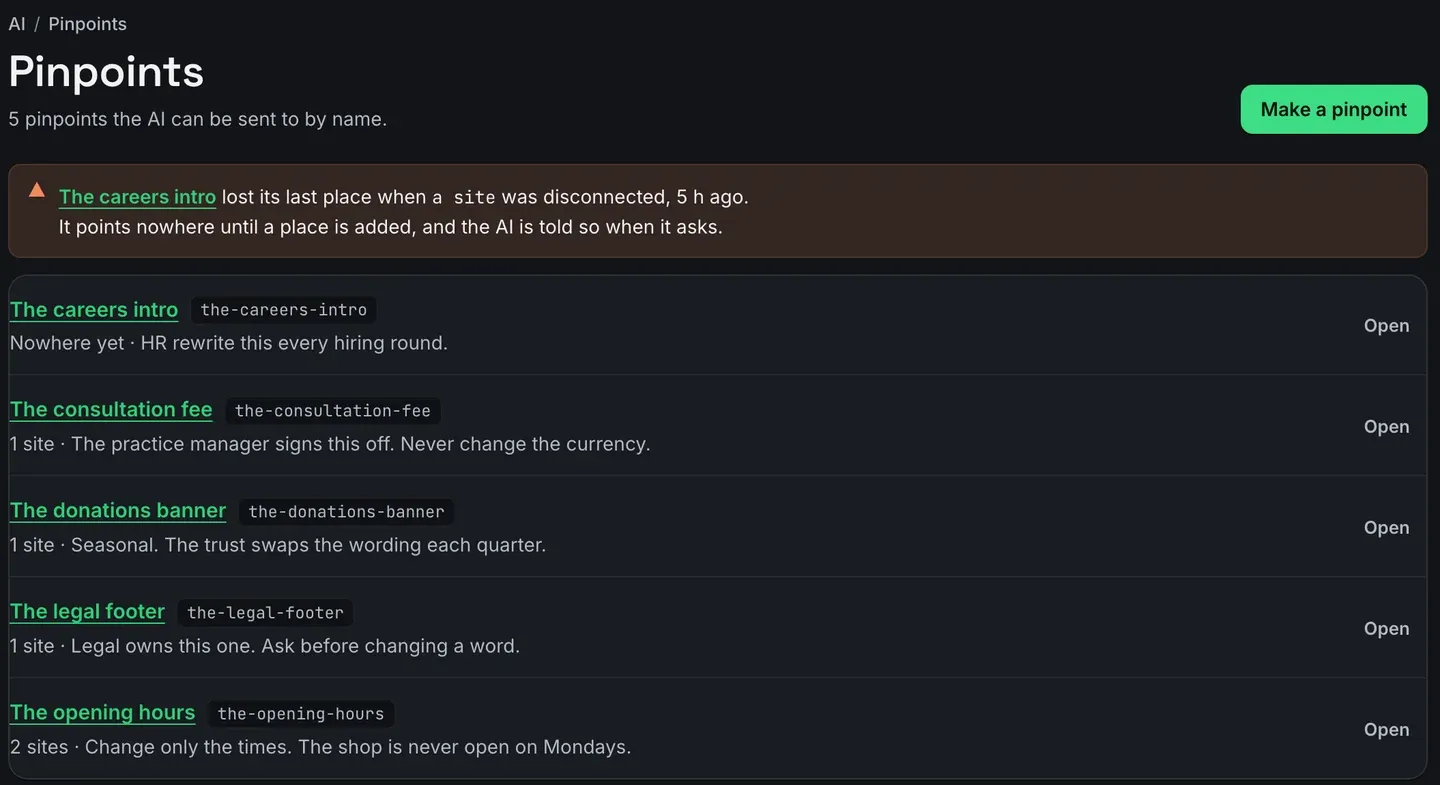
Disconnect a site and the places on it go too. A pinpoint that loses its last place says so at the top of the list and points nowhere until a place is added, and the AI is told that when it asks. Deleting a pinpoint removes the name and every place it holds, and changes nothing on any site.
The feature has its own page on pinpoints, the steps are in the pinpoints guide, and connecting an assistant is covered in connecting Claude and connecting Cursor.
FAQ
Does making a pinpoint change my client’s page?
Pointing never does. Saving a place on a Gutenberg block that has no anchor yet writes one hidden HTML anchor onto that block, and WordPress keeps a revision. A block that already has an anchor, and any Elementor element, is saved with nothing written.
Does it work with Elementor?
Yes. Elementor elements carry their own lasting id, which is used as the address, so an Elementor place is saved without touching the page.
What does the AI actually receive?
The addresses of the places, and your note word for word. It receives no instructions, because a pinpoint stores none. The assistant decides how to make the change, and your note tells it what to leave alone.
Which AI apps can use pinpoints?
Any MCP client connected to your workspace through the door, such as Claude, Claude Code or Cursor. The pinpoint belongs to the workspace, not to the app.
Name one place
A free account connects one live WordPress site, with pinpoints on it. Pick the one block on that site you are always being asked to change, make a pinpoint for it, and ask your assistant for it by name.
Create a free account and make your first pinpoint.