Publish posts to multiple WordPress sites: what one dashboard can honestly do
ReDock Web does not copy one post onto many sites: it publishes, unpublishes, trashes and restores the posts already on each client site by list, and puts an older revision back when an edit goes wrong.
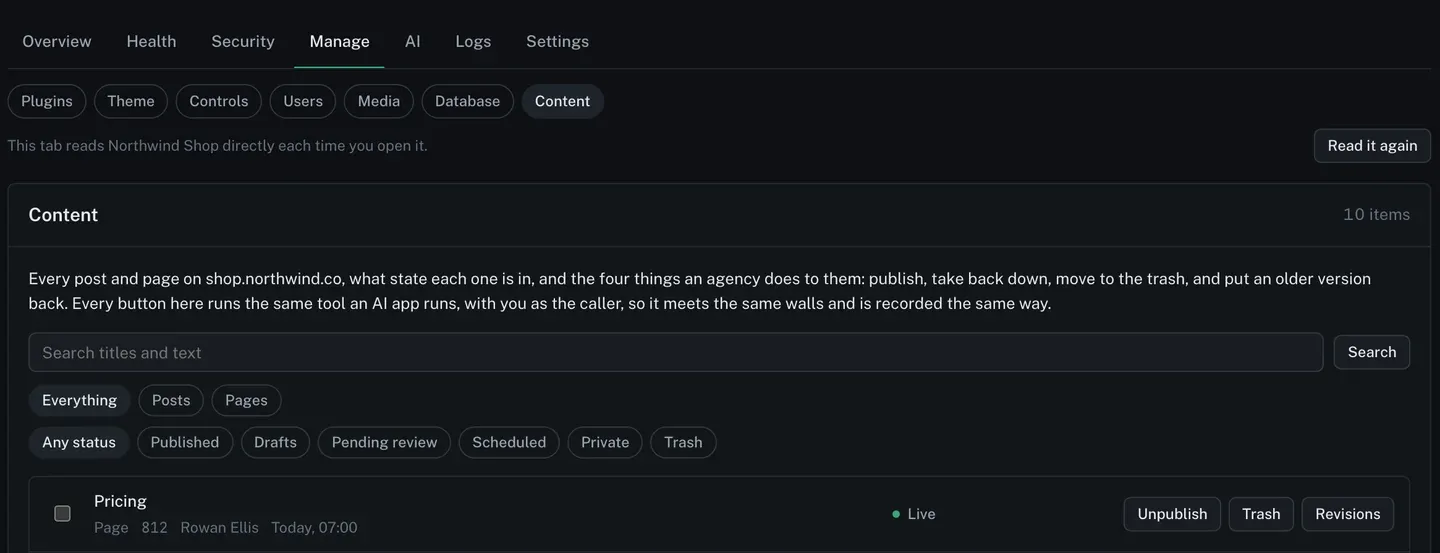
People who search for how to publish posts to multiple WordPress sites usually mean one of two jobs. One is syndication: write a post once and have it appear on several sites. The other is managing what is already on each site, such as the scheduled announcements to push live or the expired offers to take down, without signing in to every wp-admin. ReDock Web does the second and does not pretend to do the first. Each client site gets a Content view listing every post and page with its status, and from it you publish, unpublish, trash, restore and put a revision back. A ticked list on one site runs as one job. Across sites, that means one job per site, or an AI app working through the door. This post shows all of it.
Publishing posts to multiple WordPress sites: the honest version
A post is a row in one site’s database, with an id that means nothing anywhere else. Post 42 on one client’s site and post 42 on another are unrelated documents. That is why a selection made on one site cannot be carried to a second, and why ReDock Web runs a bulk publish against exactly one site rather than guessing what a list of ids should mean elsewhere.
If you genuinely need the same article on many sites, that is syndication, and it needs a tool built for it. What ReDock Web covers is the other half: seeing and changing the state of what is already on every site, from one place, with a record of who did it.
The Content view
Each site’s Manage tab has a Content section: every post and page on the site, with the state each one is in.
A row carries the buttons its state allows. A live page offers Unpublish and Trash. A draft offers Publish. Something in the trash offers Restore. Every row has Revisions. The list shows the 50 most recently changed posts and pages together, newest first, and choosing Posts or Pages pages through all of one kind.
One rule sits under every button. Each one runs the same tool an AI app runs, with you as the caller, so it meets the same walls and is recorded the same way. The usage policy switch for publishing is about AI apps only, so your own press still works when it is switched off.
The task: take down old offers, trash one, and put a price page back
1. Unpublish a list
On the client’s shop, tick the four offers that ended last month. A bar appears offering what applies to all of them, Publish, Unpublish or Trash, and each of those queues a job, so the work carries on if you close the tab. Press Unpublish and confirm.
2. Read what the job did
A change across several posts runs as a job, so it has a page, a result and a record.
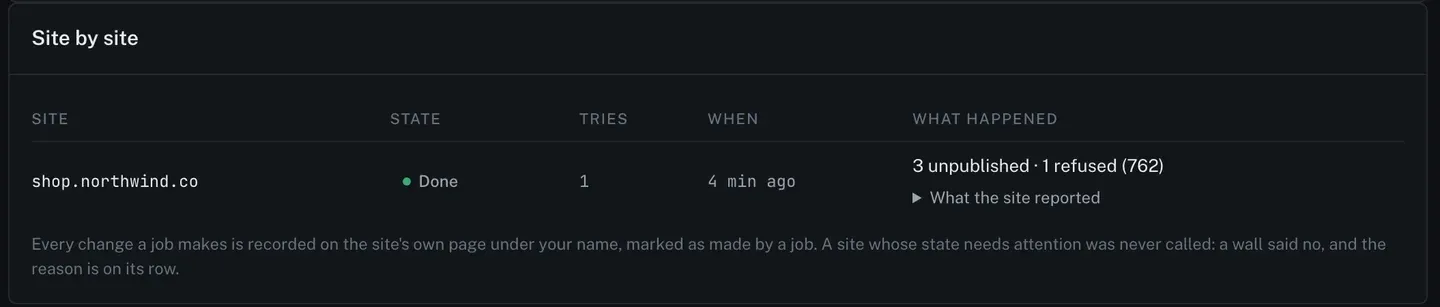
The row gives counts and names the exception: three unpublished, one refused, and the refused one named by its id so you can open it and see why. One way that happens is a post deleted on the site between the moment you ticked it and the moment the job ran.
3. Trash the one you will not reuse
From that post’s own row, press Trash. Whatever you press, the confirm page names the post, the site and what the change does before anything happens.
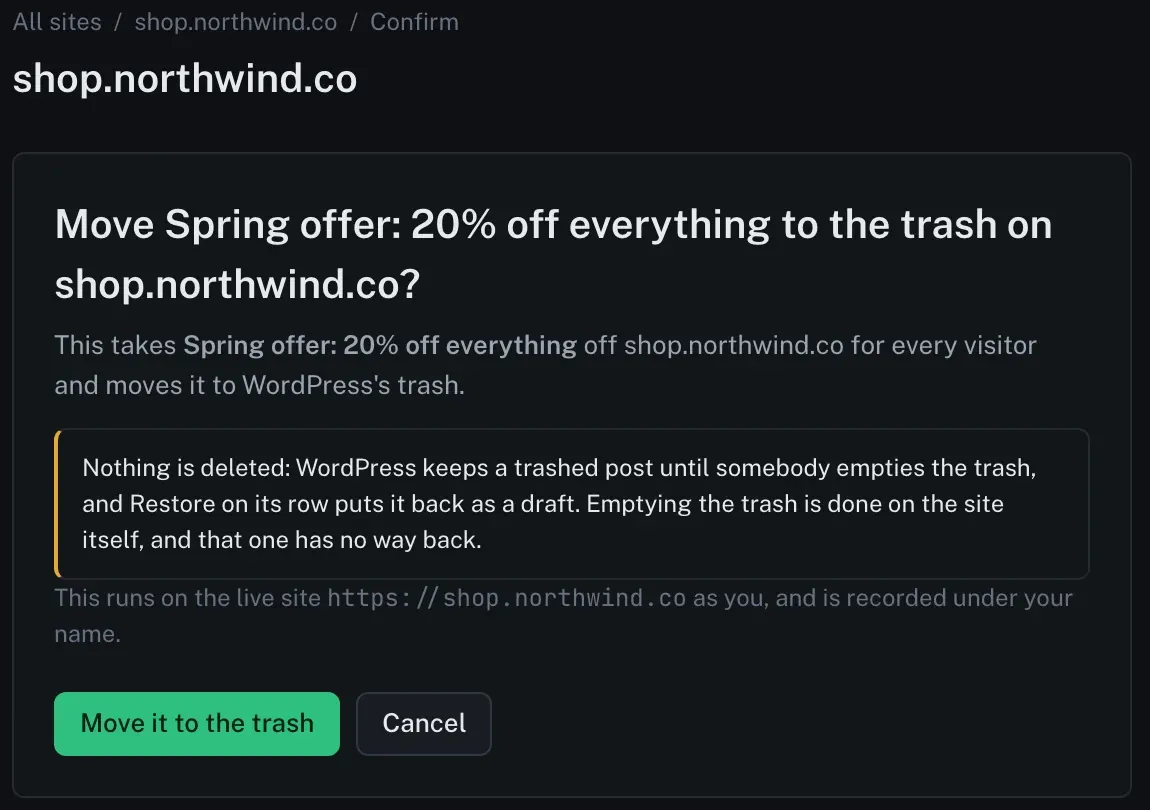
Nothing is deleted yet, and Restore on the row returns the post as a draft. Emptying the trash is the step with no way back, and it is worth knowing one thing the confirm page does not mention: WordPress empties its trash by itself after 30 days by default, unless the site’s configuration changes that number. Something trashed in March is unlikely to still be there in June.
4. Put the pricing page back
A colleague edited the client’s pricing page this morning, and the old wording was the right one. Open Revisions on that page.

Every saved version is listed newest first, with who saved it, how long it is and how much it differs from the version after it. Press Put this one back on the version you want.

Only the title, the content and the excerpt are written. Nothing else about the post moves, and ReDock reads it back afterwards to check. The version that was live a moment ago becomes a saved version of its own, so Put back what was there before undoes the undo.
Publishing across sites
For the same kind of change on several client sites, there are two honest routes.
One job per site. Tick the posts in each site’s Content view and queue each list. Every job has its own result and record. It is more clicking than one magic button, and it is correct, because each list means that site’s posts and nobody else’s.
An AI app through the door. An assistant connected to the workspace can work site by site: find the scheduled announcement on each one, publish it, and report back, with every call recorded under the app’s name. If the workspace has publishing switched off for AI apps, the assistant can prepare drafts on every site and a person publishes them, which is often the right split for client work. Connecting Claude and connecting Cursor both cover the switches, and a pinpoint gives the assistant the exact block when the change sits inside a page.
The Content view is documented in the content guide, and the queue behind it is on jobs and bulk actions.
FAQ
Can ReDock Web copy one post onto several WordPress sites?
No. It changes the state of posts already on each site and puts earlier versions back. Copying the same article onto several sites is syndication, which needs a tool built for that.
Does trashing a post delete it?
Not straight away. WordPress keeps a trashed post, and Restore on its row puts it back as a draft. Emptying the trash deletes it for good, and WordPress does that by itself after 30 days unless the site is set up differently.
What does putting a revision back change?
The title, the content and the excerpt. Nothing else about the post moves, and the version that was live becomes a saved version, so it can be put back in turn.
If AI publishing is switched off, can my team still publish from here?
Yes. The switch applies to AI apps. A person pressing Publish in the Content view is not affected by it.
Try it on one site
A free account connects one live WordPress site, with the Content view, revisions and bulk jobs on it. Unpublish something you can live without for a minute, then publish it again.
Create a free account and open your site’s content.