Run n8n locally on Windows or Mac: one click, a trusted address, and a webhook that reaches it
n8n on your own computer in about a minute with the free ReDock desktop app: a site at a trusted https address, its output in the window, and a public webhook address for as long as a service needs to call it.
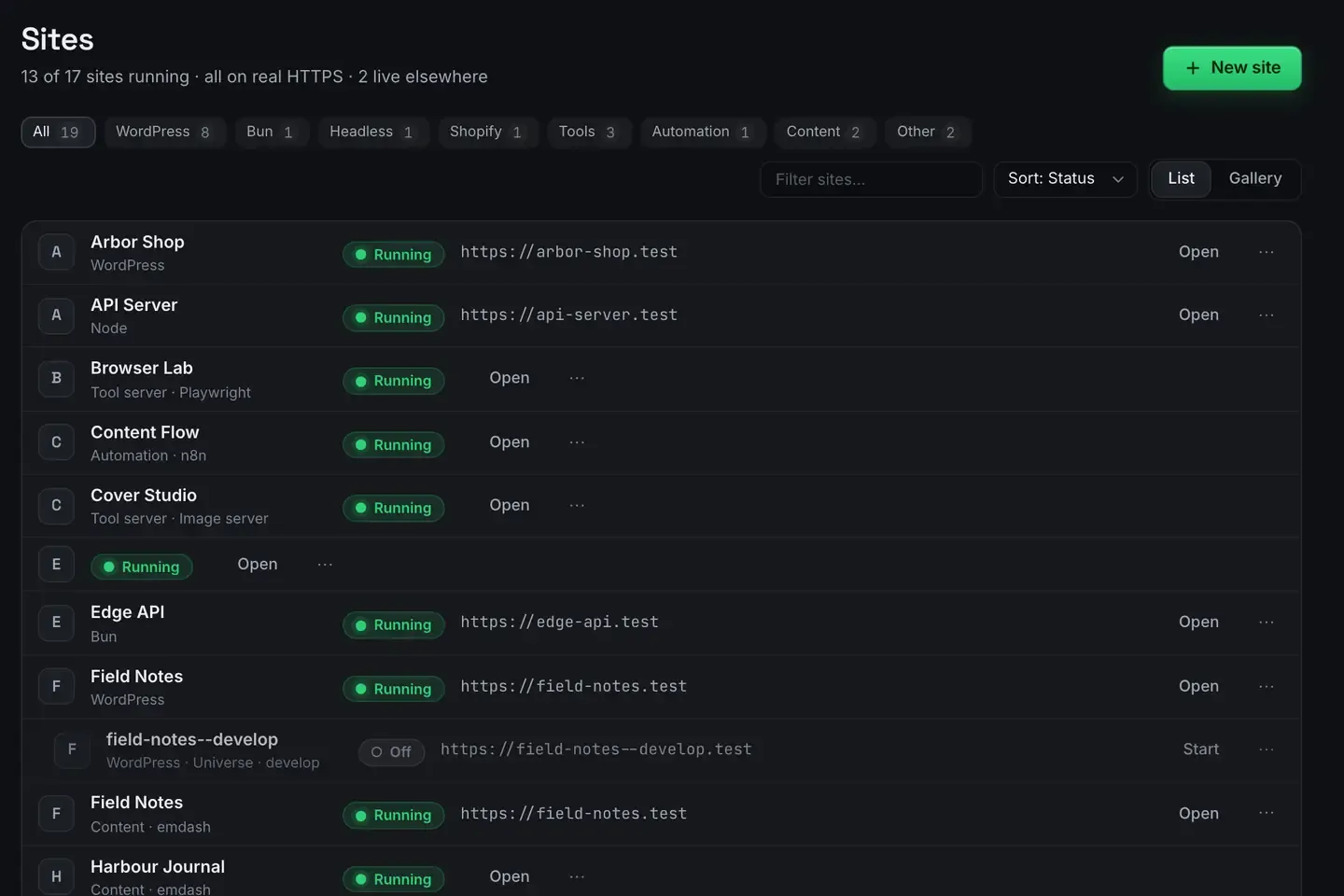
Press New site, choose n8n, and it is running on its own trusted https:// address about a minute later, with no Docker and no terminal. Open it, build your workflow in n8n’s own editor, and when a webhook needs to be reached from the internet, press Share this site on the Sharing tab: the workflow gets a public address for as long as you leave the link up. Stop the link when you are done and n8n keeps running privately. Nothing was deployed anywhere.
The rest of this guide is that task, step by step, on the real screens, with the two steps that have no picture said in words.
Why run n8n on your own computer
Your workflows and the data that passes through them stay on your machine. There is no monthly bill for a hosted instance, and no server to keep patched. n8n’s own self-hosting docs start from Docker or npm; ReDock makes n8n a site type instead, one click, warm-started, with its own runtime and its logs in the app.
It works the same on macOS and on 64-bit Windows 10 or later. The pictures in this guide come from the macOS build; the Windows app has the same screens.
Step 1: Create the n8n site
Press New site and pick n8n. There is no capture of that dialog here. What happens: ReDock installs the Node version n8n wants into its own folder, starts n8n, and issues a certificate for the site’s address. The site shows up on the Sites screen with an Automation label and an honest status pill.

The address follows the name. The use-case page’s example is https://hub.test; a site called Content Flow would answer at https://content-flow.test. Either way it is a real https:// address with a padlock, because the certificate is signed by the authority ReDock set up at first launch.
Step 2: Build the flow
Press Open and n8n’s editor loads in the browser. Build the workflow there; ReDock hosts, secures, shares and watches it, and leaves the editing to n8n. For a webhook-driven flow, start with n8n’s Webhook trigger node, which gives you a path like /webhook/orders.
Anything else ReDock hosts is a hostname away. A WordPress site at https://arbor-shop.test or a MySQL database on the dock can be the other end of the flow without a tunnel, because they are all on the same computer.
Step 3: Give the webhook a public address
A webhook on https://content-flow.test can only be called from your own computer. When Stripe, GitHub or a form on a live site needs to call it, open the site’s Sharing tab and press Share this site.
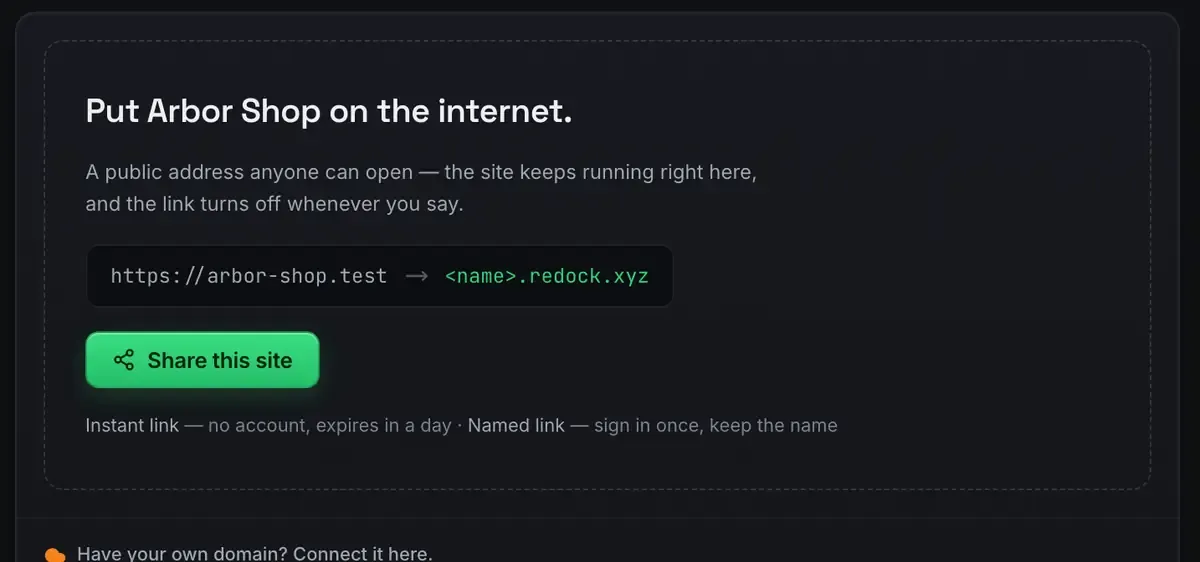
That tab is pictured on a WordPress site here; it is the same tab on an n8n site. Two kinds of link are on offer, and the screen says which is which. An instant link is an unlisted random address, needs no account, and expires in a day. A named link is <name>.redock.xyz, which you sign in once to claim and keep while you use it.
For a webhook that a third party will keep calling, the named link is the one to use, because the address does not change. Paste the public address plus the webhook path, for example https://content-flow.redock.xyz/webhook/orders, into the service that will call it. The call travels through a tunnel to the n8n running on your computer.
There is no capture of the live state, with the public address and its Stop button, so in words: once the link is up, the Sharing tab shows the address, a live visit count, and Stop.
Step 4: Watch it arrive
Every site streams its output into its Logs tab. Send a test event from the caller and watch the request land.
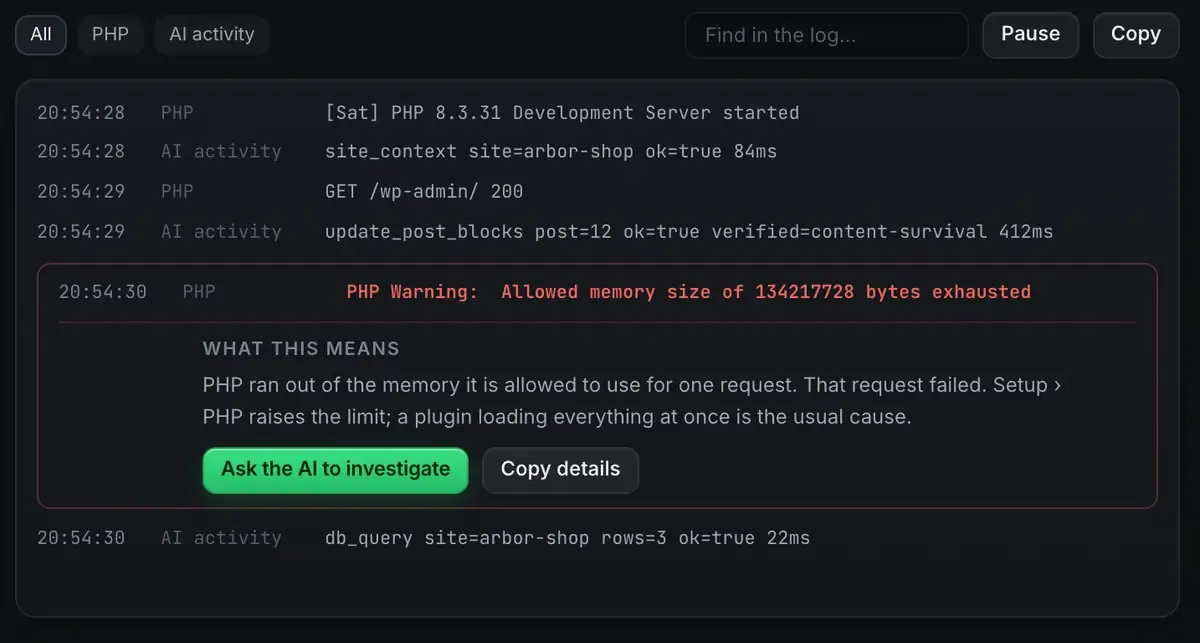
The picture is a WordPress site’s log, with a PHP warning explained. An n8n site’s tab looks the same and carries n8n’s output; a known error arrives with its fix attached, repeated lines fold into one, and the Ask the AI button hands the line to the built-in agent.
Step 5: Stop the link
When the demo or the test is over, press Stop on the Sharing tab. The public address goes dark. n8n keeps running on your computer, your workflows are untouched, and nothing has to be torn down anywhere, because nothing was deployed. Stop the site itself and the link parks; start the site again and the link comes back.
Where this fits
The longer story of webhooks behind a tunnel is in n8n webhooks on localhost, and the one-click install is on the n8n integration page. If the flow talks to a WordPress site, the local WordPress guide gets that side running in about a minute too.
FAQ
Does it need Docker?
No. n8n runs on a Node version that ReDock installs into its own folder, as a supervised process, with nothing put into your system. If you already run Docker for something else, the two do not interfere.
Is the public webhook address stable?
The instant link is not: it is a random address that expires in a day, meant for a look right now. The named link keeps its name while you use it, so a service you configured last week still reaches the same address. Every plan includes three named subdomains under redock.xyz.
Where does the data go?
Nowhere, unless you share. The site, its workflows and its database are on your computer, and the .test address never needs the internet. When a link is live, requests to that address flow through the tunnel to your machine; stop the link and that door closes.
Want n8n running on your computer, with a webhook the internet can reach, before lunch? Download ReDock, free, for macOS or Windows.