Safe WordPress plugin updates: what happens when one breaks the site
Safe WordPress plugin updates look at the site before the update and again afterwards, and put a site back to its snapshot when a page that was working comes back broken.
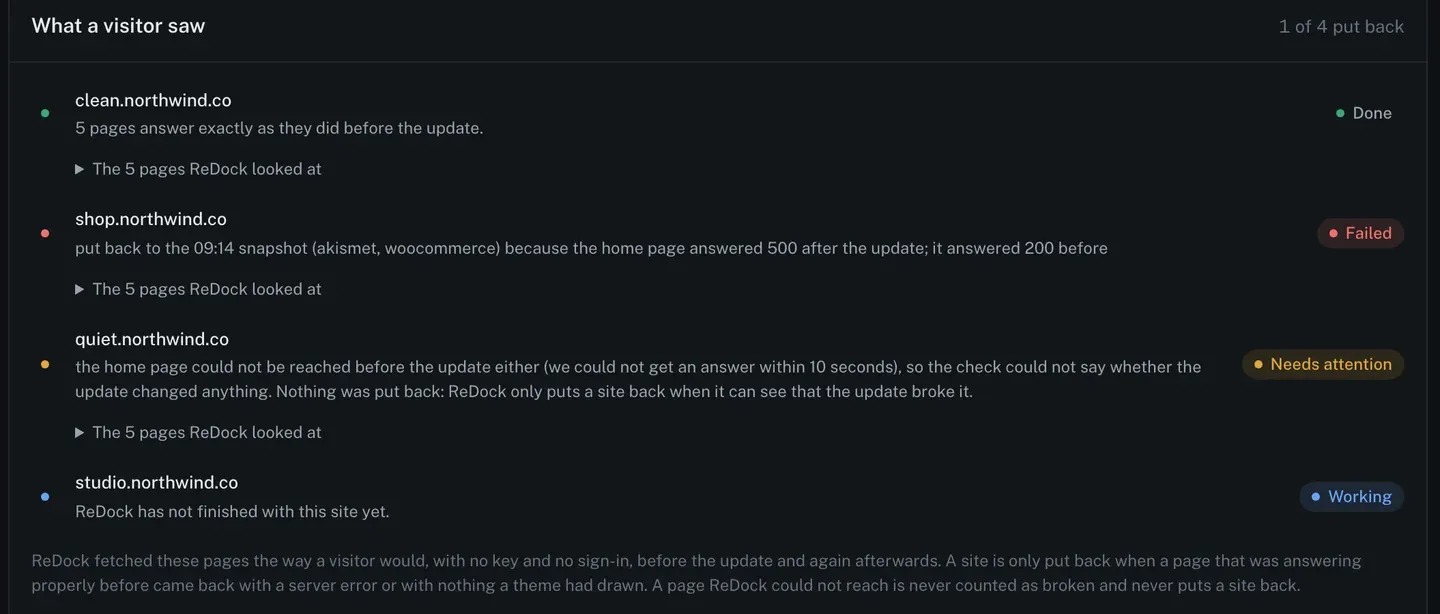
Safe WordPress plugin updates are updates that check their own work. Before anything moves, a copy of the plugin is taken and a handful of the site’s pages are fetched the way a visitor would fetch them. The update runs. Then the same pages are fetched again, and if one that was answering properly comes back with a server error or with nothing a theme had drawn, the site is put back to the copy. This post runs one across four sites, finds a white screen on one of them, and shows what the page says afterwards.
The specific failure this is for
Not every update failure is dramatic. Most are: a version bump, a deprecation, a plugin that now expects a PHP function the host removed, and the front page renders a fatal error to everybody who visits.
The reason this is nasty for anyone running client sites is that nobody tells you. The update reports success, because from WordPress’s point of view the files copied fine. The plugin is at 5.4. The site is white. You find out when the client rings.
What is needed is a check that has nothing to do with whether the copy succeeded, and everything to do with whether a visitor can still see a page.
What safe WordPress plugin updates actually look at
Safe update is one of the job kinds. You pick it from the same What to do dropdown as the other jobs, pick the sites, and press Review.
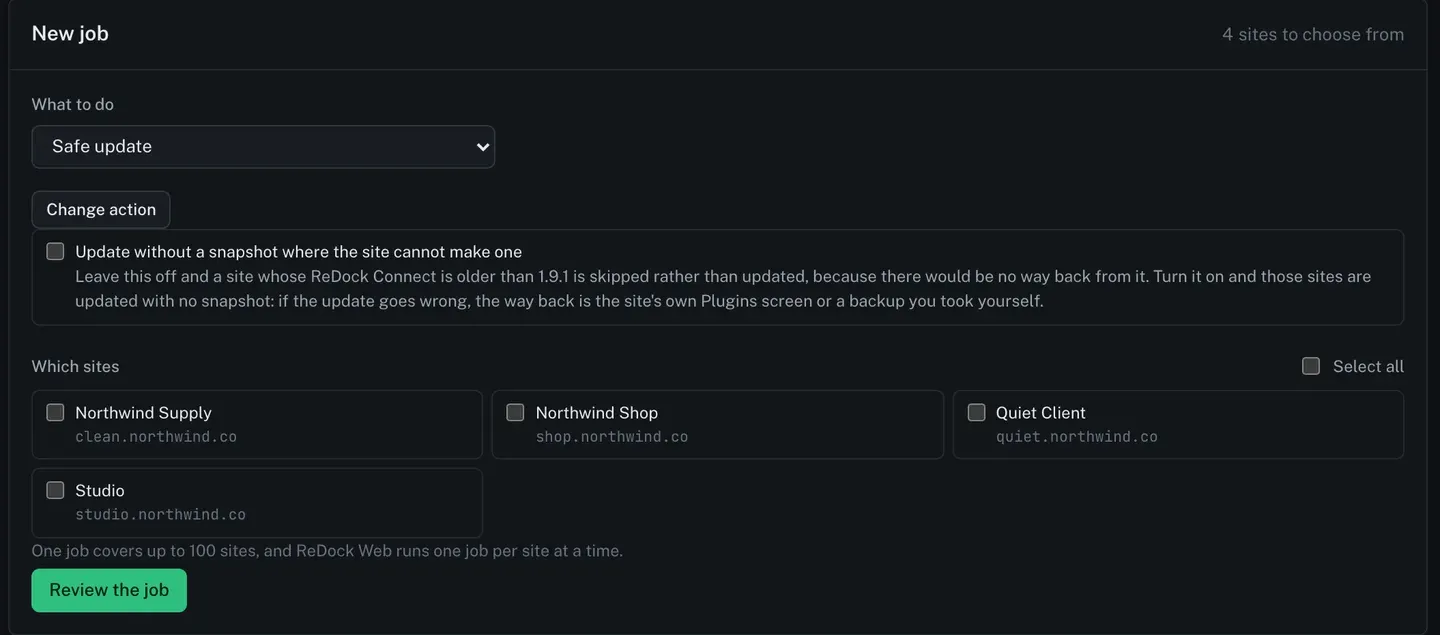
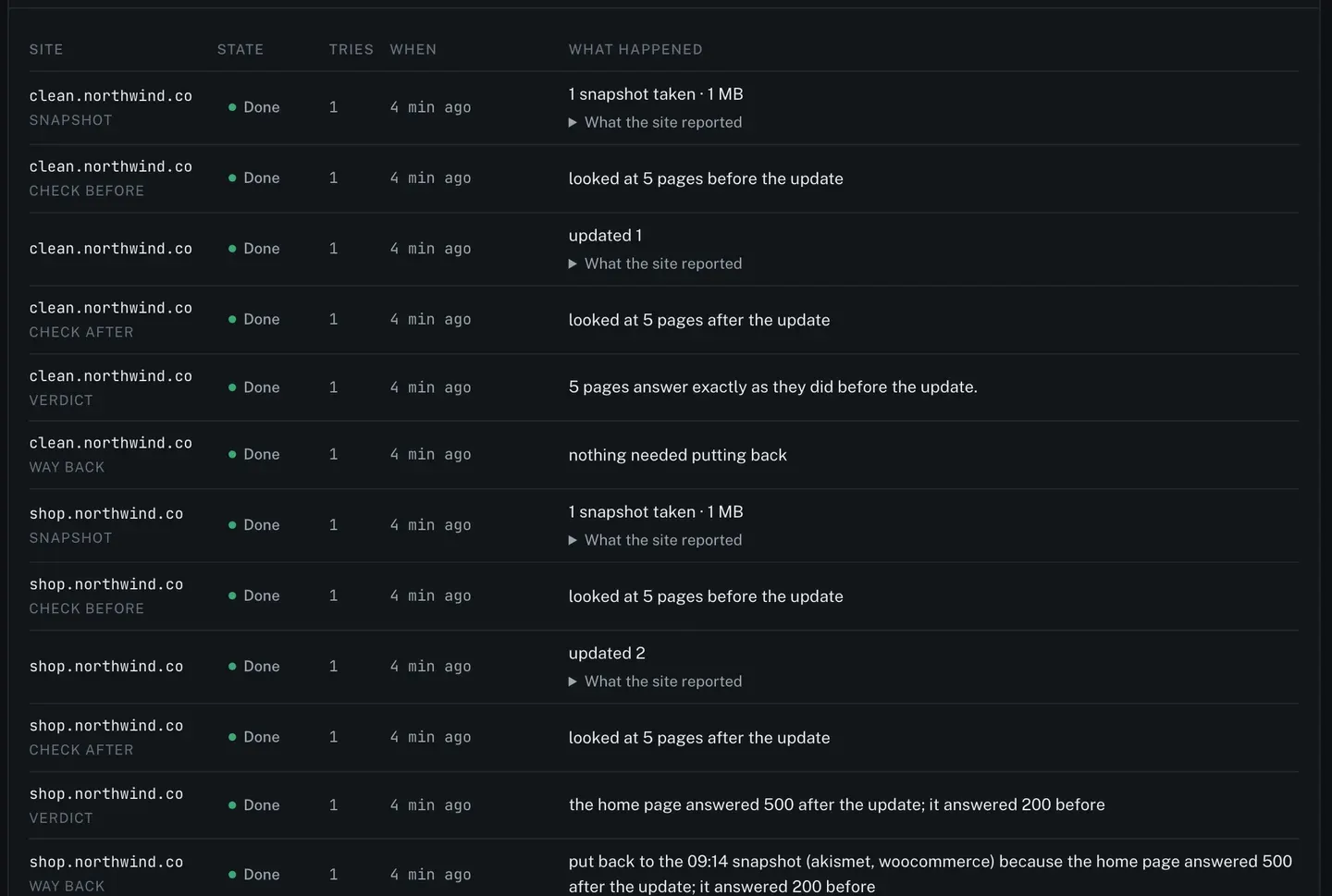
Per site, it runs six steps in order:
- Snapshot. A copy of each plugin with an update waiting, taken on the site.
- Check before. Five pages fetched from outside, the way a visitor fetches them, with no key and no sign-in.
- Update.
- Check after. The same five pages, again.
- Verdict. Compare the two.
- Way back, if the verdict calls for it.
The “no key and no sign-in” part is the whole point of the outside check. A site can answer ReDock’s plugin perfectly over the signed channel and still be showing its visitors a fatal error, because the two go through different code. Fetching the page as a stranger is the only way to know what a stranger sees.
A site is put back when a page that was answering properly before comes back with a server error, or with nothing a theme had drawn. Those two conditions are narrow on purpose, and the narrowness is the interesting bit.
Being honest about what a check can and cannot see
Here is the result card from a run across four sites.
One site says “5 pages answer exactly as they did before the update” and is done. One says it was put back to the 09:14 snapshot because the home page answered 500 after the update when it had answered 200 before. That is the case this exists for.
The third is the one worth reading twice. Its home page could not be reached before the update either, so no answer came within ten seconds. The check could not say whether the update changed anything, so nothing was put back, and the row says exactly that: ReDock only puts a site back when it can see that the update broke it.
That is a deliberate refusal to guess. A site that was already unreachable before the update would, under a sloppier rule, get rolled back every single time, which would mean the tool undoing work at random on sites with a slow host. A page ReDock could not reach is never counted as broken and never puts a site back.
This is not a visual comparison. No screenshots of your pages are taken and no images are compared. What is compared is whether the pages answered, and whether the answer was something a theme had drawn. A layout that shifted, a font that failed to load, a hero image that vanished: none of those are caught by this, and it would be dishonest to imply otherwise. If pixel comparison is what you need, this is not it.
The way back, after the fact
The snapshot is not only for the automatic case. It sits on the plugin’s own row on the site page, with the version it holds and when it was taken, and one press queues a restore.
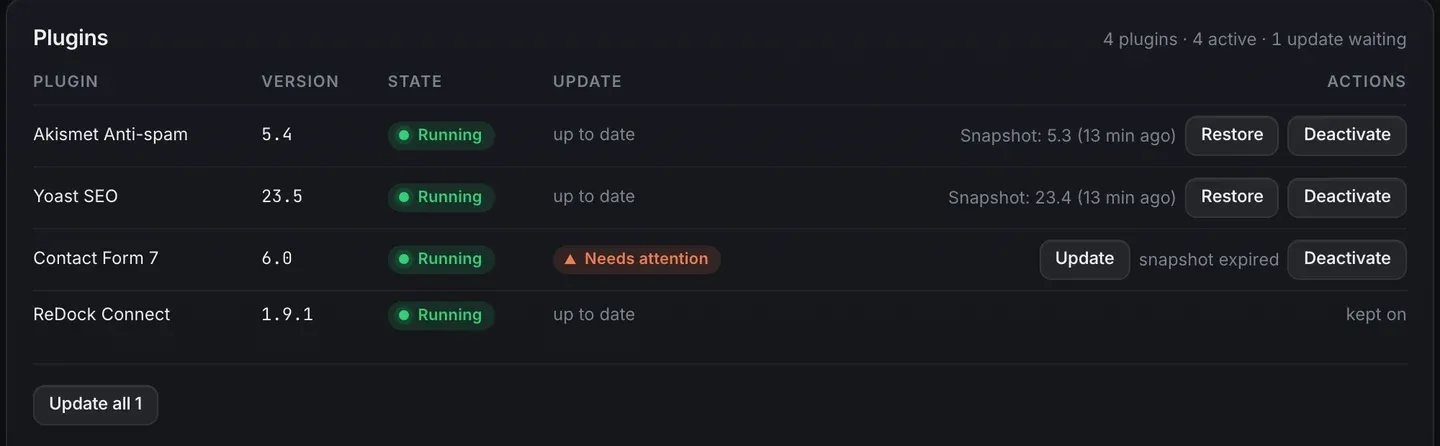
Three details on that screen matter in practice. A restore is a job like any other, so you watch it land and it is recorded with your name on it. A snapshot that has expired says so rather than offering a button that would fail. And ReDock Connect itself is marked “kept on”, because switching off the plugin the request is arriving through would cut the connection mid-request and leave nothing to reconnect with.
The rule underneath all of this is short: no snapshot, no update. If the copy cannot be made, that site is skipped and its row says why. A site running a ReDock Connect too old to take one is skipped rather than updated hopefully.
What this does not cover
It is worth being blunt, because a lot of tools in this category are not.
A plugin snapshot is the plugin, not your database and not your uploads. If an update runs a migration that rewrites tables, putting the plugin files back does not unwrite the migration. Keep a real backup from your host or your own tooling, and take one before anything you would call risky.
A safe update is not a disaster recovery product, and its scope is deliberate: make the ordinary weekly update reversible. Whole-site copies are a separate thing: ReDock Web makes a full archive of each site every day and copies it to your own Google Drive, keeping the last fourteen.
The full mechanism, including how a restore is queued, is on the plugin rollback page, and the queue that runs all of it is on jobs and bulk actions.
FAQ
Which pages does the check look at?
Five pages per site, fetched from outside. The job page lists them, and each site’s row expands to show exactly which ones were tried and what came back.
Does the snapshot cover the database?
No. It holds the plugin files it replaced. A plugin that changes your database on update will still have changed it after a restore, so keep a backup for anything you would not want re-run.
What happens if the site was already broken?
Nothing is put back, and the row says why. A page that could not be reached before the update is not evidence that the update broke anything, so it is never treated as such.
Can I update without a snapshot?
There is a checkbox for it, for sites whose ReDock Connect is too old to make one. It is off by default, and leaving it off means those sites are skipped instead. Turning it on means the way back for those sites is the site’s own Plugins screen or a backup you took yourself.
Run one on a site you own
A free account connects one live WordPress site, and safe updates are on it, like everything else in ReDock Web. Point one at a site you would not mind seeing put back, and read the verdict.
Create a free account and run your first safe update.