Share localhost with a client from Windows: a quick link, a named link, and the stop button
Put a site running on your Windows PC on a public https address in one click with the free ReDock desktop app: an unlisted quick link with no account, a named redock.xyz link that keeps its name, and a stop that always works.
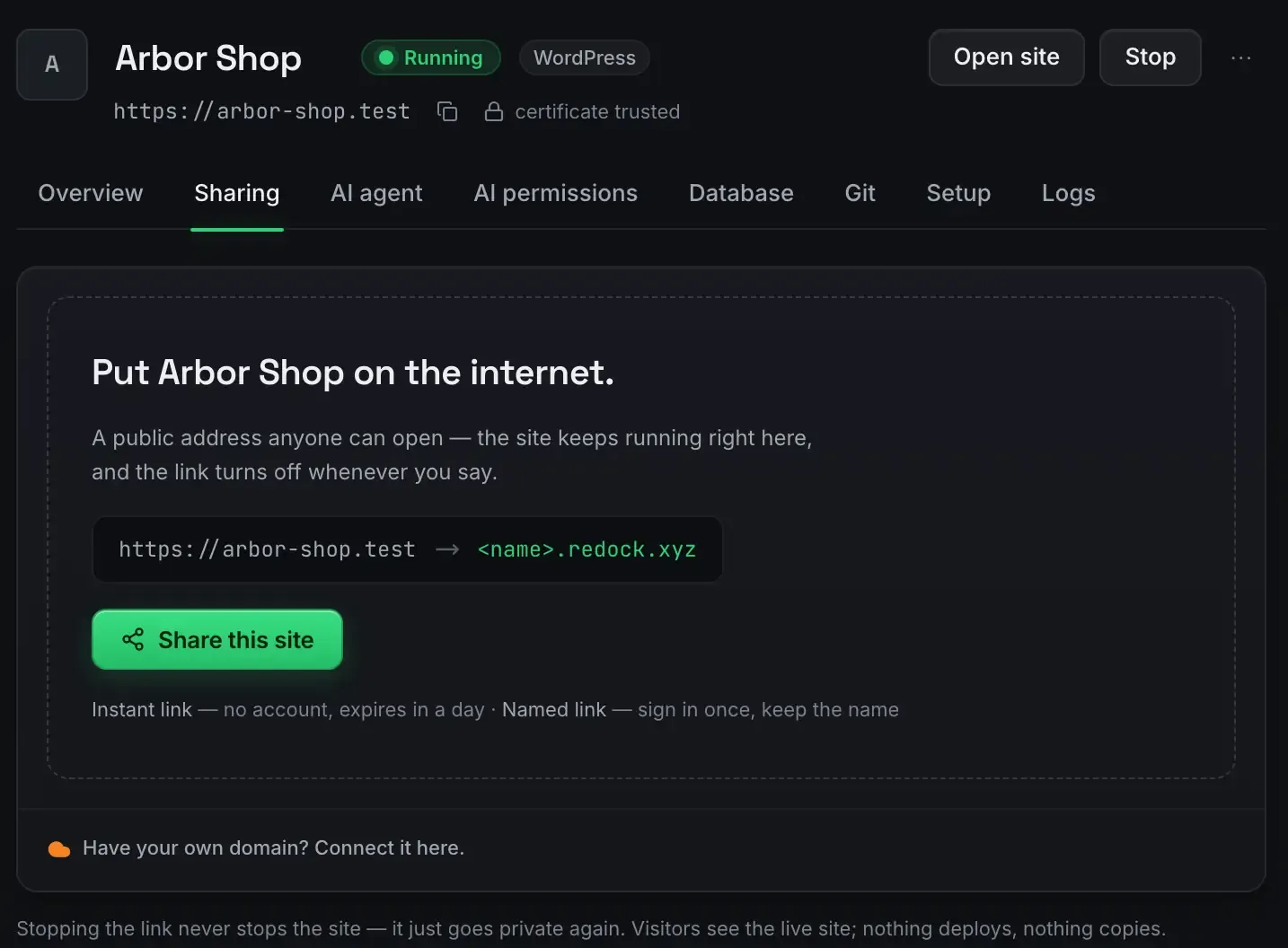
Open the site’s Sharing tab in ReDock and press Share this site. Pick a quick link for a look right now, or a named link that keeps its name. Send the address. The client sees the site that is running on your Windows PC, over HTTPS with no warnings, and you watch the visit count while they look. Press Stop and the link goes dark; the site keeps running for you. Nothing was deployed, nothing was copied, and there is no staging server to clean up.
That is the task. Here it is on the real screens, with the one state that has no picture described in words.
How it works, in one paragraph
The site never leaves your computer. When you share it, a tunnel over Cloudflare’s network carries visitors’ requests to the site running on your machine and carries the pages back. Cloudflare’s own tunnel documentation describes the mechanism; ReDock does the setup, and your part is one button. The public address is HTTPS end to end, so the client’s browser shows a lock.
ReDock runs on 64-bit Windows 10 or later. The installer is not signed yet, so SmartScreen warns once: choose More info, then Run anyway. The pictures in this guide are from the macOS build; the Windows app has the same screens.
Step 1: The Sharing tab
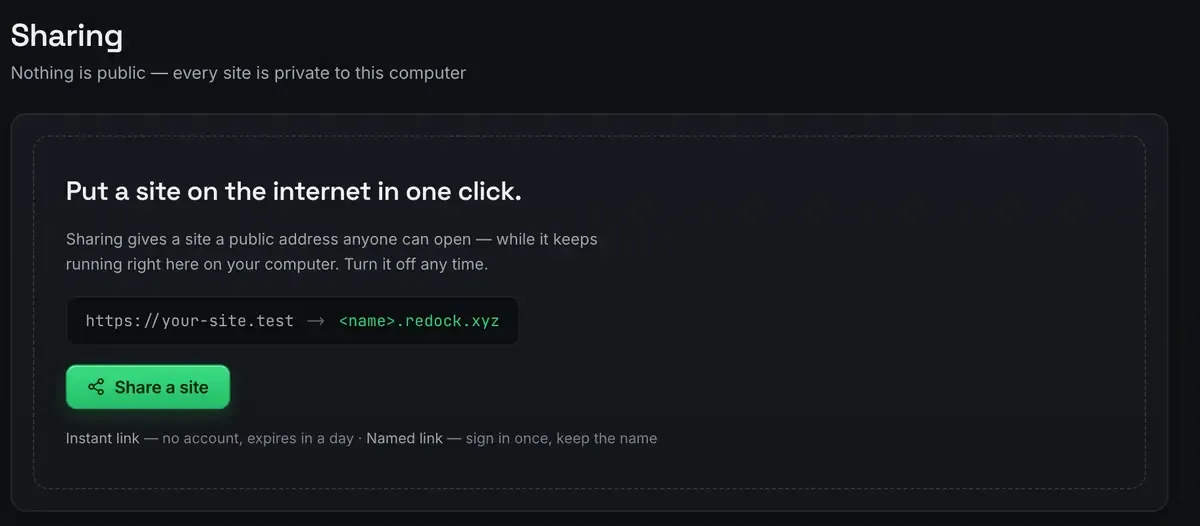
Every site has a Sharing tab. Before you share, the Sharing screen for the whole app says nothing is public and every site is private to this computer.
Open the site you want to show and its own tab says the same thing with the site’s name on it: put Arbor Shop on the internet, a public address anyone can open, the site keeps running right here, and the link turns off whenever you say.
Step 2: Choose the kind of link
The line under the button is the decision.
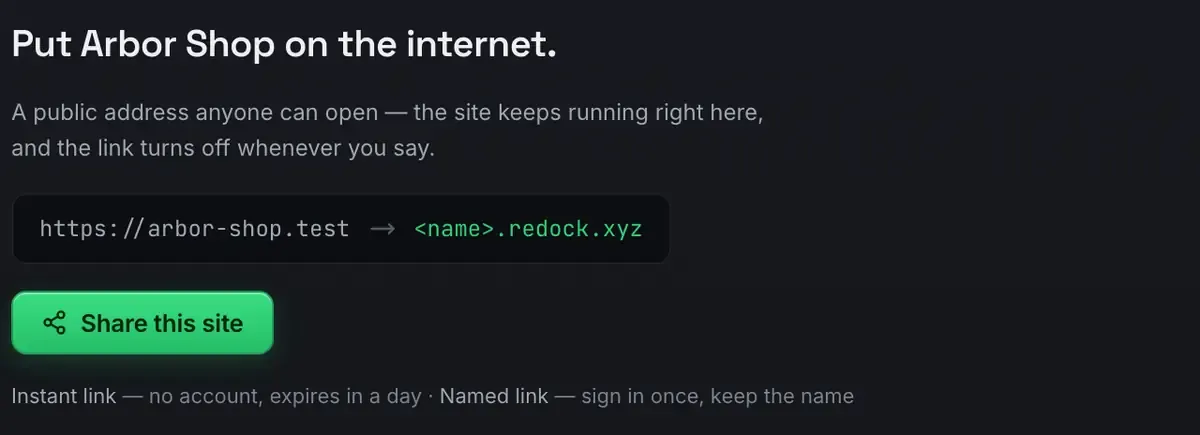
An instant link, called a quick link elsewhere on the site, is an unlisted random address. It needs no account, it expires in a day, and you can make as many as you like. It is the right choice for “look at this now”.
A named link is <name>.redock.xyz. You sign in once to claim it and it stays yours while you use it, so the address you sent on Monday still works on Friday. Every plan includes three of them. It is the right choice for a client who will keep coming back, or for a webhook that a service will keep calling.
Step 3: A quick link, right now
Press Share this site and choose the instant link. There is no capture of the live state here, so in words: the tab now shows the public address, a live visit count, and a Stop button. Copy the address and send it.
The client opens it in any browser, on any device, and sees the site running on your PC. A shared WordPress site is shared whole: the one-click wp-admin login is minted for the public address too, so you can fix a typo they spotted while they are still on the call, or open the dashboard from your phone.
Step 4: A named link, for the client who comes back
Choose the named link instead and ReDock asks you to sign in once. That sign-in connects the public-link network, which is what powers every redock.xyz address.

The card says the two things worth knowing. Nothing to set up: the network comes with the account. And traffic flows only while a link is live; stop the link and the door closes. Claim a name, and the site answers at https://<name>.redock.xyz until you stop it.
Step 5: Stop
One click on Stop. The public address goes dark and the site keeps running for you, exactly as it was. Stop the site itself and the link parks; start the site again and the link comes back. The note at the bottom of the tab says it in one line: stopping the link never stops the site, it just goes private again.
Later: your own domain
When the project has a name, the Sharing screen’s Custom domains section points a domain you own at any shared site.

It runs through your own Cloudflare account, connected once under Settings, with two DNS records the app walks you through. One custom domain at a time, on every plan. The Cloudflare integration page has the detail.
What this is not
It is not hosting. The site answers only while your computer is on and the site is running; close the laptop and the link is dark until you open it. WordPress Studio’s preview sites and Local’s Live Links make different trades, and the comparison pages say so honestly: ReDock against Local and the local development stacks. The longer version of this guide, written before the Windows build existed, is show a client a local site without deploying it.
FAQ
Does the client need an account or an app?
No. They open a normal https:// address in any browser. Nothing is installed on their side and nothing asks them to sign in, unless you send them a wp-admin link on purpose.
What does the client see if my PC goes to sleep?
Nothing, until it wakes. The link reaches the site running on your computer; a sleeping computer is a dark link. For a review that has to outlive your laptop, a hosted preview is the honest tool, and the comparison pages name the ones that offer it.
Is it safe to leave a link up?
A quick link is an unlisted random address that expires in a day on its own. A named link stays public while it is live, which is the point of it, so press Stop when the review is over. Either way, traffic flows only while the link is live, and the site never leaves your computer.
Want to show a client the site on your Windows PC in the next sixty seconds? Download ReDock, free, for Windows or macOS.