How an agency can onboard a client's WordPress sites in bulk, with no passwords
Onboard WordPress sites for a new client by pasting their list into ReDock Web: every site gets a short code of its own, connects itself, and lands under the client's group.
When an agency takes on a client, the first job is to onboard their WordPress sites into whatever you run them from, and it is usually the slowest week of the relationship. Somebody emails a spreadsheet of admin logins, and half of them are wrong. In ReDock Web you onboard WordPress sites without any of that. Paste the client’s list of addresses, get a short code for each site, have each code typed into the ReDock Connect plugin on its site, and watch the rows turn green as the sites connect themselves. The whole batch lands under the client’s group. This post onboards a five-site client from start to finish.
Why onboarding WordPress sites as an agency goes wrong
The usual handover is a list of usernames and passwords, shared over email or a chat thread, for accounts that often belong to people who left the client years ago. You end up holding credentials you never wanted, for sites you have not looked at yet, with no record of who else has the same list.
Pairing a site should work the other way round. The site makes its own key and hands it over, and nobody in between ever sees it. That is what the code does in ReDock Web, and it is why the code is short and disposable rather than secret and permanent.
What the code is, and what it is not
Each site in a batch gets its own code: eight characters, from an alphabet with nothing in it that can be misread as a digit. It lasts 24 hours, works once, and dies on the fifth wrong try. ReDock Web keeps only a hash of it, so the codes are shown once and can never be looked up again.
The printable sheet puts the important part in one line: a code is not a key. It lets that one site offer itself to your workspace, and nothing else. The key the site then creates goes straight from the site to ReDock Web over the site’s own connection. It never touches a clipboard or a browser address bar.
One paste takes up to a hundred sites. Your plan’s site count still applies, and a list longer than the room you have left gets codes for as many as fit, with the page saying which were left out.
The task: onboard a five-site client
1. Put the plugin on each site
Every connected site runs ReDock Connect, and the zip is on the Pair a site page. On each site it goes in the ordinary way, under Plugins, Add New, Upload Plugin, then Activate. That is the same upload route WordPress documents for any plugin you have as a zip.
Whoever does this needs to be an administrator on that site. You can do it yourself or hand it to the client’s developer or host. It does not have to be the person holding the codes.
2. Paste the list
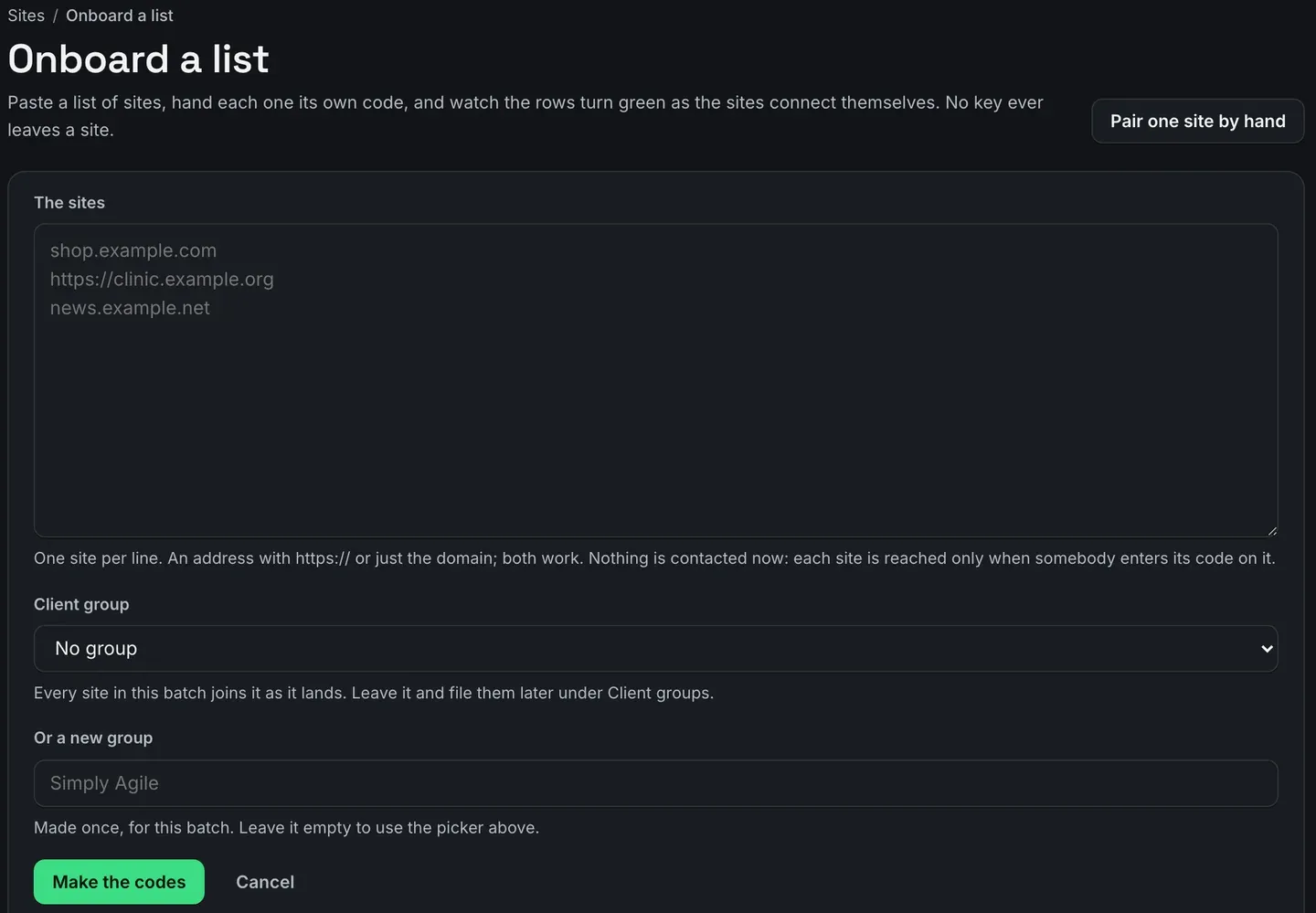
Open Onboard a list and paste the addresses, one per line. An address with https:// and a bare domain both work.
Nothing is contacted at this point. A site is only reached when somebody enters its code on it, so a typo in the list costs you nothing more than a code nobody will use.
3. Choose the client group
Pick the client group the batch should join, or type a new one. Every site in the batch is filed under it as it lands. That is worth doing now rather than site by site later, because the group is what you point jobs at and what the monthly report is written for.
4. Make the codes
Press Make the codes.
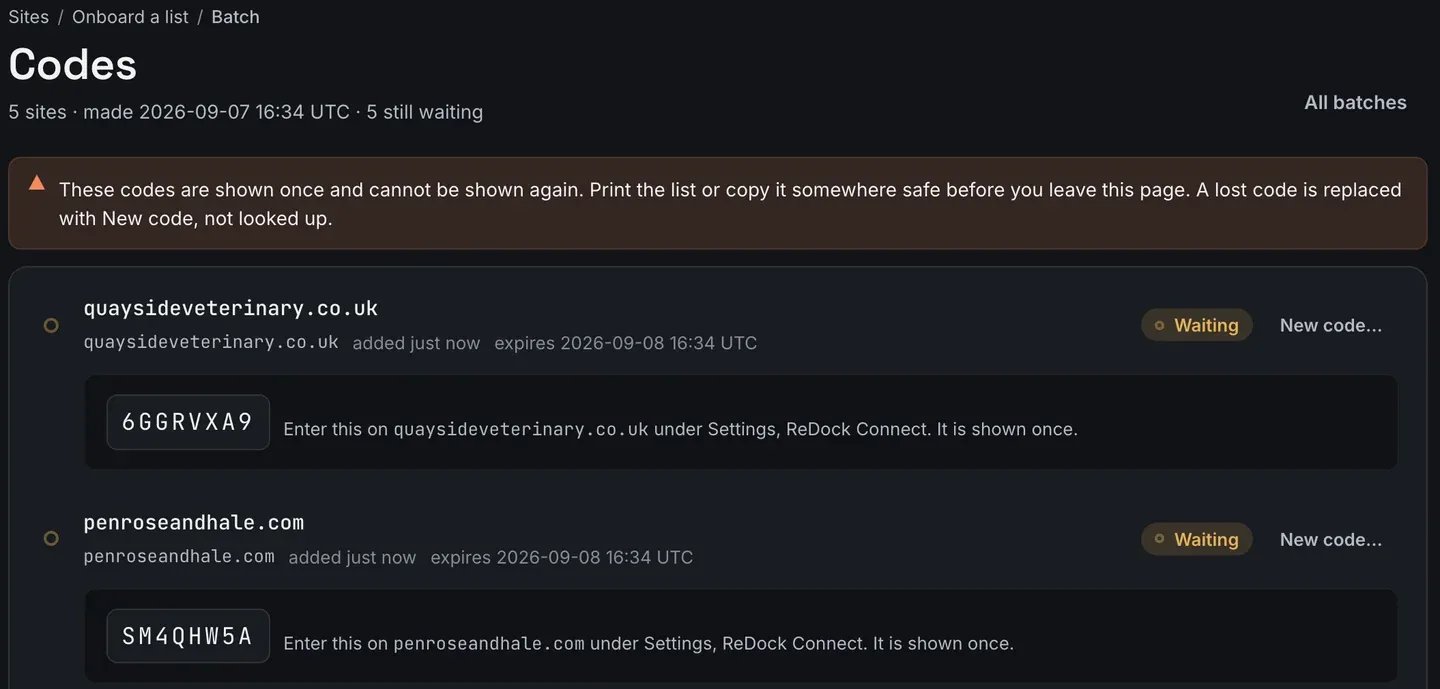
Take the warning at the top literally. Print the list or copy it somewhere safe before you leave the page. A lost code is replaced with New code on that site’s row, never looked up.
5. Enter each code on its site
On each site, in wp-admin, open Settings, then ReDock Connect, type that site’s code and press Connect.
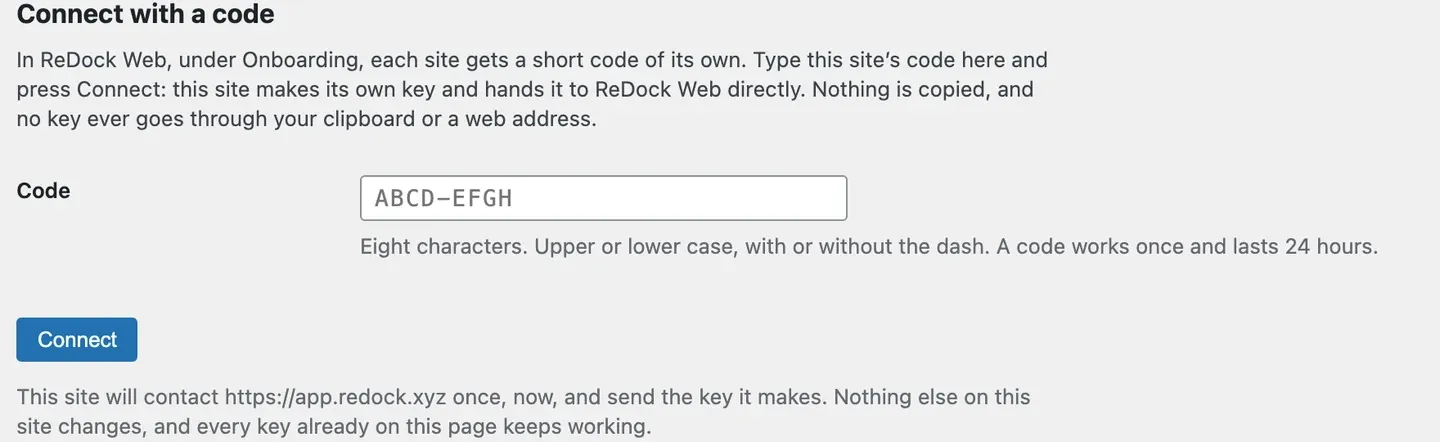
Upper or lower case is fine, with or without the dash. The plugin says exactly what will happen: the site contacts app.redock.xyz once, sends the key it makes, and changes nothing else. Any key already on that page keeps working, so a site that is also connected to something else is not disturbed.
6. Watch the rows turn green
Back on Onboard a list, the batch shows each site as it answers.
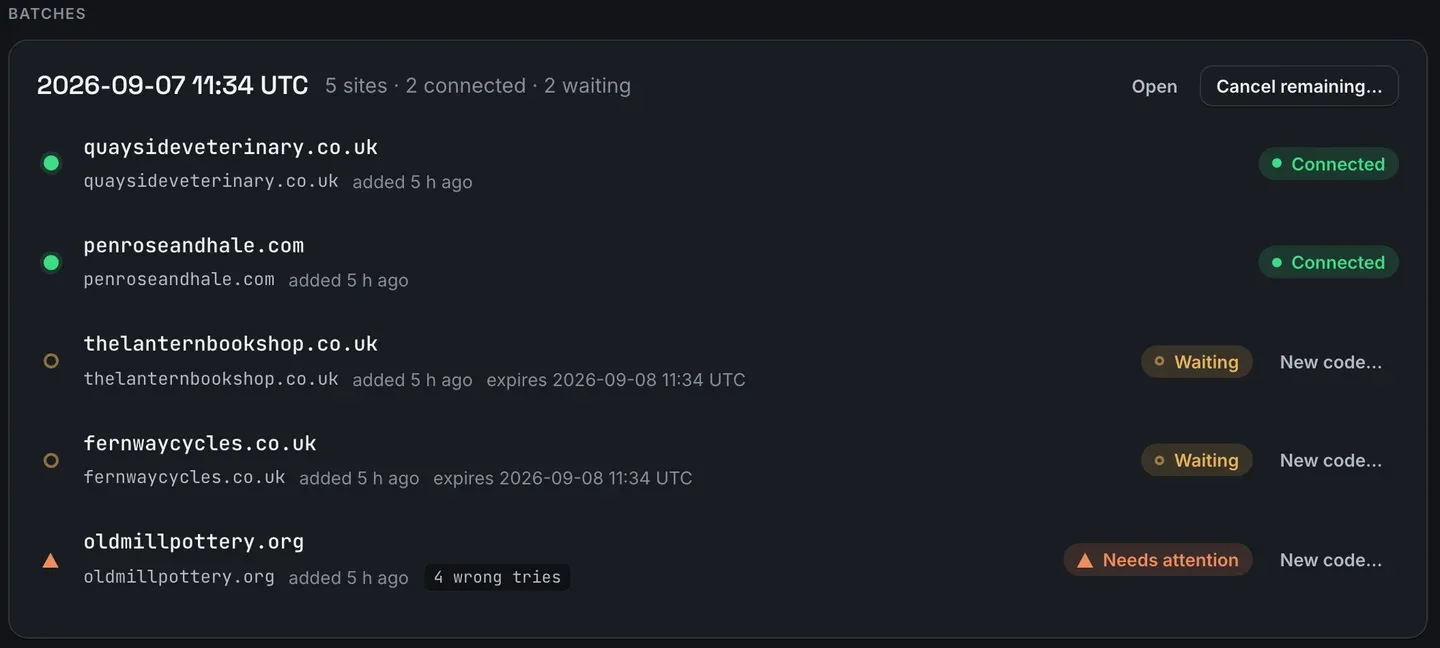
Three states are worth reading properly. Connected is done. Waiting shows when that code expires, so you know how long the client’s developer has left. Needs attention with a count of wrong tries means somebody is struggling, and one more mistake kills the code, so that is the moment to press New code and send a fresh one rather than let them keep guessing.
A batch’s own page refreshes its rows every few seconds while a site is still waiting, pauses while the tab is hidden, and gives up after thirty minutes. Cancel remaining cancels the codes nobody has used yet.
7. Find the client under its group
Once the sites connect, they sit under the client group you picked.
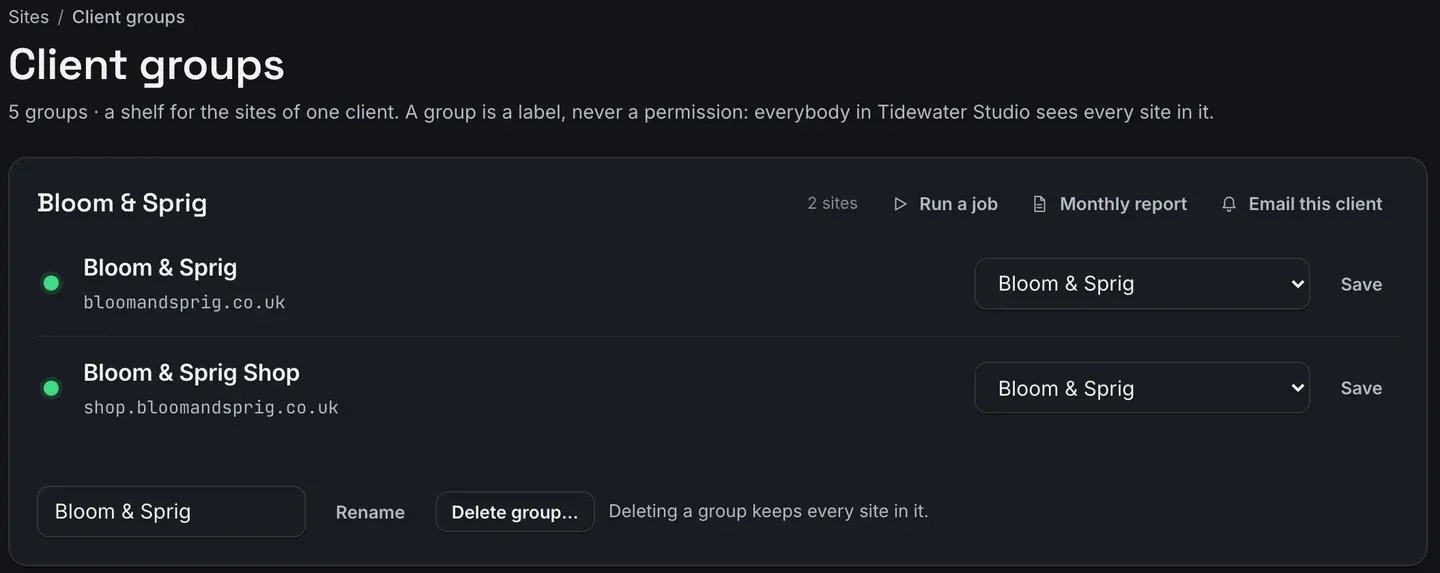
A group is a label rather than a permission: everybody in your workspace sees every site in it. It is still the unit the rest of the product works in. A job can target the whole client in one press, and the monthly report is written per group. Deleting a group later keeps every site that was in it.
When to pair one site by hand instead
For a single site, Pair a site is quicker. In the site’s wp-admin, under Settings, then ReDock Connect, add a client key. The key starts rdk1_ and is shown once. Paste it with the site address into Pair a site, and ReDock Web asks the site to prove the key with a signed request before it saves anything.
The list is for the day a client hands you nine sites. The key is for the one site you are already signed in to.
Either way the site keeps its own key. That key reaches the folders a site is edited in and cannot touch wp-config.php or the site root. Both routes are walked through in the connect a site guide, and the connected sites page covers what each site page reads once a site is in.
FAQ
Does the client have to give me their WordPress password?
No. Nobody sends you a password and ReDock Web never stores one. An administrator on the site types a code into the plugin, and the site creates and hands over its own key.
What if somebody types the wrong code?
The row counts the wrong tries. A code survives four and dies on the fifth, and a new one comes from its own row with New code.
Can I onboard more than a hundred sites?
A hundred come from one paste. For a bigger estate, paste the next hundred as a second batch, and file both under the same client group if they belong to one client.
How does the client take access back?
From their own wp-admin. The ReDock Connect settings page lists every key on the site with a Revoke beside each one, Revoke all ends every one of them at once, and deactivating the plugin ends every connection too. Revoking on the site is the end of it.
Onboard a batch of one
A free account connects one live WordPress site, so your first batch can be a single site you already look after. Once you have seen the code go in and the row turn green, managing the whole estate from one list is the same thing again with a longer paste.
Create a free account and onboard your first site.