Manage WordPress users across multiple sites: who can sign in, and what to do the day an account is taken
ReDock Web shows who can sign in to each connected WordPress site and with what role, counts the sessions before it ends any, and hands you WordPress's own reset link rather than a password.
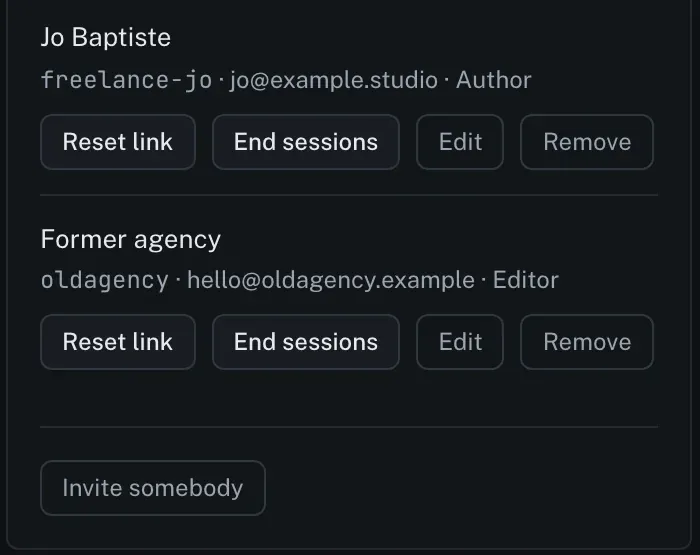
Managing WordPress users across multiple sites comes down to two questions for each client site: who can sign in right now, and what you do when one of those accounts should not. ReDock Web answers both from each site’s Manage tab. The Users view lists every account with its login, email and role, and counts them by role. From the same rows it sends WordPress’s own password reset link, and it counts every open session before it ends any. It also edits an account, or removes one and gives its content to somebody else. ReDock never makes a password and never sees one. There is no single table of every account on every site: you move from one client’s site to the next from one list. This post walks through the day a client account is taken, and the housekeeping that makes that day less likely.
WordPress roles, briefly
WordPress’s roles and capabilities page defines the defaults. An Administrator has access to all the administration features within a single site. An Editor can publish and manage posts, including other users’ posts. An Author publishes and manages their own posts, a Contributor writes and manages their own posts but cannot publish them, and a Subscriber can only manage their profile. Plugins add roles of their own, which is why a shop’s list can include a shop manager or a customer.

The count by role is the first thing to read on a site you have just taken on. Two administrators on a small client site is ordinary. Six deserves a question, and an Editor login that belonged to the previous agency deserves a bigger one.
The task: the day a client’s account is taken
Say a client tells you somebody has been signing in as one of their editors.
1. Open the site’s Users view
Open the site, then Manage, then Users. The view says what it is for in one line: everybody who can sign in to the site, and the four things an agency does the day one of those accounts is taken. Send them a reset link, end every session they have open, change what the account says, or remove it and give its content to somebody else.
Each account is a row with its name, login, email and role, and four buttons, as in the picture at the top of this post.
2. Count who is signed in before ending anything
Count everybody signed in counts first and ends nothing.

3. End the sessions
The count comes back as a question. It says how many sessions across how many people would end, and that nothing has changed yet.

Read the warning before pressing. Ending sessions signs everybody out, including a client who is working in wp-admin right now, and it does not change a single password. Whoever took the account and knows its password can sign straight back in, which is what the next step is for.
When only one account is the problem, End sessions on that account’s row is the narrower tool.
4. Send a reset link
Reset link on the account’s row makes a password reset link for that login.

It is WordPress’s own reset address, so the new password is chosen in WordPress’s own form, under whatever rules the site already enforces. Send it to the real person by a channel you trust, not to the email address on an account you believe somebody else controls.
5. Fix the account, or remove it
Edit changes the account’s email and display name. Remove deletes the account, with a field to give its content to somebody else. Leave that field empty and everything the account wrote is deleted with it, and there is no undo either way, so choose the new owner first.
The login of a previous agency, or of a freelancer whose work is finished, is the one to remove on purpose, before it becomes the account somebody takes.
6. Add the account they actually need
Invite somebody creates a new account from a login, an email and a role. WordPress generates the password and nobody sees it, ReDock included. The result offers a reset link to send the person, which is how they choose their own.
Across many client sites
Every button on this view runs the same tool an AI app would run, with you as the caller, so it meets the same walls and lands on the activity log the same way. On the site itself, its own log records that a reset link was made, and by which key.
There is no one screen listing every account on every client site. All sites is where you move from one site to the next, and the client group filter narrows it to one customer. An AI app connected through ReDock Web’s MCP door can also work across the sites it was approved for, at the level you approved. Creating WordPress users or changing roles is one of the seven usage policy switches, so you can refuse that to every AI app and leave the rest on.
You do not need an account of your own on each site to get into wp-admin either. Sign in to wp-admin as an administrator sits on every site’s header. No password crosses anything, and the sign-in is recorded like any other change.
The Users view sits under Manage with the rest of a site’s everyday work, as the site page guide describes.
FAQ
Can I see every WordPress account on every site in one list?
No. Each site’s Users view lists that site’s accounts, with a count by role. The All sites list, filtered by client group, is how you move through one client’s sites.
Does ReDock store or see WordPress passwords?
No. A reset link is WordPress’s own, and the new password is chosen in WordPress’s own form. A new account gets a password WordPress generates and nobody sees.
Does ending sessions change anybody’s password?
No. It signs people out and nothing else. Anybody who knows a password can sign back in, which is why a reset link comes next.
Can an AI app create users or change roles?
Only if the workspace’s usage policy allows it. Creating users or changing roles is one of the seven switches, and a single site can be made stricter than the workspace.
Look at one site’s accounts
A free account connects one live WordPress site, with its Users view and the wp-admin sign-in on it. Connect the client site you inherited from another agency and read its role counts.
Create a free account and find out who can still sign in.