A WordPress activity log that can answer for a person, a job or an AI
A WordPress activity log across every client site, with who did it, which tool, how it ended and the refusals, filterable and exportable as CSV or JSON.
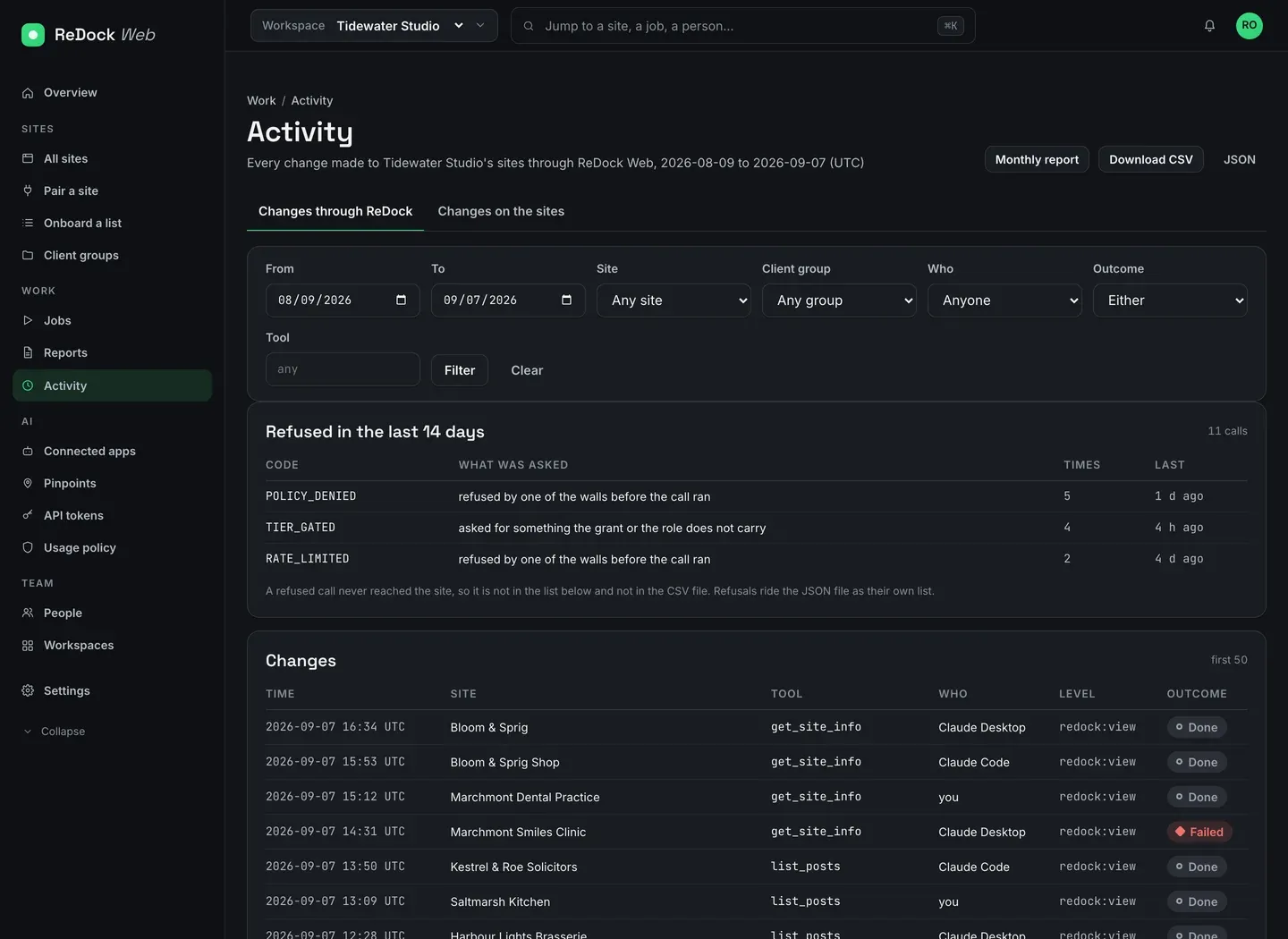
A WordPress activity log is only useful when a client asks a question you would rather not answer from memory. Who changed the front page. When did that plugin get deactivated. Did anything touch this site between the eighth and the eleventh. Answering those across an estate needs one record covering every site, with the person, the tool, the moment and the outcome on the same row, and it needs to be able to name a colleague, a queued job or an AI assistant with equal ease. This post finds who changed what on one site last week, exports it, and looks at a refusal.
The question a WordPress activity log has to survive
Something changed on a client site. The client noticed. They are on the phone.
At that moment you need three facts in order: what changed, when, and who. Most logs give you a decent shot at the first two. The third is where they fall apart, because the site’s own log records a WordPress user, and by the time an agency, a plugin’s own automation and an AI assistant are all working through shared accounts, “admin” is not an answer.
ReDock Web records every call it makes to a connected site with the app or person that made it, the tool that was used, the level it ran at and how it ended. A colleague, a queued job and Claude all appear in the same column, because when a client asks who changed the front page, the honest answer has to be able to be any of the three.
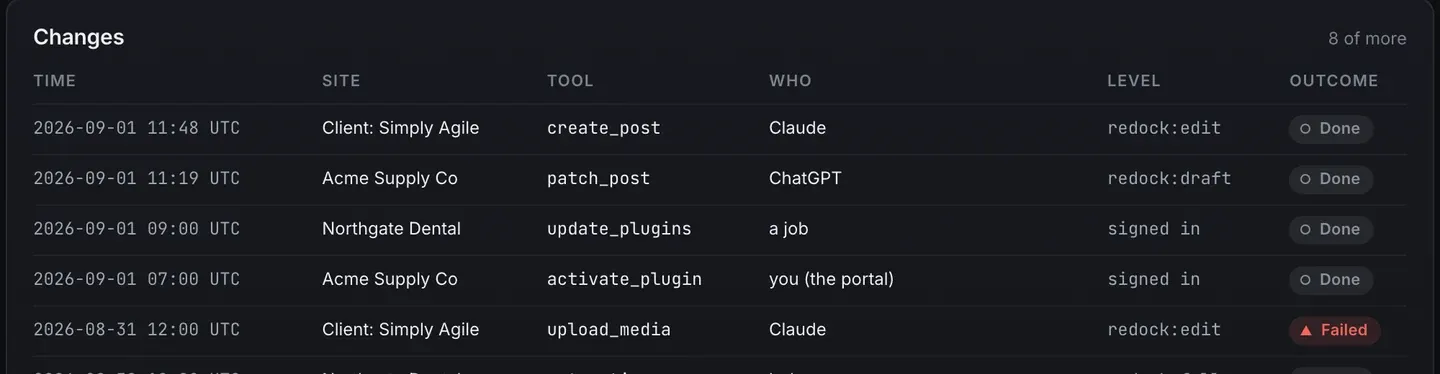
Look at that column. Claude, ChatGPT, a job, you (the portal). An app that has since been disconnected is still named on the rows it made, because the record is about what happened rather than about what is currently connected.
The level is on the row too, next to the outcome. redock:edit, redock:draft, signed in. That answers a second question people ask a beat after the first: not only who did it, but what they were allowed to do at the time.
The task: what happened on one site last week
1. Narrow it
The filter row takes a date range, a site, a client group, a person, an outcome and a tool. Set the dates to last week and pick the site. If you want to see one client’s whole estate rather than one site, use the client group instead.
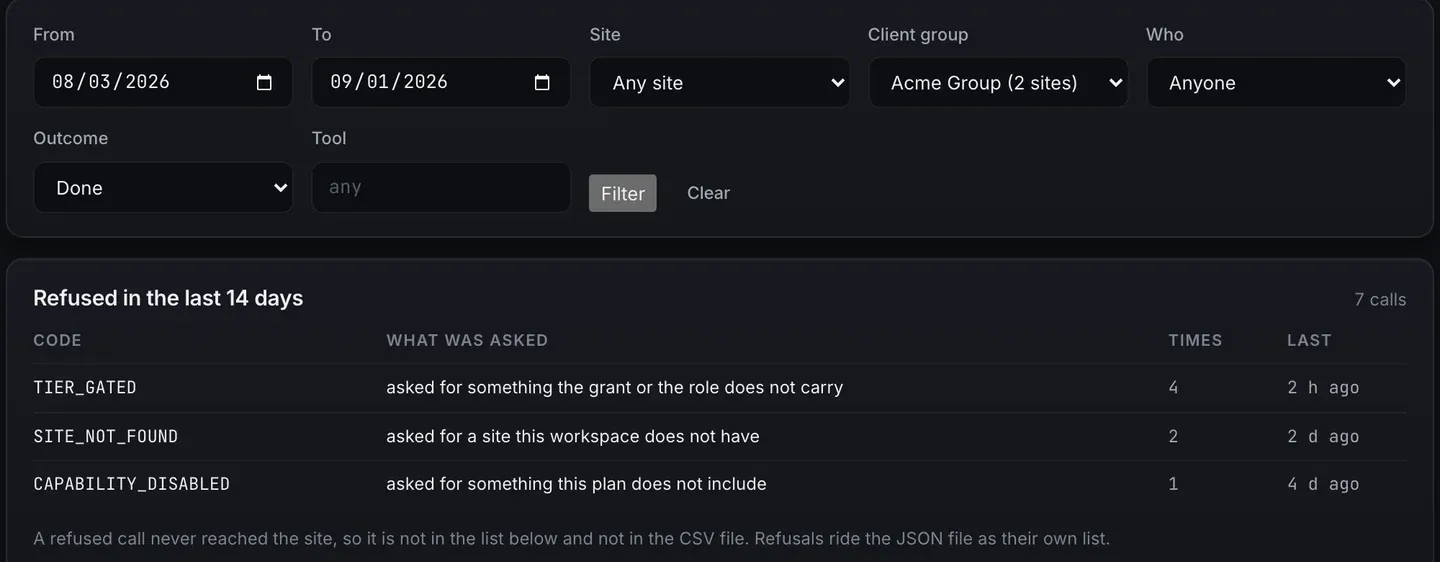
The tool box takes a name if you already know it. Filtering to update_plugins answers “what has been updating this site” in one press.
2. Read the rows
Time in UTC, site, tool, who, level, outcome. Done or Failed, and a failed row is as useful as a successful one when a client is asking why something did not take effect.
3. Export it
Two buttons: Download CSV and JSON. The CSV is the rows as you filtered them, which goes into a spreadsheet or an email to a client without further work. The JSON is the same rows plus the refusals as their own list, which is the one to take if you are feeding something else.
4. Look at what was refused
This is the part most logs do not have, and it is worth ten minutes of anybody’s attention.
Refusals sit above the changes with a code, a count and when each last happened. POLICY_DENIED means one of your AI policy switches said no. TIER_GATED means the grant or the role did not carry what was asked. RATE_LIMITED means a wall of a different kind. SITE_NOT_FOUND means something asked for a site this workspace does not have.
A refused call never reached the site, so it changed nothing. That is why it is not in the changes table and not in the CSV: putting it there would imply something happened. It rides the JSON as its own list instead.
But it is on the page, deliberately, because a token asking four times in an afternoon for something it does not carry is a fact you want before your client has it. So is SITE_NOT_FOUND appearing repeatedly, which usually means a script somebody wrote is still pointed at a site you disconnected.
What it does and does not cover
Two tabs sit above the table. Changes through ReDock is the record described above: everything that went through ReDock Web, from anywhere, with full attribution. Changes on the sites is the site’s own record, as WordPress wrote it, which is what catches somebody signing in to wp-admin directly and editing a page.
Those are different records with different reach, and the tabs keep them apart rather than blending them into one list that would be honest about neither. If a client edits their own page in wp-admin, ReDock did not make that change and does not claim it: it shows up on the site’s own record.
Records are kept 400 days, which covers a year plus the argument that starts in month thirteen. The same refusal codes appear on the client’s monthly report, so a client who reads their report sees the same numbers you do.
More on the trail, the refusals and the exports is on the activity and audit page, and the AI side of it is on AI access and policy.
FAQ
Does it record reads or only changes?
Changes. A read, such as listing posts or looking at settings, is not written to the log, on the web as on the desktop. Every call that changes something is, whether it succeeded or was refused, with the tool that was used and its outcome. Filtering by tool is how you get to the rows that matter for a client conversation.
Can a client see their own log?
Not with their own sign-in; that is being built and is not here today. What a client can have now is a viewer seat in your workspace, which opens every site and every record you give them access to and presses nothing, or the monthly report, which carries the counts and the refusal codes for their sites.
How long is it kept?
Four hundred days. The month picker on the reports page reads from the same history.
What if an AI app is disconnected? Does its history go?
No. The rows it made keep its name. Revoking an app stops it making new calls on its very next attempt; it does not rewrite what it already did.
Connect one site and watch a week
A free account connects one live WordPress site, with the full activity record, the refusals and both exports. Connect a site, work on it normally for a week, and read the log back. The interesting rows are usually the ones you had forgotten you did.
Create a free account and start a record you can hand to a client.