Update WordPress core on multiple sites, with a backup rule that refuses before anything breaks
ReDock Web updates WordPress core on multiple sites as one job that refuses any site without a full backup from the last day, shows what visitors saw before and after, and never puts a site back on its own.
To update WordPress core on multiple sites without betting a client’s site on it, you need two things a plugin update does not: a real backup taken first, and a person deciding what happens if a site breaks. In ReDock Web, a WordPress update is one job across as many sites as you tick. Any site without a full backup from the last 24 hours is refused before it is touched. Every other site is checked the way a visitor sees it, before and after. A site that breaks is named with the archive to restore from, the workspace owners get an email, and nothing is put back automatically. This post runs one across three sites and reads what came back.
Why WordPress core is not updated like a plugin
A plugin is one folder. When a plugin update goes wrong, the snapshot ReDock took a minute earlier goes back in its place in seconds.
WordPress itself is different. A core update replaces wp-admin, wp-includes and the files in the site root, and may upgrade the database on the way. Its only honest way back is a full archive of the site, files and database together, and restoring one onto a live site with nobody watching is how a short outage becomes a long one. WordPress’s own guide says to back up your website before you start. ReDock turns that advice into a rule.
Minor and security releases are a separate case. Since WordPress 3.7, most sites apply those automatically in the background. This job is for the releases that still need somebody to press Update Now, and for sites where automatic updates are switched off.
The archive rule, and where the archive comes from
ReDock will not update WordPress on a site whose last full backup is more than 24 hours old. The fact comes from the site itself: its own record of the last complete archive ReDock Connect built of it, files and database together. A plugin snapshot does not count, and neither does a backup another tool made, because the site has no record of that one to vouch for.
The daily full archives this rule was designed around come from ReDock Web’s backup copies to your own Google Drive: once a day each connected site makes a full archive and ReDock copies it to your Drive, one folder per site, keeping the last fourteen. A site with a copy from the last day is updated. A site without one is listed under Will be refused before you queue anything, and the rule does not bend.
The task: update WordPress core on three sites
1. Queue the update
Open Jobs, choose the WordPress update under What to do, and tick the sites. The picker is grouped by client group, so one client’s whole estate is a single pass down a column.
2. Read the confirm page
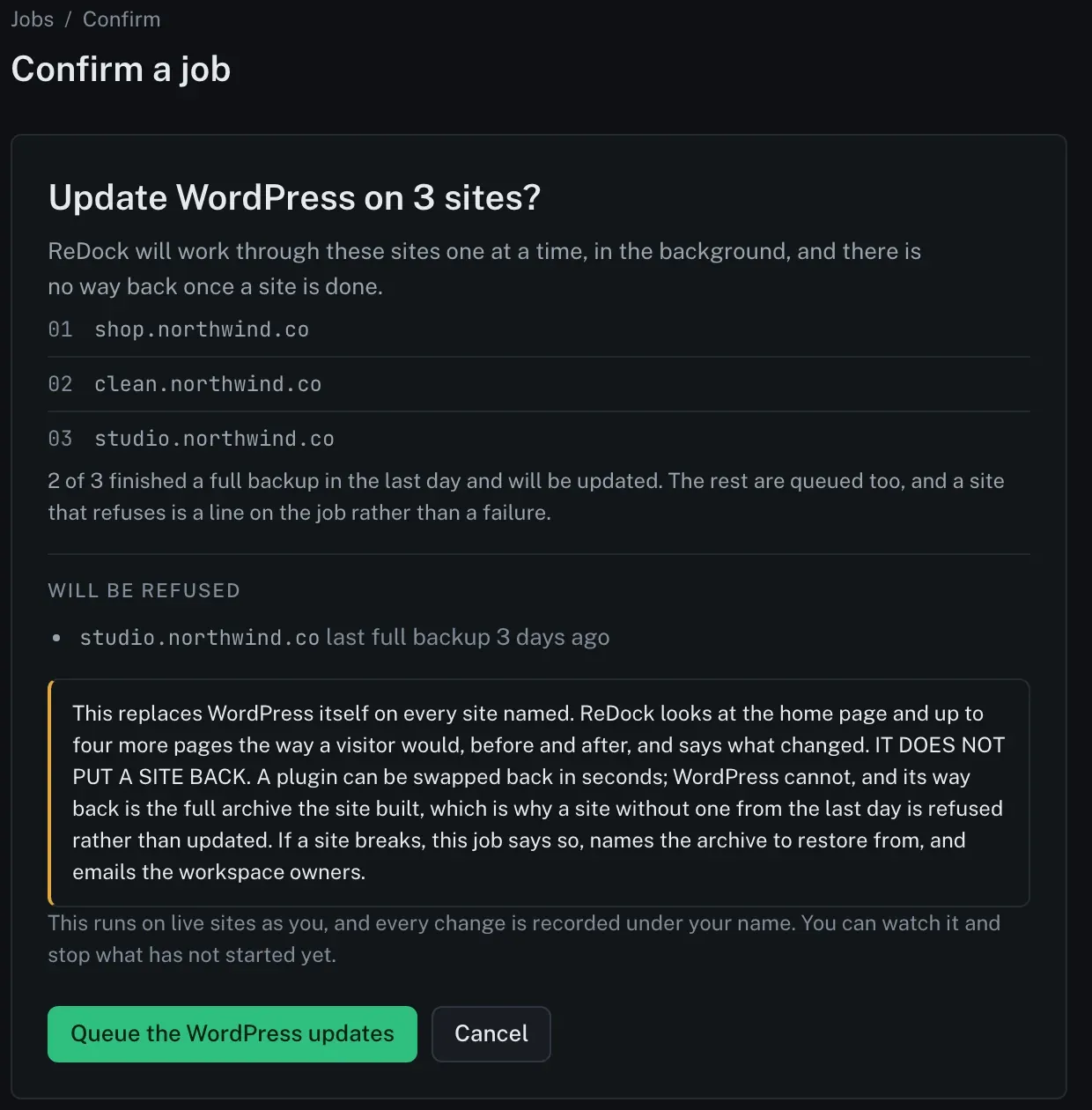
Everything that matters is on this page before anything happens. It names every site, says how many finished a full backup in the last day, and lists the site that will be refused along with how old its last backup is. A refused site is still queued. Its refusal becomes a line on the job rather than a failure of the whole thing.
The highlighted paragraph is the deal you are agreeing to. ReDock looks at the home page and up to four more pages the way a visitor would, before and after, and says what changed. It does not put a site back.
Press Queue the WordPress updates. ReDock works through the sites one at a time, in the background. You can watch it, and stop what has not started yet.
3. Read what a visitor saw
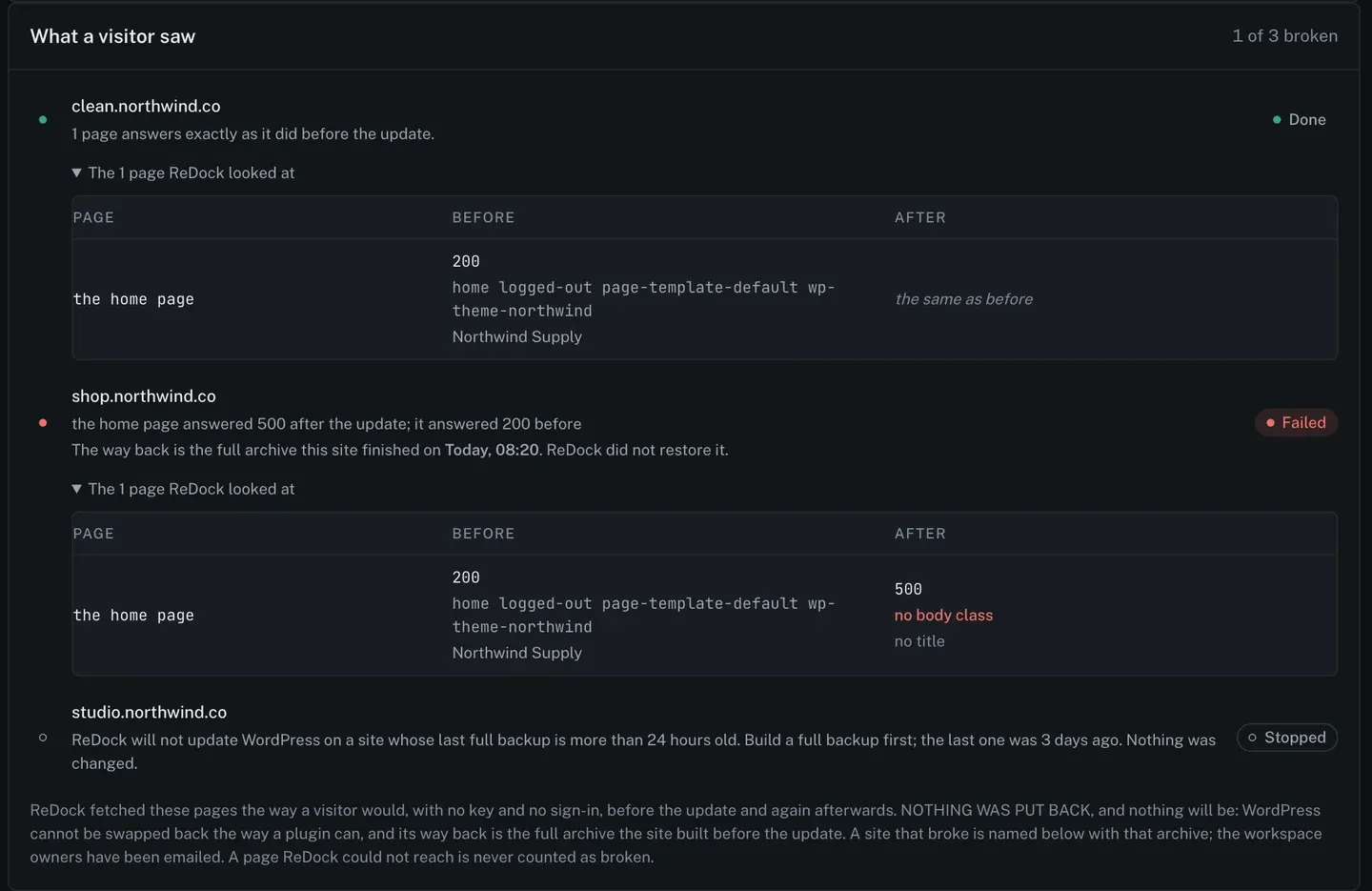
The job page compares each site’s pages from before and after, fetched as a stranger with no key and no sign-in would fetch them. The picture at the top of this post is that panel for this job.
One site answers exactly as it did before, and it is done. On the second, the home page answered 500 after the update where it had answered 200 before. Its row names the full archive the site finished that morning as the way back, and says ReDock did not restore it. The third site was stopped because its last full backup was three days old, and nothing on it was changed.
A page ReDock could not reach is never counted as broken, so a slow host does not get reported as a failed update.
4. Deal with the broken site
The workspace owners have already had the email. Putting the site back is now a person’s decision, made with the named archive in front of them, and ideally after a look at what actually failed. A 500 straight after a core update can come from a single plugin that has not caught up with the new version, which is a smaller fix than restoring a whole site.
5. Run it again where it did not finish
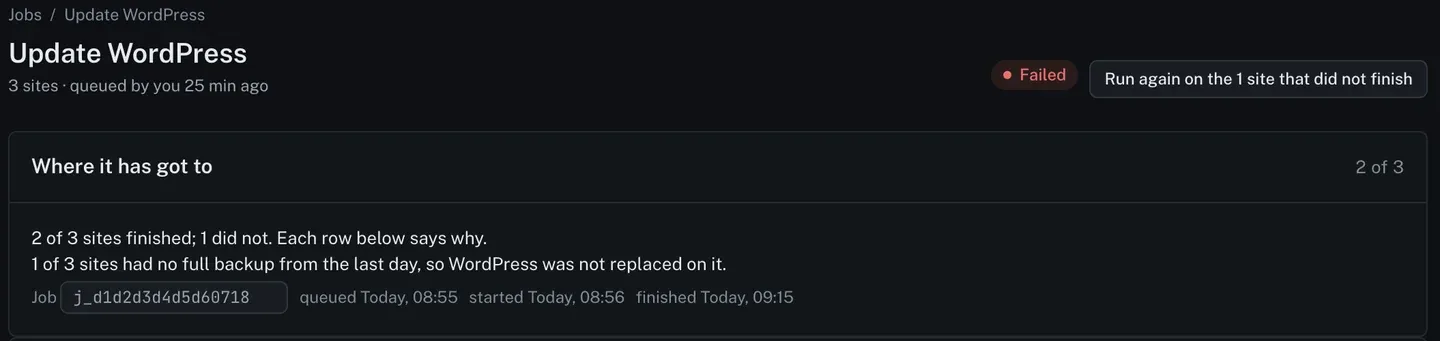
Run again on the sites that did not finish queues a fresh job for those sites alone. For the refused site, that is the button to press once it has an archive from the last day. The sites that finished are not touched again.
What to check before you press anything
Two readings on each site deserve a glance first. One is the PHP version, because a site on a PHP release past its end of life is already a risk before WordPress moves. The other is the list of plugins with updates waiting. Updating those first, with a snapshot behind each one, removes one of the likelier causes of a broken page after core changes underneath them.
The rule and the job are both covered in the core updates guide, and the queue itself is on jobs and bulk actions.
FAQ
Does ReDock roll WordPress back if the update breaks a site?
No, never automatically, on one site or across many. The job names the archive to restore from and emails the workspace owners, and a person decides what happens next.
What counts as a full backup for this rule?
A complete archive ReDock Connect built of the site, its files and its database together, finished within the last 24 hours. A plugin snapshot does not count, and a backup made by another plugin or by the host is not something the site records for this rule.
Can I update WordPress on one client’s sites only?
Yes. The site picker is grouped by client group, so tick that client’s group and nothing else. One job covers up to a hundred sites.
Will the job update a site that is already down?
No. A site whose state needs attention is never called by a job, and the reason sits on its row.
Start with one site
A free account connects one live WordPress site, with the jobs page and the confirm screen on it. Queue a WordPress update against that site and read the confirm page, because it tells you straight away whether the site has an archive the rule will accept.
Create a free account and see what your sites would say.