WordPress plugin rollback: getting the previous version back after an update breaks something
A WordPress plugin rollback in ReDock Web puts the version you had back in one press from the snapshot taken before every update, or rolls to any version wordpress.org still publishes.
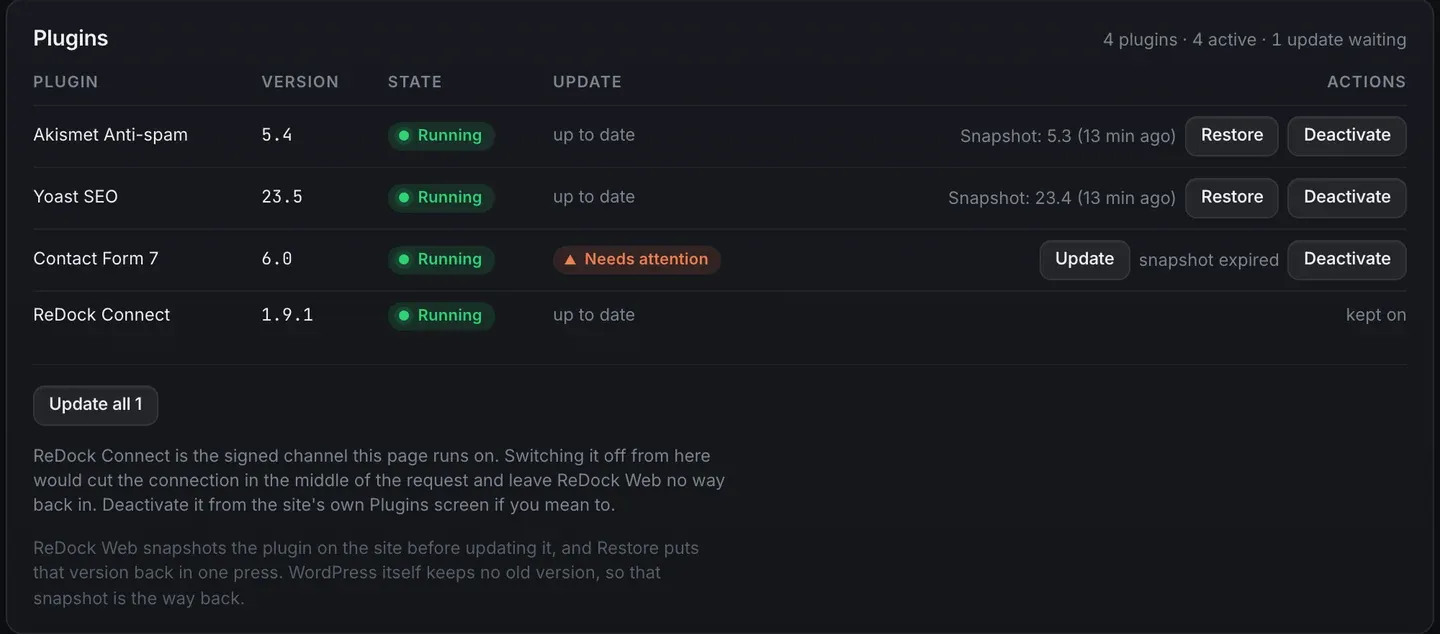
A WordPress plugin rollback means putting the version you had before back on the site, and the awkward truth is that WordPress keeps no copy of it. Once an update finishes, the old files are gone. So a rollback is either a copy somebody took first, or an older release fetched from wordpress.org and installed over the top. ReDock Web does both. Every plugin update takes a snapshot of that plugin first, with a one-press Restore, and a plugin’s row can roll it back to any version wordpress.org still publishes. This post follows an update that went wrong, restores it, and then rolls a plugin back to a named version.
Why a WordPress plugin rollback is harder than it sounds
Doing it by hand is a small chore that goes wrong under pressure. You find the plugin’s page on wordpress.org, open its Advanced View, and download a zip from the Previous Versions list, which wordpress.org itself warns may not be secure or stable. Then you deactivate and delete the broken version, upload the old one, and activate it again, on a site that is misbehaving while you work.
With shell access, WP-CLI shortens that to one line, because wp plugin install takes a version and can overwrite what is installed:
wp plugin install akismet --version=5.3 --forceNeither route helps when the plugin came from somewhere other than wordpress.org, and neither is much fun across a client estate at eleven at night. Both also depend on knowing which version was running before, which is exactly the fact nobody wrote down.
The snapshot comes before the update
In ReDock Web, updating plugins is two steps per site. First the site copies aside each plugin it is about to update, then it updates. The list is asked of the site at the moment the step runs, not when you queued the job.
No snapshot, no update. If a copy cannot be made, that site is skipped and its row says why. The only way round that rule is a box you have to tick yourself.
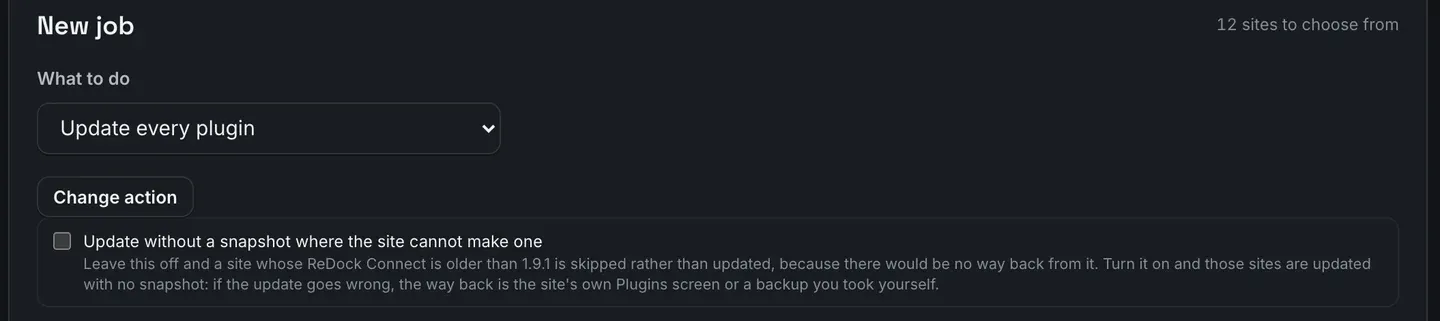
Leave it off. With it off, a site whose ReDock Connect is too old to take a snapshot is left alone, and the job says so.
The task: an update went wrong
1. Read the job
Here is an Update every plugin job across four sites.

Three sites finished and one did not. Two buttons sit at the top: run again on the site that did not finish, and restore every site in this job. The second is for the morning an update broke the same thing everywhere.
2. Find the plugin that broke
Usually it is one plugin on one site, so read the rows.
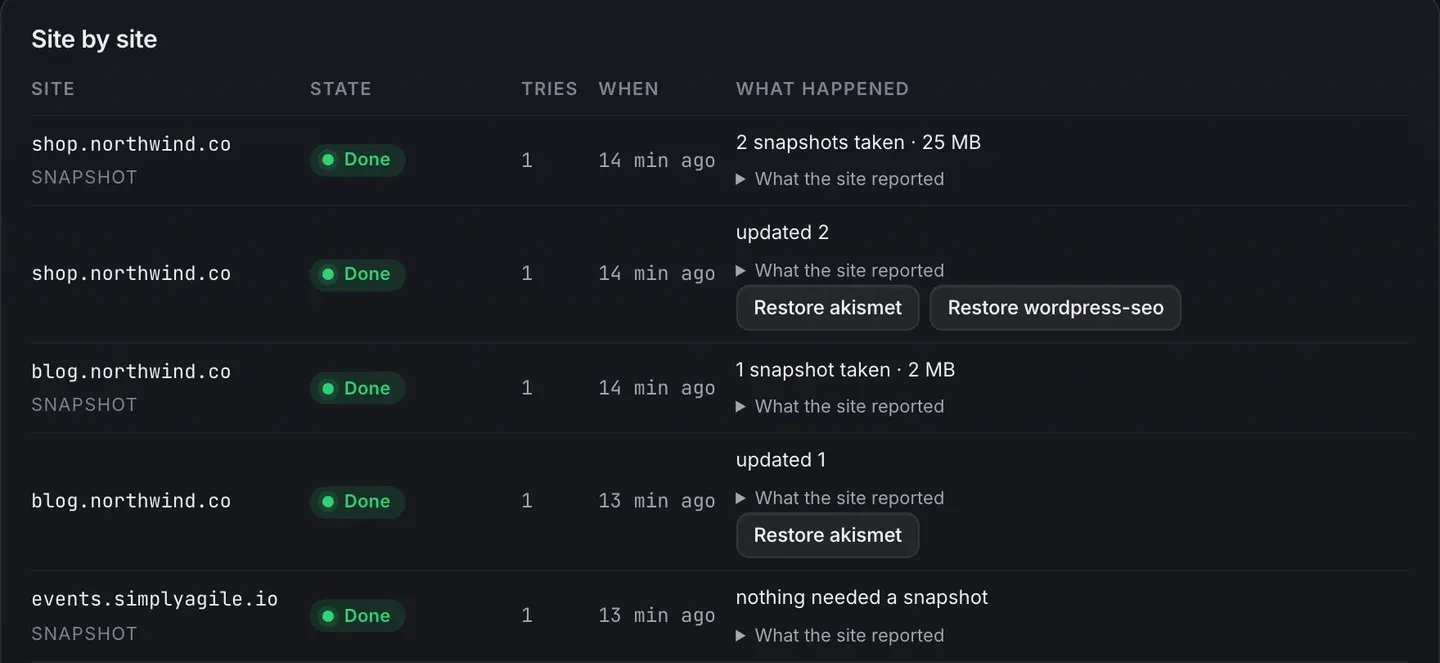
Each site has a snapshot row and an update row. The update row carries a Restore button for each plugin it touched, named by the plugin’s slug, so the way back sits right beside the change.
3. Press Restore
Restore can come from the job, or from the plugin’s own row on the site page, which is where you will be if a client reports the problem a day later. The picture at the top of this post is that row.
It names the version the snapshot holds and how long ago it was taken, so you know what you are putting back before you press. The restore runs through the same queue as any other job, so you watch it land and it is recorded with your name on it.
Two details on that card save a wasted minute. A snapshot that has expired says snapshot expired instead of offering a button that would fail. And ReDock Connect is marked kept on, because switching off the plugin a request arrives through would cut the connection in the middle of that request.
Rolling back to a named version
Sometimes the snapshot holds the wrong version. The bug came in two releases ago, or the snapshot has expired, or the plugin was updated somewhere other than ReDock.
For that, a plugin’s row has Roll back to…. It lists every version wordpress.org still publishes for that plugin, newest first, with the version running now marked. Pick one, and the confirm page says in plain words that this puts an older version on the live site on purpose, and that older code has whatever holes were fixed since. Before anything is replaced, the version running now is snapshotted, so Restore on the same row undoes the rollback.
A plugin that did not come from wordpress.org has no list to choose from. Its way back is the snapshot, or a copy from wherever it was bought.
What a rollback does not undo
A snapshot is the plugin’s files. If an update ran a database migration, putting the old files back does not reverse it, and an older plugin reading data a newer one wrote can misbehave in its own ways.
For anything a plugin’s files cannot put right, there is the full archive ReDock Web copies to your own Google Drive every day, kept fourteen days, and your host’s backups. WordPress core is a different case again, with no snapshot at all, and updating core across sites explains the rule that takes its place.
If you would rather the restore happened without you, safe plugin updates look at the site before and after and put it back on their own when a page breaks. The snapshot rules are also on the plugin rollback page and in the rollback guide.
FAQ
Does WordPress keep the previous version of a plugin?
No. WordPress replaces the files and keeps nothing, which is why ReDock Web takes a snapshot on the site before it updates a plugin, and why that snapshot is the way back.
Can I roll back across many sites at once?
From a finished job, Restore every site in this job puts back what that job updated. Rolling to a named version is done per plugin, per site, from the plugin’s row.
What if the update took the whole site down?
A restore travels the same signed channel as the update, so it needs the site to answer, and a site whose state needs attention is never called by a job. If the update left ReDock unable to reach the site at all, the way back is your host’s backup or FTP.
Can I stop an AI app from changing plugins?
Yes. The usage policy has a switch for installing, removing, updating or toggling plugins. Switch it off and an AI app is refused at the door and told to ask a person, while you and your jobs carry on.
Try a restore on a site you own
A free account connects one live WordPress site, with snapshots, Restore and Roll back to on it. Update something harmless, press Restore, and watch the old version come back through the queue.
Create a free account and take your first snapshot.