WordPress backup to Google Drive for agencies: every client site, every day, in your own account
ReDock Web copies a full backup of every connected WordPress site, files and database, into a Google Drive you connect once, every day, and keeps the last fourteen copies of each.
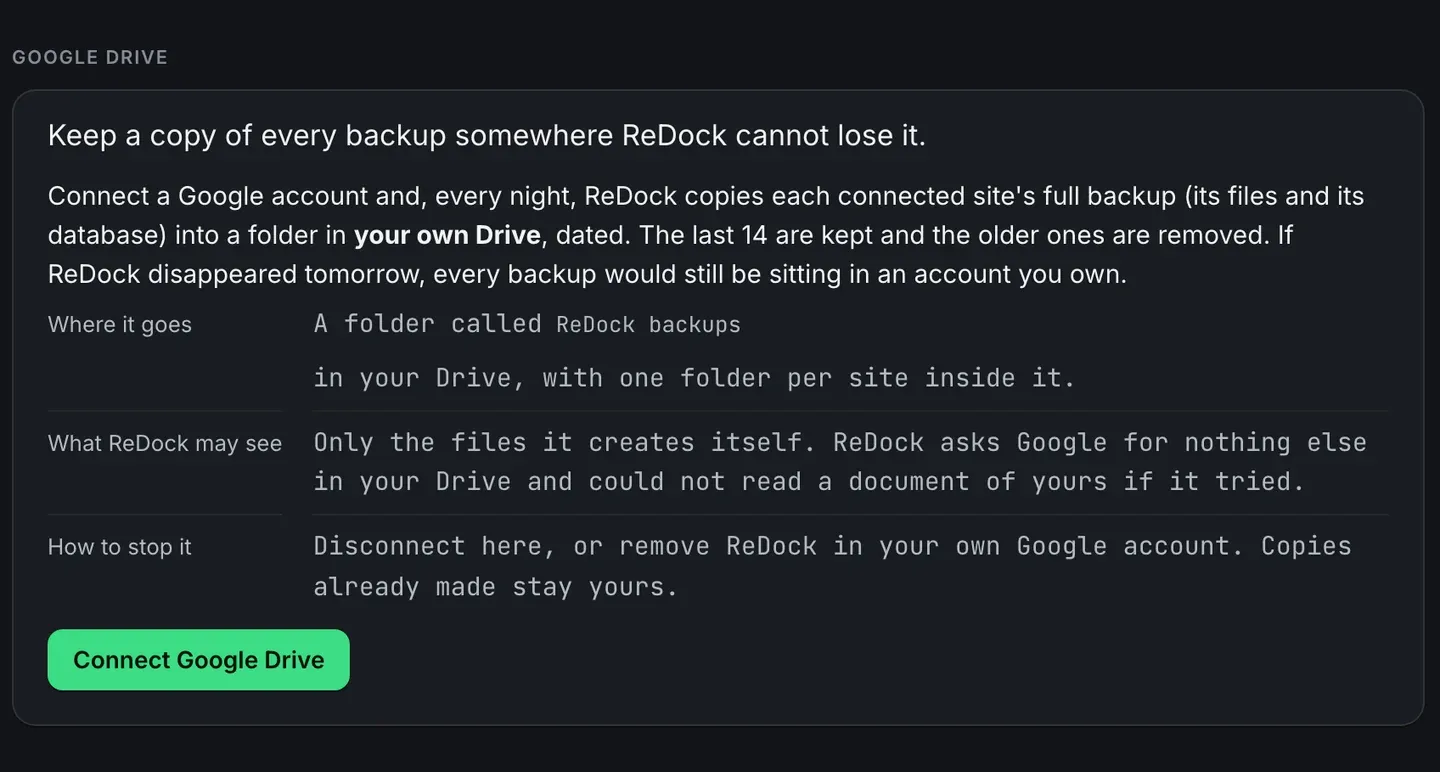
WordPress backup to Google Drive, done the agency way, means one Google account connected once and a full copy of every client site landing in it on its own. In ReDock Web an owner or an admin connects the Drive from Settings. From then on, once a day, ReDock asks each connected site to build a full archive of its files and its database, carries it into a dated folder for that site, and keeps the last fourteen. The copies sit in your Google account, not ours, and they stay where they are if you stop paying for ReDock. There is no schedule to pick and nothing to press again. This post connects a Drive, reads the list, and deals with the two ways a copy can fail.
Why a backup belongs somewhere other than the server
A backup that lives on the same hosting account as the site shares its fate. If the host loses the server or suspends the account, the copy goes with the original. So does a compromise that reaches the backup folder.
WordPress’s own guide to backups says the same thing in practical terms. A site is two parts, the files in the WordPress directory and the database that holds every post and comment, and a backup needs both. The guide suggests keeping several recent copies in different places, and names cloud storage such as Google Drive as one of them.
For an agency the hard part is not knowing this. It is making it happen across thirty sites on thirty different hosts, and knowing on any given morning that it did.
The task: connect a Drive and read what it did
1. Open Settings, then Google Drive
Before anything is connected, the section says what will happen: every connected site’s full backup, files and database, copied into a folder in your own Drive, dated, with the last fourteen kept. It also says what ReDock may see and how to stop it. That is the picture at the top of this post.
Only an owner or an admin of the workspace can connect a Drive.
2. Connect, and approve on Google’s screen
Press Connect Google Drive and approve on Google’s own page. ReDock asks for the files it creates itself and nothing else, so it could not open a document of yours if it tried. That is a useful sentence for the client who asks where their backups live: in a folder the agency owns, reachable by a tool that can only see what it wrote there.
3. Come back to the account named
You land back on Settings with the Google account named. ReDock makes a folder called ReDock backups in that Drive, with one folder per site inside it.
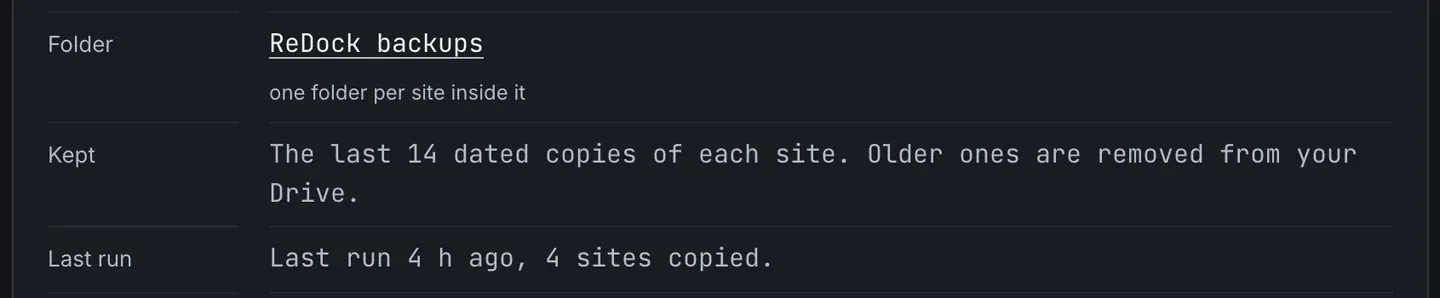
Last run says when ReDock last ran and how many sites it copied. It is the line to glance at on a Monday.
4. Know what happens each day
For every connected site, once a day:
- ReDock asks the site, over ReDock Connect’s own signed connection, to build a full archive of its files and its database. The site builds it on its own server, which uses some of its disk for a while.
- ReDock carries the archive into the site’s folder in your Drive one piece at a time, and checks each piece against the fingerprint the site sent with it. A piece that arrives damaged stops the copy instead of ending up inside it.
- Once a site has more than fourteen copies, the oldest is deleted. ReDock deletes only the files it recorded writing, and never lists the folder or touches anything else in your Drive.
Nothing of the archive is stored by ReDock on the way through. A big site that takes longer than one run carries on from where Google says the upload got to, and a partial backup never sits in the folder under today’s date.
5. Read the list of sites
Under the account, every connected site has a row. Last copy reads Ready with when it finished, Working with a progress bar, or Not used yet for a site with no copy so far. Size is the last copy’s size, Kept counts how many of the fourteen are in your Drive, and the last column links to the site’s files and its database.
When a copy fails
Trouble shows in one of two places. A failed copy is not emailed to anyone, so this section is where you find out.
Google refused the run. A red notice sits at the top of the section with Google’s own words and the time of the last copy that worked.

That is Google saying the permission it gave is no longer good, which is what happens when somebody removes ReDock from the Google account. Press Disconnect and connect again.
One site could not be copied. The reason sits under that site’s row.

Here the host had 1.1 GB free and the archive needed about 2.4 GB. The fix is on the host, not in ReDock.
What the daily copy is for
Two things lean on it.
The first is getting a site back after something no plugin snapshot can undo. Each copy is two downloads, the files and the database, and restoring means putting them back the way your host restores a backup. ReDock does not restore from Drive itself, and it is better to know that before the day you need it.
The second is WordPress core updates. ReDock will not update WordPress on a site whose last full backup is more than 24 hours old, and this daily copy is where that backup comes from. With a Drive connected, a site copied in the last day updates, and a site whose last full backup is older is refused and named on the job. Updating core across many sites walks through that job.
Plugin updates work differently. A plugin job, or a safe update, takes its own snapshot of each plugin on the site just before updating it, and one press puts that version back. The Drive copy is the whole site behind that, for everything a plugin snapshot does not hold: the database, the uploads and the theme’s files.
Stopping it
Disconnect opens a confirm that lists what happens, in order.
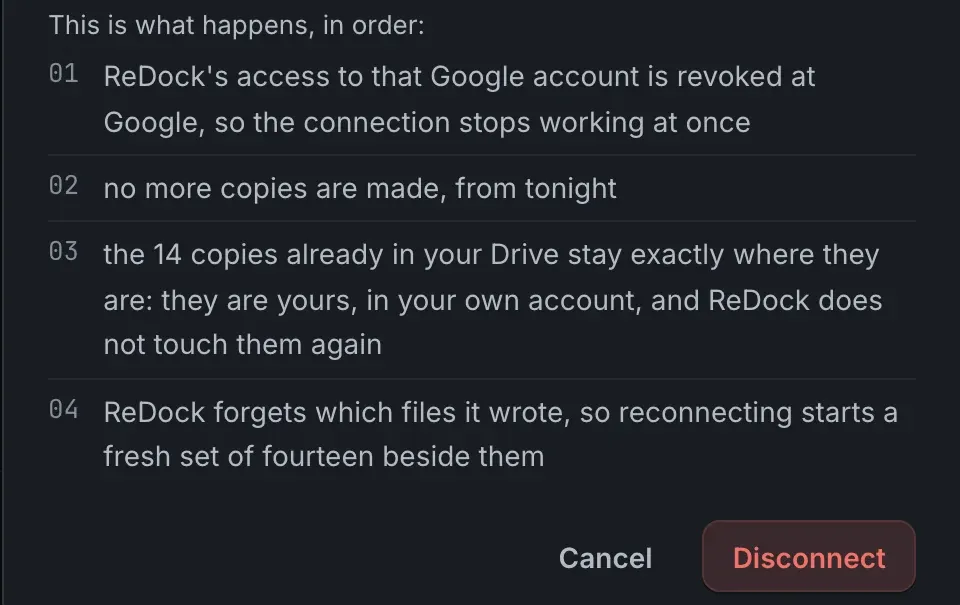
The copies already made stay yours either way. The full setup is in the Drive backups guide.
FAQ
Can I choose when the backup runs, or how often?
No. There is no schedule to pick. Every connected site is copied once a day, and when a workspace has more sites than one run can reach, the ones it missed go first the next time.
How many copies are kept?
The last fourteen of each site. Older ones are deleted, and only files ReDock recorded writing are ever touched.
Can ReDock read other files in my Google Drive?
No. It asks Google for the files it creates itself and nothing else.
What happens to the backups if we stop using ReDock?
They stay in your Google account, exactly where they are. ReDock keeps none of them.
Back up one site tonight
A free account connects one live WordPress site. Connect it, connect a Google account under Settings, and look at Last run tomorrow morning.
Create a free account and watch the first copy land in your own Drive.