A WordPress vulnerability scanner for multiple sites that names the version that fixes it
ReDock Web compares every plugin and theme on every connected WordPress site with the published vulnerability records, marks the ones at risk, and names the version that fixes each.
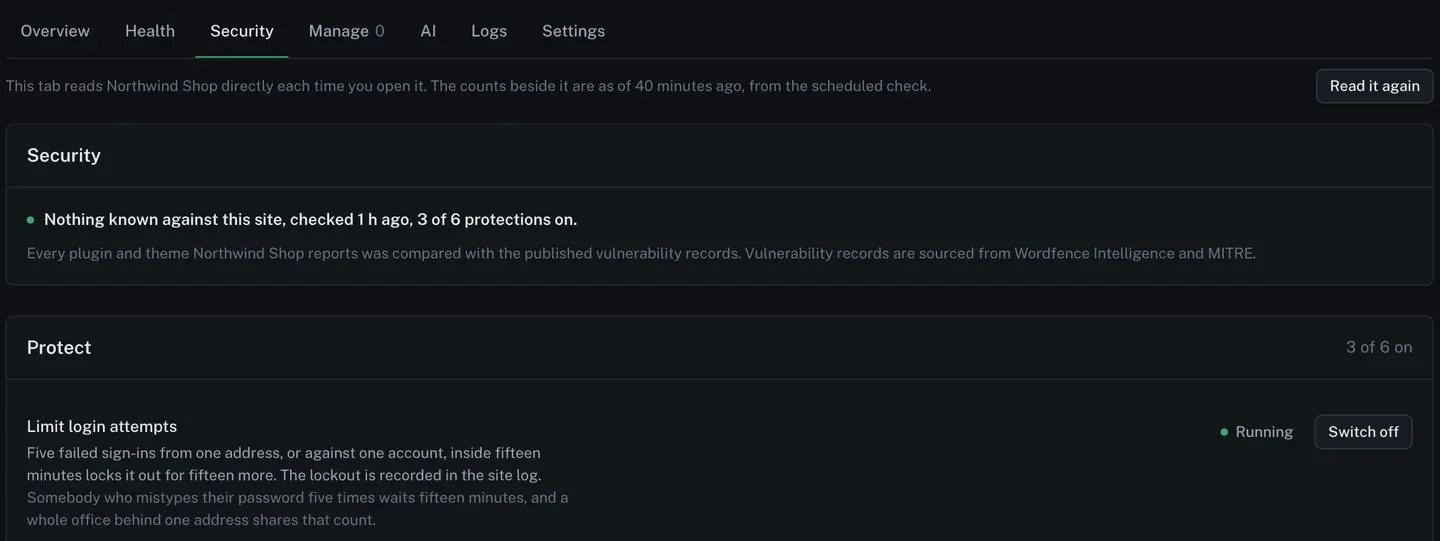
A WordPress vulnerability scanner for multiple sites has one job that matters: take the plugins and themes each client site actually runs, at the versions it actually runs, and say which of them has a published hole in it. ReDock Web does that for every connected site. Every hour it pulls the published records, sourced from Wordfence Intelligence and MITRE, and keeps the ones for plugins and themes your sites run. Each time a site’s state is read, every few hours, its versions are compared with those records. A plugin at risk is marked Vulnerable on the site’s plugin list, the Health tab names the version that fixes it, and the monthly report and its JSON export name it for each site. Nothing extra is asked of the site, and nothing needs switching on. This post follows one plugin from the record to the update.
What a vulnerability scanner checks, and what it does not
People mean two different things by “scan my WordPress site”.
The first is whether anything installed has a known vulnerability. That is a comparison: the plugin’s slug and version on one side, the published affected ranges on the other. It needs nothing from the site except an honest list of what is installed, and across forty sites it is the same work as across one.
The second is whether the site has already been got at, with files edited or added where WordPress never put any. That is a different check, and ReDock Web runs it separately, once a day, against the checksums WordPress.org publishes. The file integrity post covers it. A clean result on one question says nothing about the other, which is why the two sit on the same Security tab as separate results rather than one green tick.
Two rules keep the first check honest. A plugin that no published record mentions is simply not mentioned, and ReDock never calls it safe. And a site whose plugin list could not be read in full is never shown as clean. It is marked as needing attention with a sentence of its own, because “we found nothing” and “we could not look” are opposite statements.
Reading the severity
Each record carries a CVSS score, and the sentence ReDock writes quotes it. The scale is published by FIRST in the CVSS v3.1 specification: 0.1 to 3.9 is low, 4.0 to 6.9 medium, 7.0 to 8.9 high, and 9.0 to 10.0 critical.
The score describes the flaw, not your client’s site. A 9.8 on a form plugin that takes submissions from the public is the kind of line that justifies interrupting an afternoon. A medium score on a feature the site does not use can usually wait for the next planned update run. Only somebody who knows the site can tell those apart, which is a good reason to read the sentence rather than just the colour.
The task: one plugin at risk across a client estate
1. Find the site
The finding appears wherever ReDock prints a site’s state: in Needs attention on the Overview, in the site’s state on All sites, on the site’s Health tab, and in the alert email when alerts are on for the workspace. The site list sorts by what needs attention, so the site with the problem is already near the top.
2. Open the Security tab
The Security card at the top of the tab says whether anything is known against the site, when it was last checked, and how many of the six protections are on. The picture at the top of this post is a site with nothing known against it. Under the card, one line says where the records come from.
3. Find the plugin
Open Manage, then Plugins. A plugin whose installed version falls inside a published affected range carries a red Vulnerable marker beside its update state.

4. Read the sentence
The Health tab gives each vulnerable plugin or theme one sentence, worst first. For a plugin with a fix, it reads like this:
The plugin Berth Gallery 4.9.1 has a known vulnerability (CVSS 9.8); 4.9.5 fixes it. Update it from the site’s own dashboard, or queue it as a job here.
The version named is the nearest fix on the line the site is already running, so a site on 4.9.1 is told 4.9.5 even when a 5.x release fixes it too. That matters in client work, because a jump to a new major version is a different conversation from a patch. Two records against the same plugin still make one sentence, naming the version that clears both.
When nobody has published a fix yet, the sentence says so and what to do in the meantime:
The plugin Quay Slider 3.0 has a known vulnerability (CVSS 9.8) and no fix has been published yet. Deactivate it until one is, or replace it.
Berth Gallery and Quay Slider are invented examples from the documentation. Themes are checked the same way.
5. Update it
For one site, Update on the plugin’s row does it, from the same row that carries the marker. For every site in a client group that runs the plugin, queue it as a job, which takes a snapshot of the plugin on each site before updating it. If you want each site looked at before and after, use a safe update, which puts a site back when the update breaks a page that was working. Bulk updates across many sites covers the job and how to retry only the sites that failed.
Once the installed version is outside the affected range, the marker and the sentence have nothing left to say.
6. Tell the client
The monthly report names known vulnerabilities for each site, and its JSON export carries the same sentences if you feed reports into a system of your own. A site with more than ten vulnerable plugins and themes lists the ten worst and counts the rest, so an email stays readable.
When the version you need is an older one
Sometimes the update is the problem, and the fix is going back. When you roll a plugin back to a version, the version picker marks every version that has a published record, and the confirm names the vulnerability before anything changes on the site. A rollback cannot quietly land a client on a release with a known hole.
The whole of the check is documented in the vulnerabilities guide.
FAQ
Does this scan a site’s files for malware?
No. This check compares installed versions with published records. The daily file integrity check is the one that compares files with what WordPress.org published and names anything edited or added. Both results are on the site’s Security tab.
How often are sites checked?
The records are pulled every hour. A site’s versions are compared with them whenever its state is read, which happens every few hours, so a newly published record reaches the Health tab without anybody pressing anything.
Where do the vulnerability records come from?
Wordfence Intelligence and MITRE. Every surface that prints a finding says so once.
What if ReDock could not read a site’s plugin list?
The site is marked as needing attention with a sentence saying it could not be checked, and why. It is never shown as clean, and whatever part of the list did arrive is still compared.
Check one site’s plugins
A free account connects one live WordPress site, and the vulnerability check runs on it with nothing to set up. Connect the client site with the most plugins and read its Security tab after the first check.
Create a free account and see what is known against it.