WordPress management data retention: how long the records live, taking them with you, and deleting with a trail
Data retention in ReDock Web is three dials you set, for how long each site keeps its own log and how long ReDock keeps its records, beside one download of everything held and deletion that keeps the audit trail.
Data retention in a WordPress management tool comes down to two questions: how long each client site keeps its own record of what its people did, and how long the tool keeps its record of the work done on the site. A client’s security questionnaire will ask both, and “whatever the defaults are” is not an answer anybody wants to sign. In ReDock Web, Settings, then Data, holds three dials for those numbers, a single download of everything the workspace holds, and a way to erase one site’s history. Deleting an account removes the person and keeps the trail. This post sets the dials, reads what each site answered, and walks through both kinds of deletion.
Why WordPress management data retention is a client question now
The records are not abstract. ReDock’s activity log names the ReDock account behind every change, the site it was made on, and what was asked for. A site’s own log names the people who signed in to its wp-admin. Both are data about somebody, often somebody who works for your client.
The UK’s data protection regulator puts the principle in one line: you must not keep personal data for longer than you need it. What “need” means is your policy and your client’s to decide. The tool’s job is to let you set the numbers, show that the sites are keeping them, and hand the records back when somebody asks.
The three dials
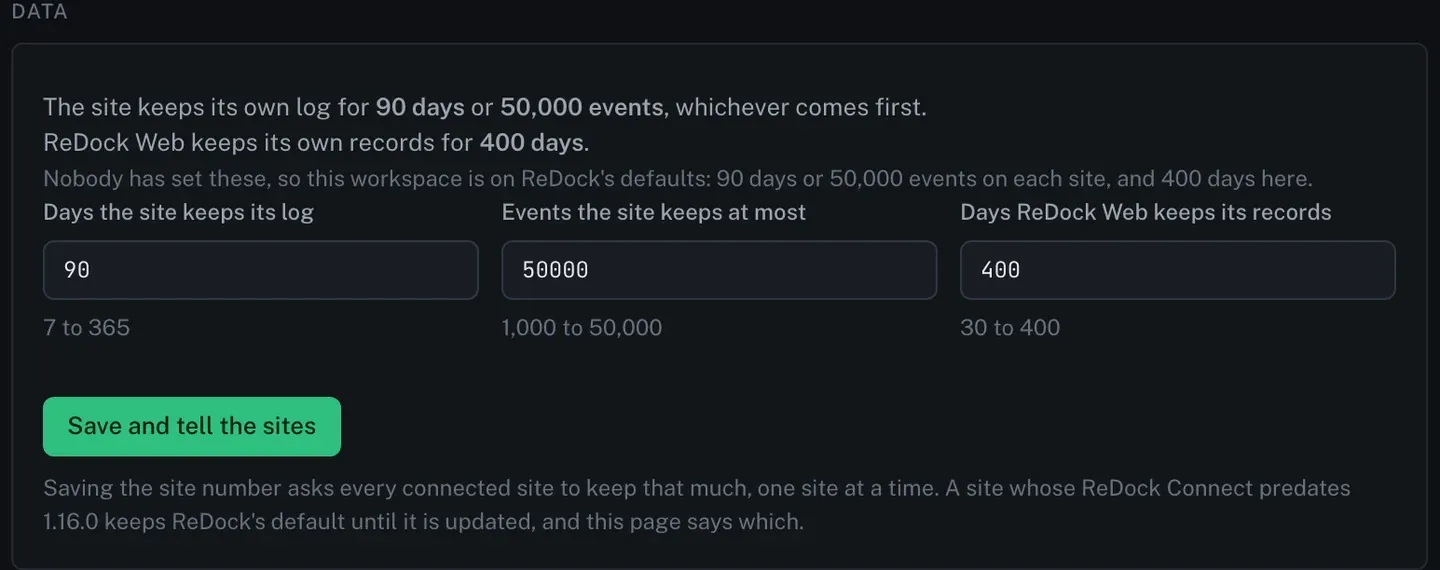
Every workspace starts on ReDock’s defaults: each site keeps its own log for 90 days or 50,000 events, whichever comes first, and ReDock Web keeps its own records for 400 days.
| Dial | What it sets | Range |
|---|---|---|
| Days the site keeps its log | how long the site’s own record lives, on the site | 7 to 365 |
| Events the site keeps at most | the ceiling, whichever comes first | 1,000 to 50,000 |
| Days ReDock Web keeps its records | how long the activity log lives in ReDock | 30 to 400 |
The first two live on the sites, so saving them asks every connected site to keep the new numbers. The third lives in ReDock Web.
The task: set the numbers and prove they took
1. Set a shorter window
Say a client’s policy is 45 days for the site log, and your own is shorter still for ReDock’s records. Type the numbers, and the page tells you the cost before you save.
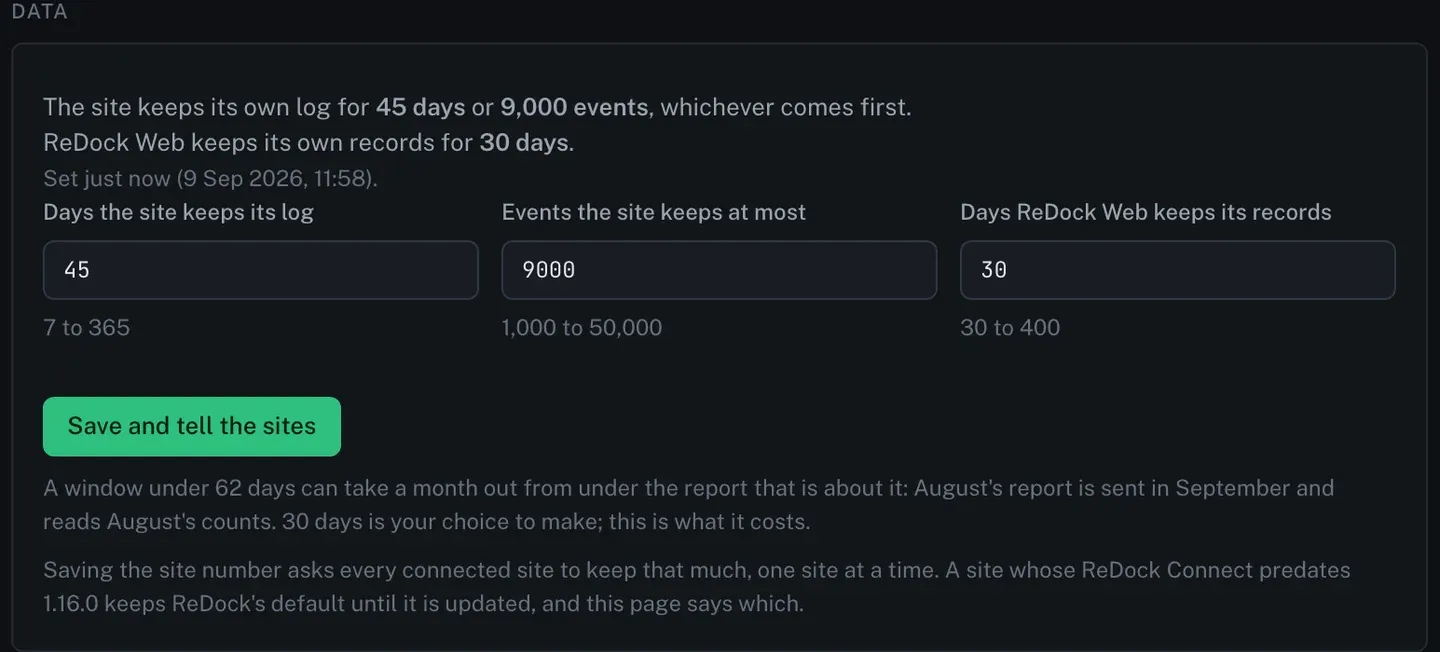
That warning is worth reading twice. August’s report is sent in September and reads August’s counts, so a window under 62 days can remove a month from under the report about it. Thirty days is still allowed. It is your choice, and the page says plainly what it costs.
2. Save and tell the sites
Press Save and tell the sites. ReDock asks each connected site to keep the new numbers, one site at a time, and shows what each one answered.
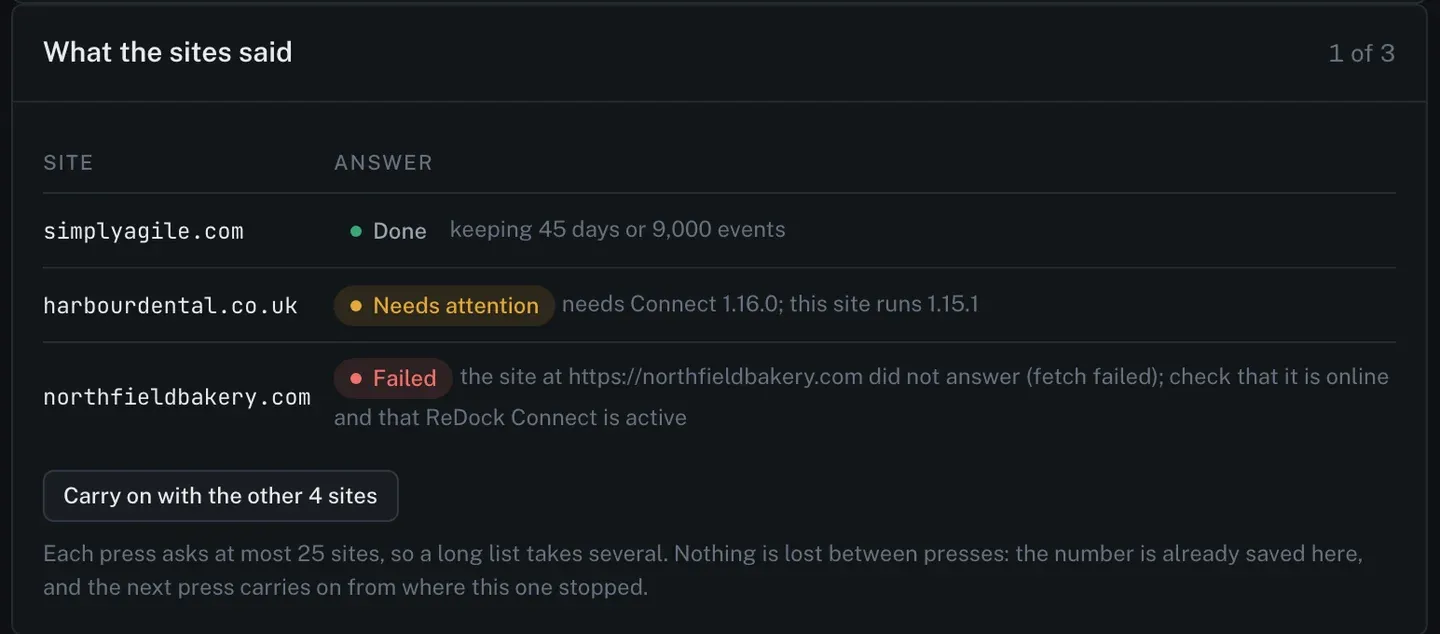
All three possible answers appear here. Done means the site is keeping the new numbers. Needs attention means its ReDock Connect is older than the version that carries this setting, so it keeps ReDock’s default until it is updated. Failed means the site did not answer, with the error it gave.
Each press asks at most 25 sites. Nothing is lost between presses, because the number is already saved in ReDock, and Carry on picks up where the last press stopped. For a questionnaire, this panel is your evidence that the number reached each site, rather than a promise that it probably did.
3. Download everything the workspace holds
Download everything gives you one JSON file, in the order a person would read it: the workspace, its sites and client groups, the people in it and their roles, the invitations still open, the whole audit trail newest first, the daily counts per site, the jobs and their steps, the report and branding settings, the AI policy, and these dials.
It carries no keys and no secrets. A site’s signing key, an API token’s hash and an invitation’s token are named as things that exist and never printed. The download is itself recorded in the activity trail as workspace.export, so the workspace can see when a copy was taken and by whom.
4. Erase one site’s history
When a client leaves, you may owe them the removal of what you held about their site.
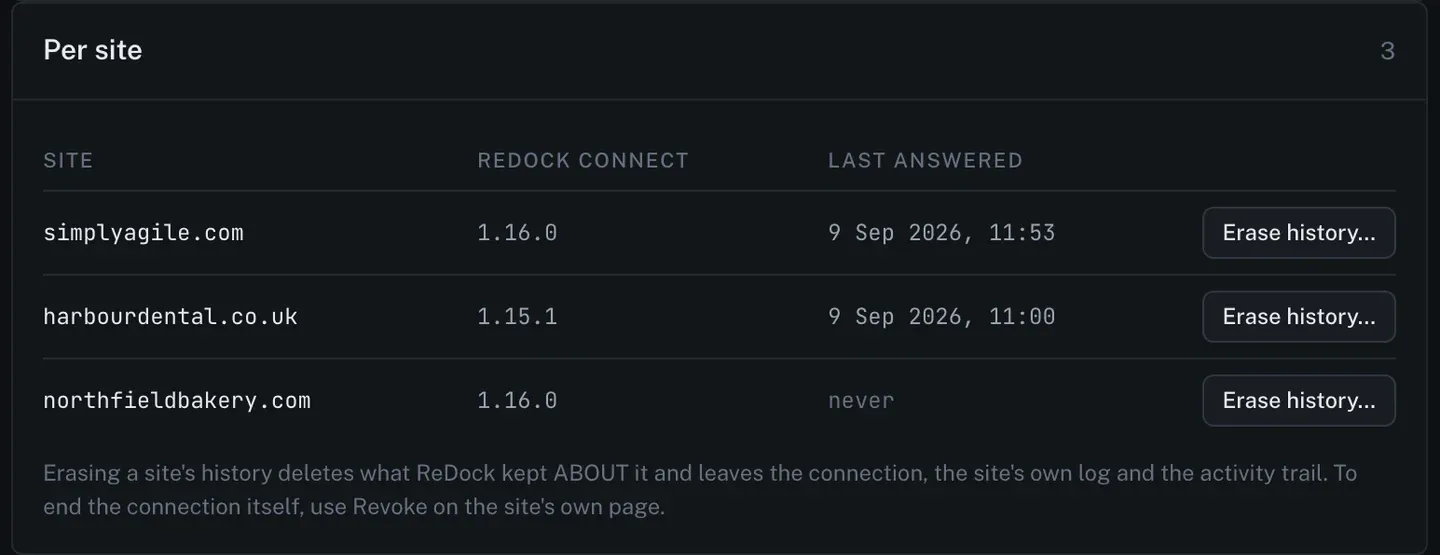
Erase history deletes what ReDock kept about that site. It leaves three things alone: the connection, the site’s own log, and the activity trail. To end the connection itself, use Revoke on the site’s page, or have the client revoke the key from their own wp-admin.
5. Delete an account, and keep the trail
Deleting a ReDock account is on Your account, and the confirm page lists what happens, in order, before anything does.
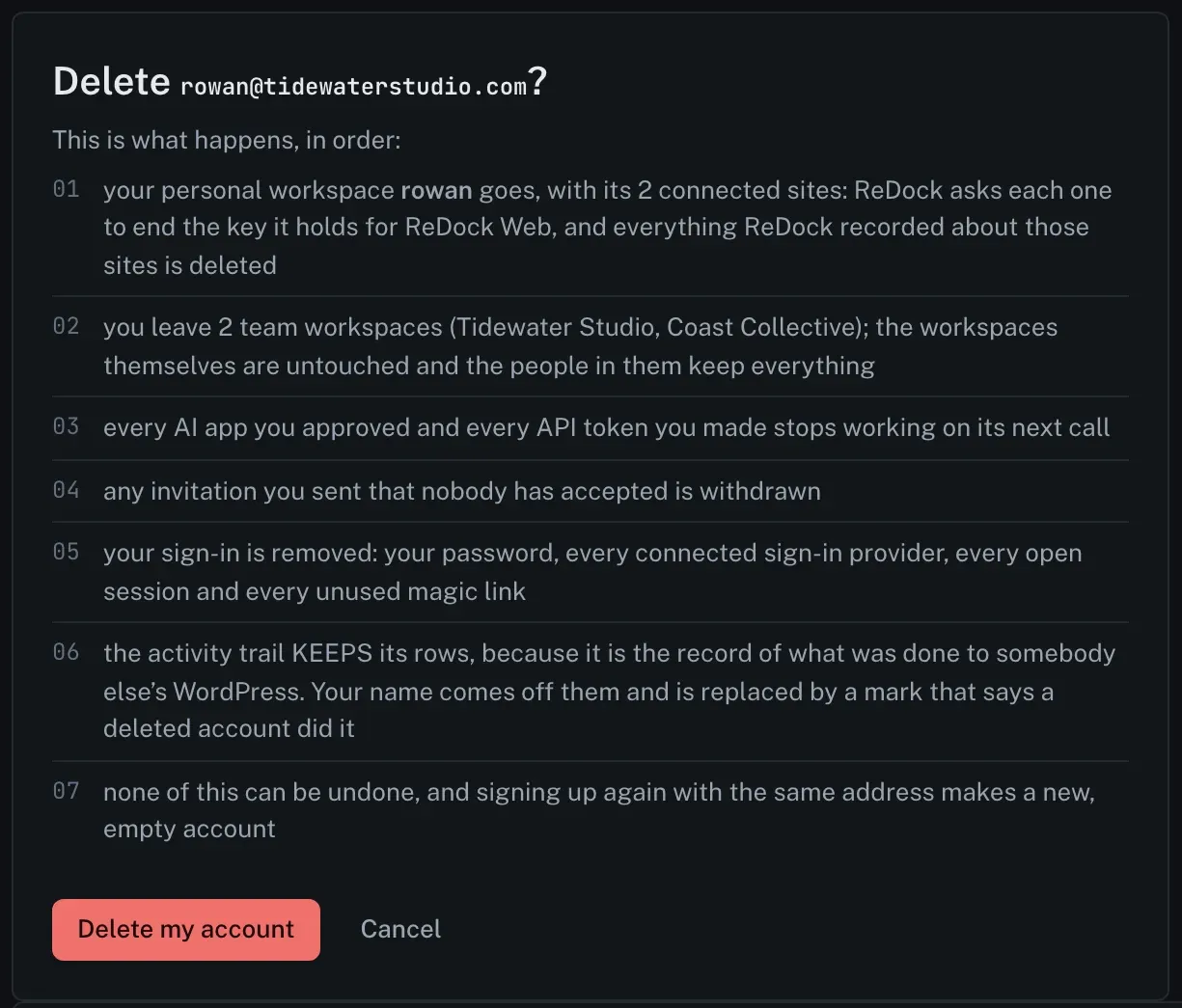
Line six is the one a compliance reviewer will ask about. The activity trail keeps its rows, because it is the record of what was done to somebody else’s WordPress, but the person’s name comes off them and is replaced by a mark saying a deleted account did it. The work stays accountable. The individual stops being named.
What is not on the dials
Some records are counts about a site rather than about a person, such as its daily health verdicts and its uptime checks. Those keep their own windows, which the uptime monitoring post describes, and a site’s Erase history removes them too.
The activity log itself is covered in the activity log post and on activity and audit, and the dials are documented in the retention guide.
FAQ
What is the shortest ReDock can keep its activity records?
Thirty days. Anything under 62 days can take a month out from under the monthly report that covers it, and the page warns you before you save.
Does the export include keys or passwords?
No. A site’s signing key, an API token’s hash and an invitation’s token appear only as things that exist. None of them is printed.
Does erasing a site’s history disconnect the site?
No. The connection, the site’s own log and the activity trail stay. Revoke the site, or have the client revoke the key in their wp-admin, to end the connection.
What happens to the activity log if I delete my account?
Its rows stay, with your name replaced by a mark saying a deleted account made the change. Team workspaces you belonged to are left exactly as they were.
Set your own numbers
A free account is a workspace of your own, with the Data section in its settings. Connect one site, set the dials, and read what the site answered.
Create a free account and set your retention.