Remotion tutorial for people who do not do video: your first rendered file
One idea gets you started: a video is a React component sampled over time. Go from a blank scene to a rendered file, with no timeline and no editing software.
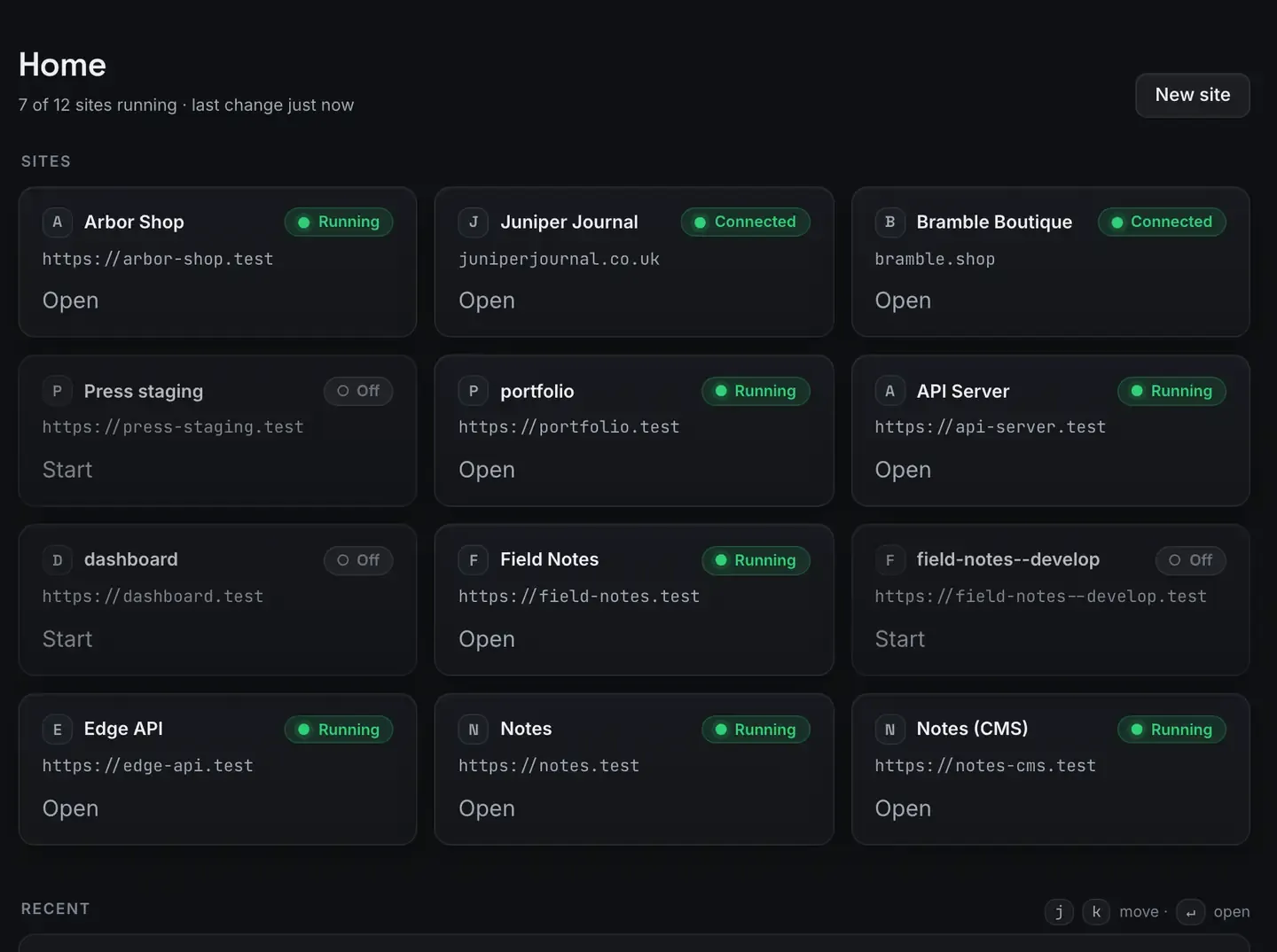
If you can write a bit of React you can make a video. No timeline, no editing software, no keyframes to drag.
This is for developers who do not think of themselves as video people. We go from a blank Remotion scene to a rendered file. ReDock runs Remotion as a one-click stack on the Bun runtime and shows live frame progress, so there is nothing to install by hand. The Studio, which covers docs, video and images, runs on macOS.
The one idea you need
A Remotion video is a React component sampled over time. There is a current frame number, and everything you draw is a function of it. Frame 0 is the start. At thirty frames a second, frame 30 is one second in. To animate something, you compute its position or opacity from the frame number.
That is the entire mental model. No timeline, just “what should the screen look like at frame N”.
If a word appears halfway through a sixty-frame scene, you show it once the frame is past 30. If a logo slides in, its position is a value that grows with the frame. Once that clicks, video as code stops feeling foreign. The wider picture is free AI video with Remotion, and Remotion’s own docs go deeper than a blog post can.
Setting up
Create a Remotion site and it is ready.
A warm Bun runtime. Cached, so the project comes up quickly rather than installing packages each time. It lives in ReDock’s own folder, pinned to that site.

A real preview address. The project lives at https://something.test with a trusted certificate, so you watch the studio preview in a browser.
Live frame progress. When you render, frames complete in front of you.
No terminal, no install step, no build config. The install guide and stacks reference cover the rest.
Your first scene
The smallest useful scene is a title that fades in. You write a component that does three things.
Reads the current frame. Remotion gives you a hook for it.
Computes opacity from that frame. Start at nothing, ramp to full over the first half second, then hold. Remotion’s interpolation helper maps a frame range to a value range for you.
Draws centred text with that opacity, on a solid background.
That is a complete one-second title card. Preview it, watch the fade, and adjust the numbers: longer fade, different colour, bigger type, until it reads right. Because it is code, every change is exact and repeatable.
Rendering
When the scene looks right, render it. The Bun runtime walks the frames, captures each, and encodes them. You watch the counter climb, and when it finishes you have a file that matches the preview exactly, because the renderer drew precisely what the code said.
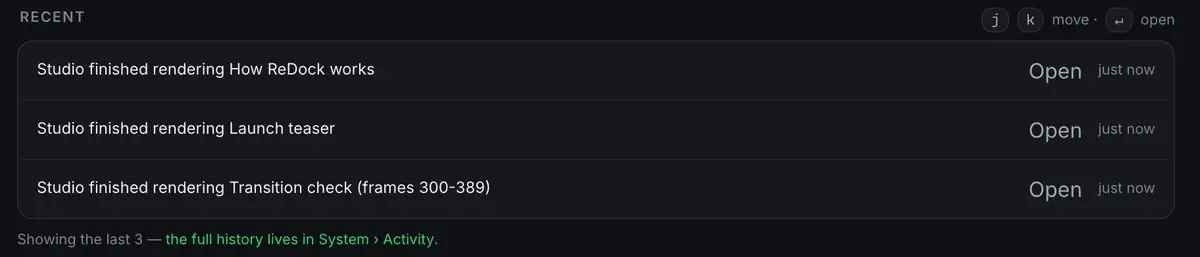
Note the third line. Re-rendering one frame range rather than the whole video is the normal way to fix a transition, and it is only possible because the output is deterministic. The same project renders the identical video every time, so you can commit it and hand it to somebody else.
Where to go next
Once you have made one title card the pattern scales: several scenes in sequence, images and shapes, text driven by data.
Let an agent write scenes. Describe what you want and have it draft the component: Claude-written Remotion scenes.
Make a reusable intro. Turn the title card into a template you own, which is free video tools for YouTube.
Work out when this beats an editor. The trade-offs are in programmatic video versus editors.
FAQ
Do I need video editing experience?
No. If you can read and change a React component you can follow this. There is no timeline, no keyframing and no editing software.
How long does a render take?
It depends on the length and complexity of the scene and on your machine. Live frame progress means you always know where it is. Short intro clips render quickly.
Can I reuse my first scene later?
Yes. A Remotion project is plain code in a folder. Save it, version it, and feed it different text or data to render new videos from the same scene.
Does this run on Windows?
Not yet. The Studio runs on macOS. Sites, the agent, sharing and the MCP server are the same on macOS and Windows.
Your first rendered file is closer than you think: one component and a render button. Download ReDock and make it today.