Cursor and MCP: letting your editor's agent run real websites
Point Cursor at ReDock on 127.0.0.1:47200 and its agent can create, run, author and deploy real local sites without leaving the editor. Add the web door for live client sites.
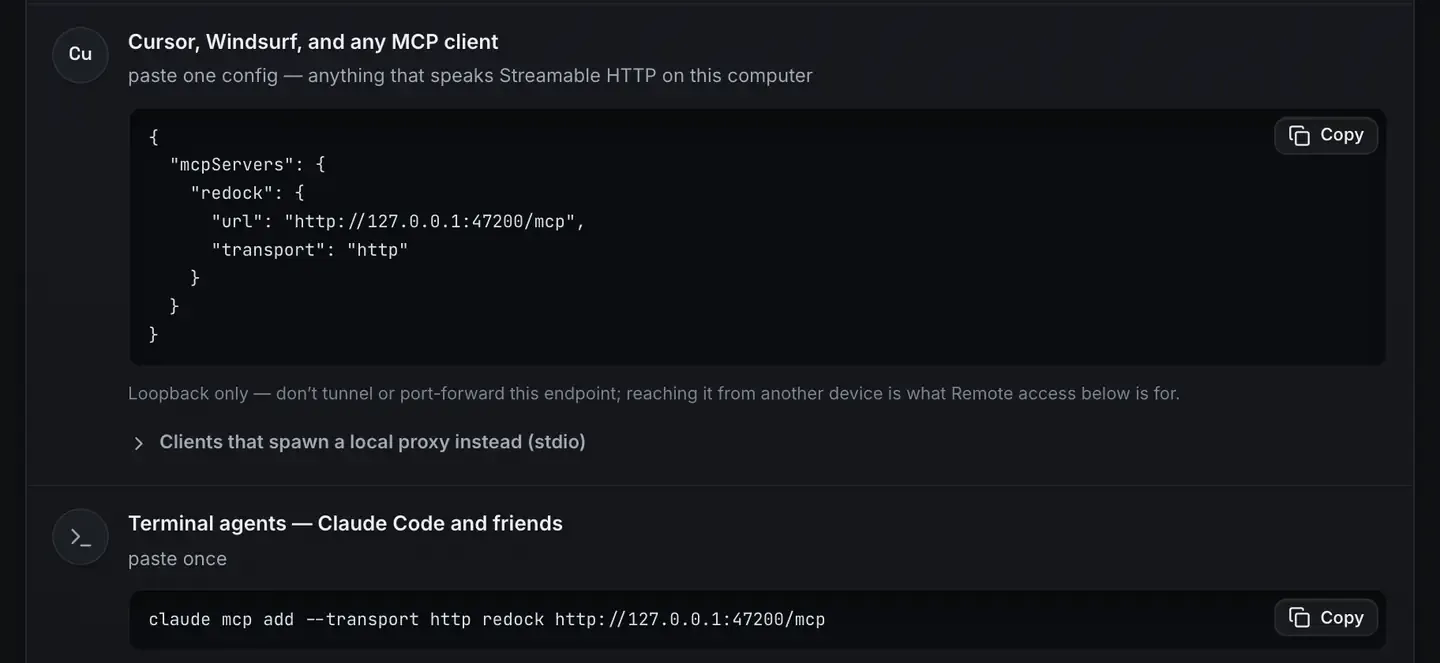
Cursor speaks MCP, which means its agent can call tools a server publishes. Point it at ReDock on 127.0.0.1:47200 and the agent gains the ability to run real websites: create a local site, start and stop it, author WordPress through real blocks, share it and deploy it, without leaving the editor you are already in.
Cursor is good at editing files. MCP is how it stops being blind to what those files are running as.
What MCP adds to Cursor
Out of the box the agent reasons over your codebase and edits files. What it cannot do on its own is operate the environment those files run in: start a dev server it can observe, provision a database, sign into a WordPress admin.
ReDock supplies that. It is a desktop app for macOS 12 Monterey or later and 64-bit Windows 10 or later, and it hosts your local sites: WordPress, headless WordPress, Astro, Next.js, Node, Bun, PHP, MySQL, PostgreSQL, Redis, n8n and Remotion. Each one gets a trusted https://name.test address. Its whole surface is MCP tools on an HTTP port, so Cursor connects by naming the endpoint. No spawned subprocess, no config file to invent.
Wiring it up
- Install and open ReDock. The app and its MCP server come up together. See the install guide.
- Create a site for the project you are working on. The first-site guide has the steps.
- Copy the block from Settings, AI, Other AI apps into Cursor.
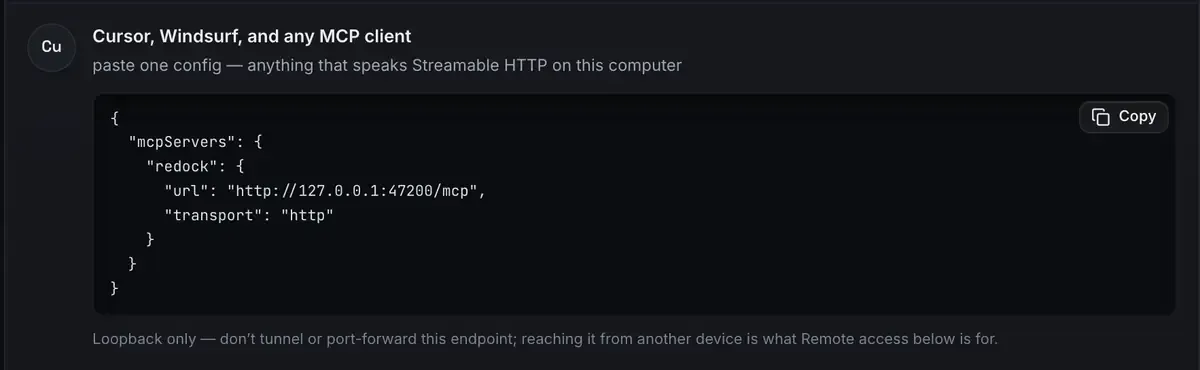
That is the setup. The block is already filled in with the right URL, so the only thing that can go wrong is pasting it in the wrong file. Easy MCP setup explains why nothing here needs hand-writing.
An editor agent that can see the running site
The payoff is a tighter loop. While you edit code, the agent can start the thing it is editing, read its real status, and read its logs when the status is bad.
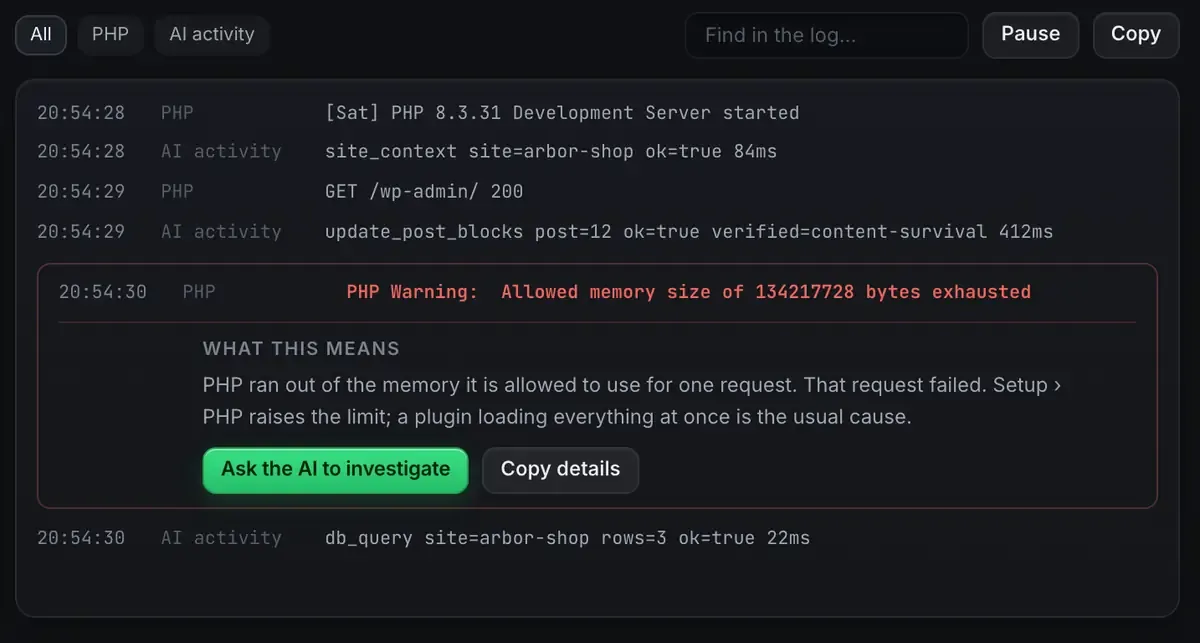
That last part is the one that saves an afternoon. A PHP warning is a wall of text; the log explains what it means and offers to hand it to the agent. The agent then has both the error and the file it came from.
Beyond that it can author WordPress content from real blocks and patterns, patch an Elementor widget on a site running Elementor, share for review over a Cloudflare tunnel, and deploy to Cloudflare with a domain you own attached. The tools list is the catalogue and the stacks docs list what else is dockable.
Sharing state with your other clients
Because the server answers over HTTP, Cursor is not the only client that can be attached. Claude Desktop can be on the same endpoint at the same time and see the same sites, which is the path in the Claude Desktop walkthrough. You might drive content authoring from one and the dev loop from Cursor, against a single shared state. MCP over HTTP explained covers why the transport allows it.
The live sites, from the same editor
The local door reaches sites on your machine. For the live WordPress sites you look after, ReDock Web serves a second door at https://app.redock.xyz/mcp. Cursor connects to it the same way, lands on a consent screen naming the workspace and the level, and appears afterwards in the list with a Revoke beside it.
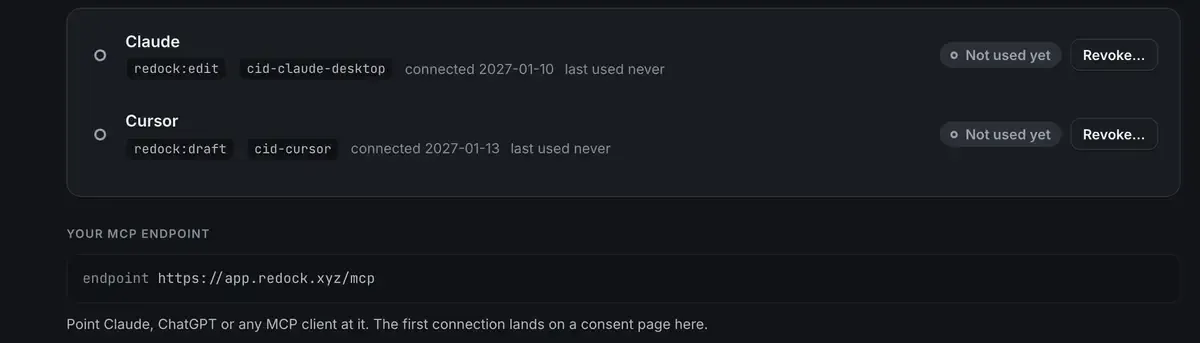
Approving Cursor at redock:draft is a sensible default: it can read everything and create drafts, and publishing is refused. AI access on ReDock Web has the levels and the seven policy switches behind them. One connected site is free, so you can try it against a real site: create a free account.
FAQ
Does Cursor run ReDock’s server itself?
No. ReDock runs as an app and serves MCP over HTTP. Cursor connects to an endpoint that is already listening rather than launching a subprocess.
Can Cursor’s agent deploy, or only edit locally?
It can deploy. Sharing over Cloudflare tunnels and one-click Cloudflare deploys are both in the tool surface, so the agent can take a local site to a public URL.
Will connecting Cursor conflict with Claude Desktop?
No. Several clients can be on 127.0.0.1:47200 at once and share the same sites and state.
Does this work on Windows?
Yes. Sites, the agent, sharing and the MCP server are the same on macOS and Windows.
Let your editor’s agent run the sites it is editing. Download ReDock for macOS or Windows.